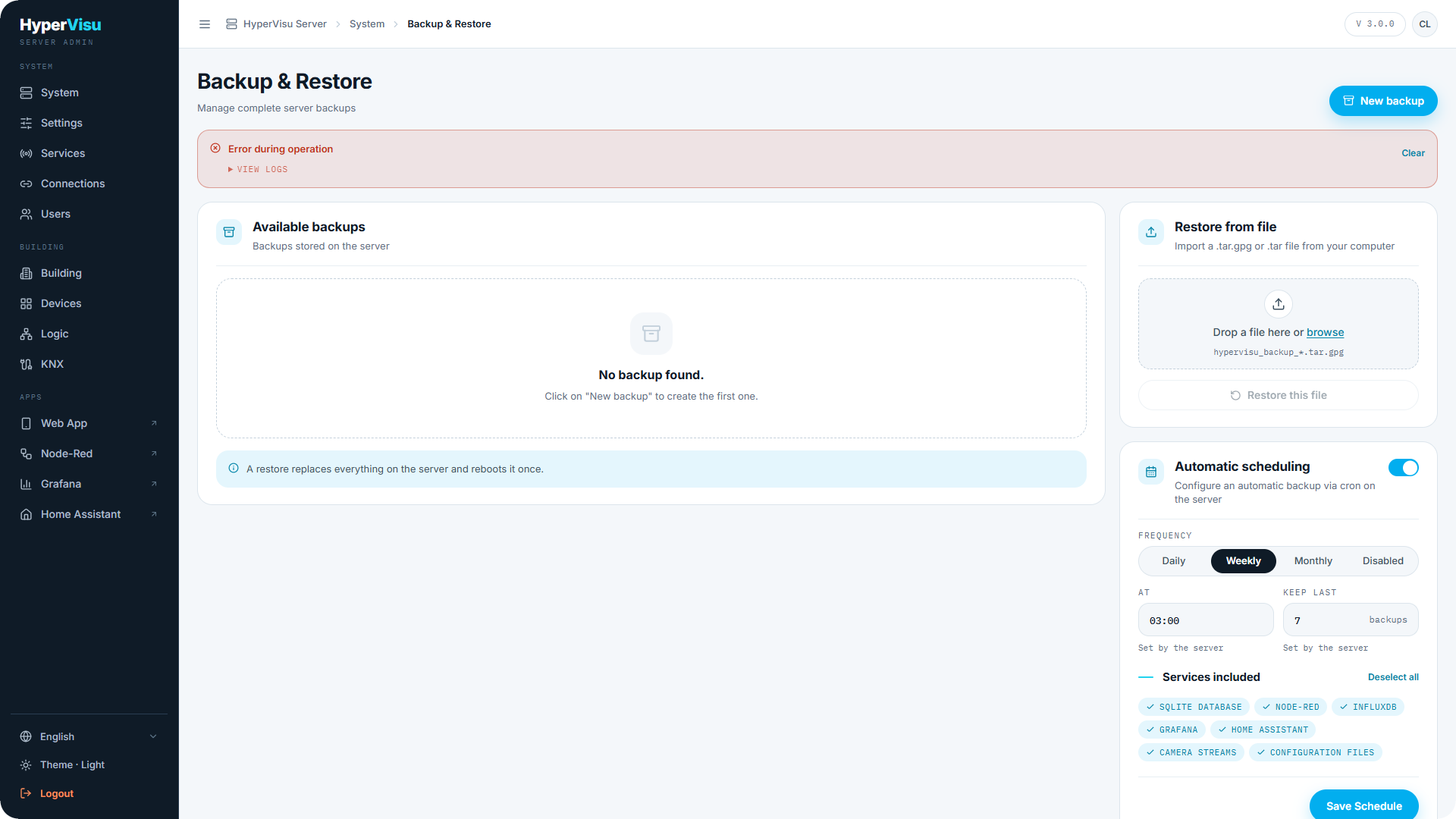
The Backup page manages complete server backups: what they contain, where they are kept, how they are scheduled, and how a server is restored from one. A backup is a single archive covering the services you select — take one before any risky change and keep a recent one off the server.
Creating a backup
- Open Backup in the sidebar and click New backup.
- In the dialog, select the services to include. All are selected by default:
- SQLite Database — the whole HyperVisu configuration (devices, rooms, users, scenarios, automations…)
- Node-RED — flows
- InfluxDB — the measurement history
- Grafana — dashboards
- Home Assistant — the local instance's configuration
- Camera streams — the camera streaming configuration
- Configuration files — server-level configuration
- Click Start backup.
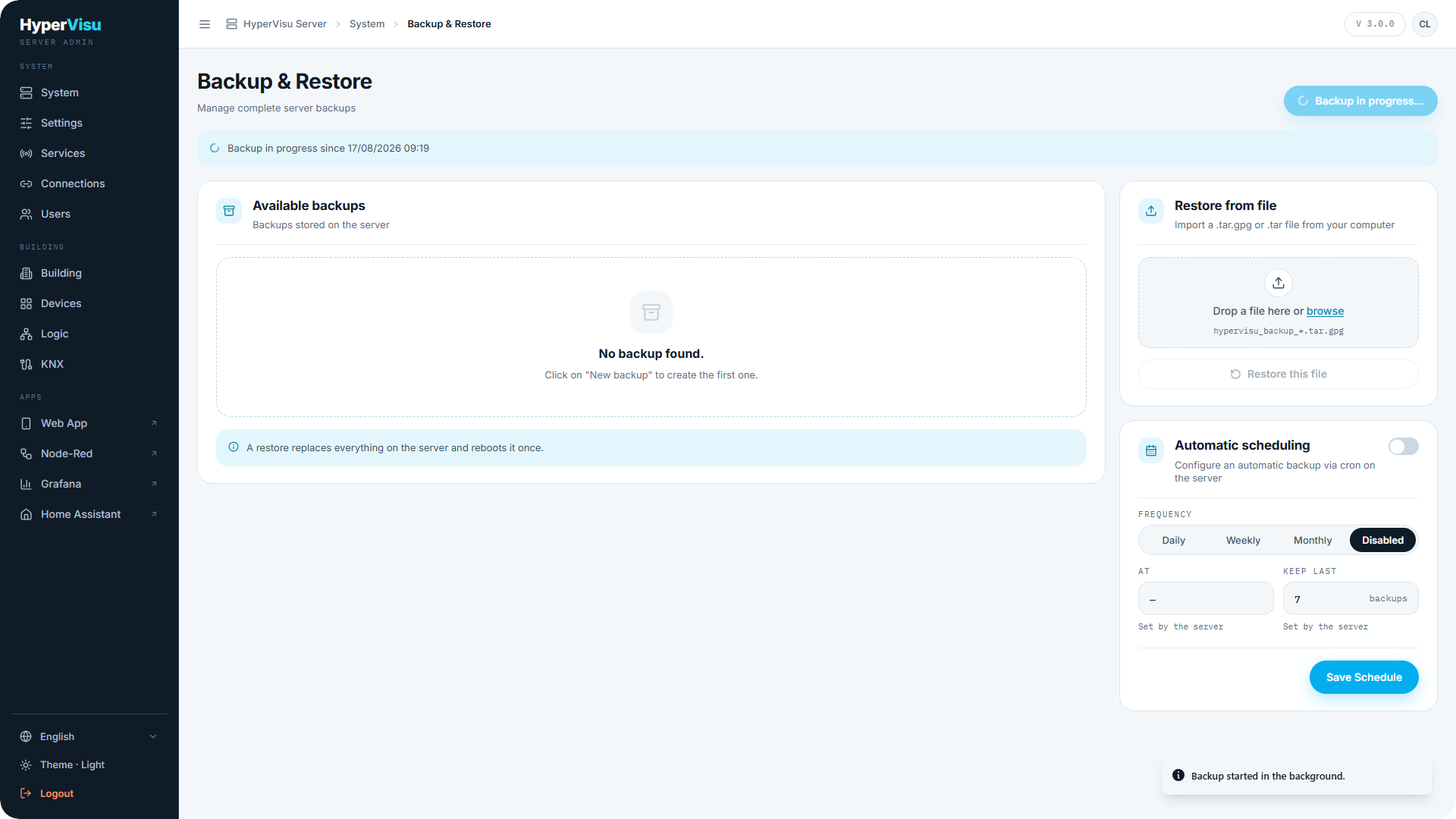
The backup runs in the background — a status banner shows Backup in progress… and you can open View logs to follow it. The banner reports Backup complete (or an error) when it finishes; Clear dismisses it.
The backup list
Available backups lists every backup stored on the server with its name, Size and server Version, plus badges:
- Latest · scheduled — the most recent automatic backup.
- Restore point — a backup taken automatically before a restore or major operation.
- Kept forever — excluded from automatic rotation.
A line under the list shows the slot usage (e.g. 3 of 5 slots used) and total size on disk. Per backup you can Download it to your computer, Restore it, or Delete it.
💡 Tip: Regularly Download a recent backup and keep it off the server. A backup that only exists on the appliance does not protect you against loss of the appliance itself.
Restoring
From the on-server list: click Restore on a backup. In the dialog, select which services to restore (all by default), then click Launch restore. Current data of the selected services is replaced by the backup data; the operation can take several minutes and the server restarts once at the end.
From a file: use Restore from file to upload a backup from your computer — drop or browse for a hypervisu_backup_*.tar or *.tar.gpg file, select the services, and start the restore.
⚠️ Warning: A restore replaces the current data of every selected service. The previous data is kept as a pre-restore snapshot (below), but treat a restore as a one-way operation and read the dialog carefully.
The pre-restore snapshot
Before a restore overwrites anything, the server saves the previous data as Pre-restore data. If the restore turns out wrong, this snapshot is your way back — contact your installer or restore it before deleting it. The Pre-restore data card shows its size and the services it covers, and offers Delete pre-restore data.
⚠️ Warning: Deleting the pre-restore data is permanent — after that you can no longer roll back the last restore.
Automatic backups
Under Automatic scheduling, choose a Frequency (Daily, Weekly or Monthly), the time of day (At), how many backups to keep (Keep last N backups), and which services to include. Old scheduled backups are rotated out automatically once the slots are full.
📘 Note: On some installations the schedule is managed centrally and shows Set by the server — the fields are read-only there.