Updating the server
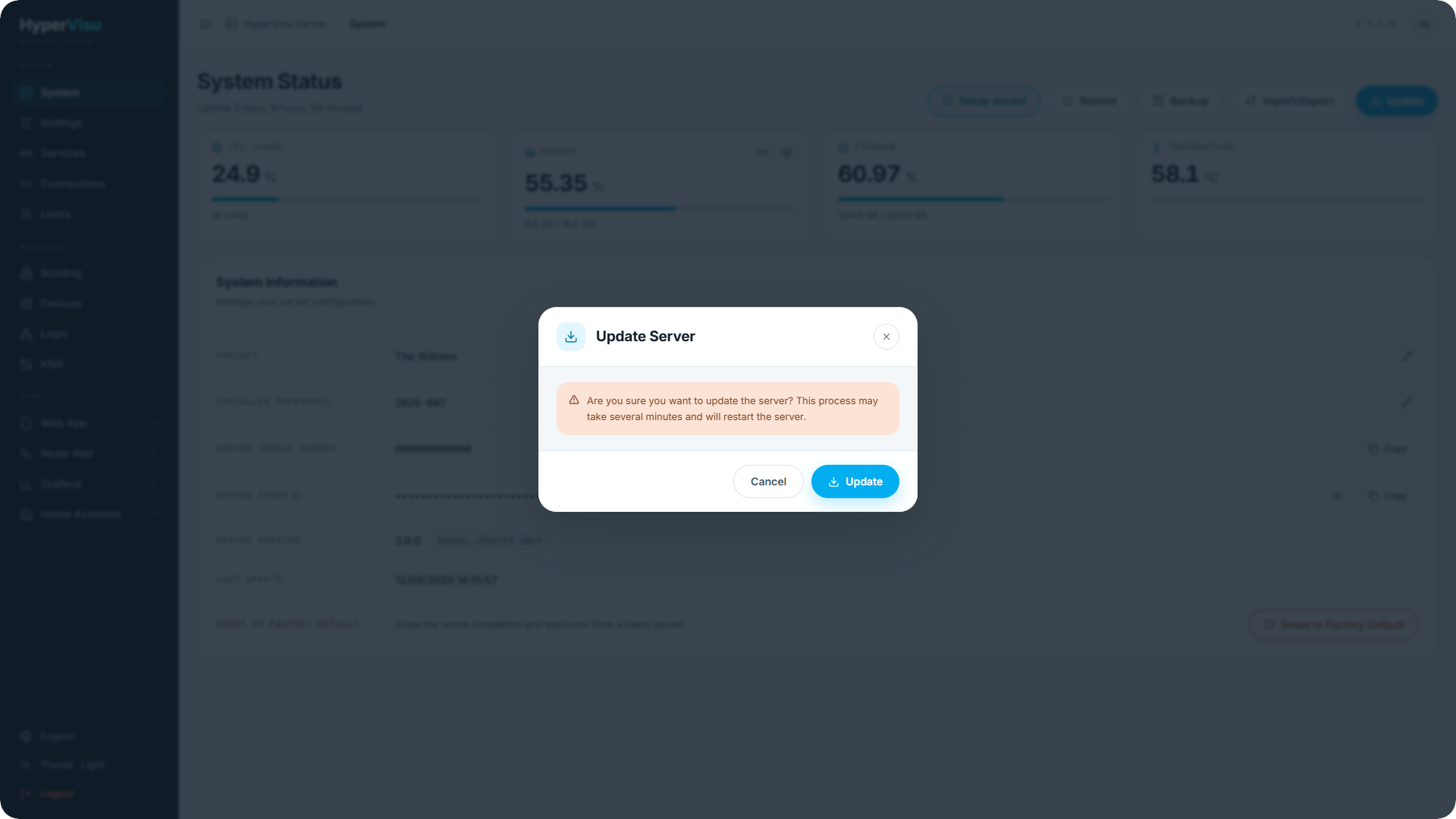
- Open System in the sidebar and click Update.
- Confirm the dialog — the update takes several minutes and restarts the server.
- A progress modal shows Server is updating… — please wait (approximately 5 minutes). Do not power off the server.
- When the server is back, the admin panel reconnects automatically. If the connection times out, refresh the page manually.
The System Information card shows the Server Version, the Last Update date, and the update policy: Auto-update enabled (the server updates itself) or Manual updates only (you trigger updates with the button above).
App updates
The HyperVisu app updates through the App Store / Play Store as usual. Each server version defines a minimum app version: when the server requires a newer app than the one installed, the app shows an update prompt at sign-in (see “Connecting & Signing In”, “App Settings & Personalization”). Keep server and apps reasonably in step — update the server first, then the apps when prompted.