
The Settings section in HyperVisu allows you to customize your application experience, configure notifications, change the interface language, and access important system configuration information.
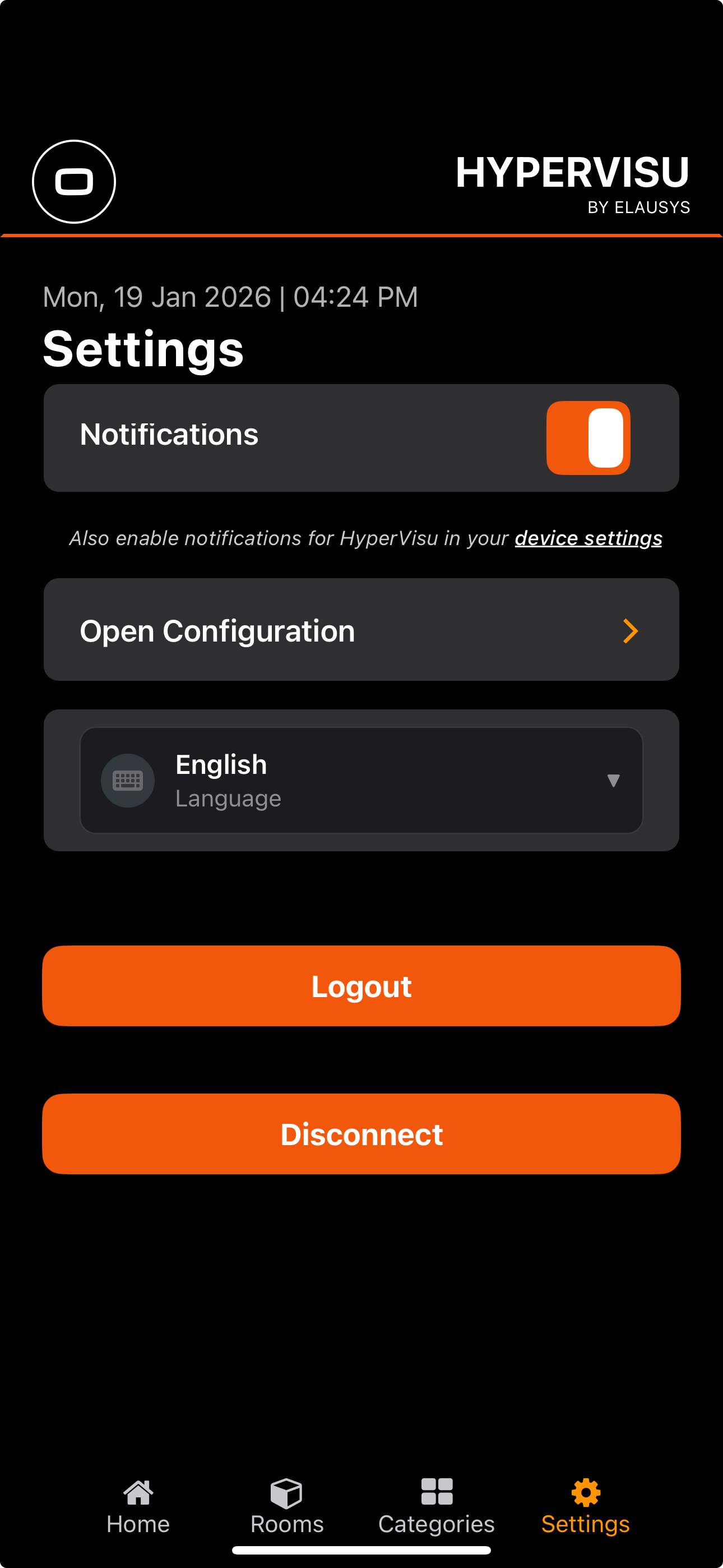
Notifications
HyperVisu's notification system keeps you informed about important events in your smart home system, such as temperature thresholds being exceeded or devices changing state.
Setting Up Notifications
Notifications can be configured individually for specific communication objects in your system:
- Accessing Notification Settings:
- Navigate to the Settings page by tapping the gear icon in the bottom navigation bar
- Locate and select the Notifications option
- Activating Notifications:
- Toggle the notification switch to enable notifications for your profile
- Once activated, your device will receive push notifications based on the configuration set for individual widgets
- Configuring Object-Specific Notifications:
- Notifications are set up at the object level within widgets
- For each widget that supports notifications:
- Edit the widget from the ElauPro widgets edition interface
- Access the object properties
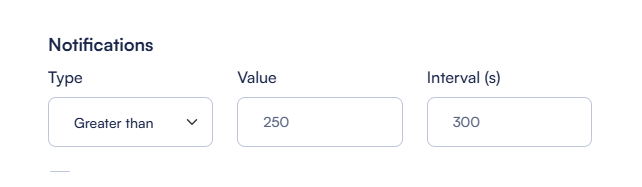
- Set the notification parameter to one of these options:
- NONE: No notifications (default)
- EQUAL VALUE: Notify when the value equals a specific threshold
- ABOVE VALUE: Notify when the value exceeds a threshold
- BELOW VALUE: Notify when the value falls below a threshold
- Set the notification threshold value that will trigger the notification
- Set the interval duration in seconds, this interval time is used to prevent multiple notifications to occur in a short period of time if the value is changing around the threshold. Setting an interval time of 5 minutes will only allow a new notification to occur after at least 5 minutes following the previous notification.
- Notification Behavior:
- When a condition is met, you'll receive a notification showing:
- Widget name
- Current value
- Notification condition (e.g., "value > 100")
- To prevent overwhelming you with alerts, notifications are not repeated for consecutive triggers
- A new notification will only be sent after the condition returns to normal and then triggers again and if the interval duration is elapsed
- When a condition is met, you'll receive a notification showing:
Multi-Device Configuration
If you want to receive notifications on multiple devices for the same installation:
- Using Different User Accounts:
- Each device should use a different user account to receive notifications properly
- For example:
- Configure "User1" on your smartphone
- Configure "User2" on your tablet
- Configure "User3" on another family member's device
- Setting Up Multiple Users:
- Create separate user accounts in ElauPro’s visualisation section
- Ensure each user has appropriate access permissions
- Log in with the different accounts on each device
Language Selection
HyperVisu supports multiple languages to accommodate users worldwide:
- Changing the Application Language:
- Navigate to the Settings page
- Select the Language option
- Choose your preferred language from the available options
- Available Languages:
- English
- French
- Dutch
- German
- Spanish
- Italian
- Greek
- Portuguese
- Romanian
- Arabic
- Effect of Language Change:
- The language change affects all static text elements in the application interface
- Widget and room names that you've defined will remain unchanged
- The language change takes effect immediately without requiring application restart
Configuration Information
The Configuration section provides important technical details about your HyperVisu server:
- Accessing Configuration Information:
- Navigate to the Settings page
- Select "Open Configuration" or similar option
- The configuration screen will display key system information
- Information Displayed:
- Server IP Address: The current IP address of your HyperVisu server
- Server S/N (Serial Number): Your server's unique identifier
- Server Version: The current firmware version of your server
- Minimum App Version: The minimum mobile application version required
- API Version: The current API version implemented on the server