
A device group is one device that drives many — "All ground-floor lights" as a single switch. Once created, a group appears and behaves like a normal device everywhere: in its room, in its category, on views, in scenarios and in automations.
🏷️ Availability: Device groups are configured in the app. Only administrators (access level 5) see the Device groups menu entry; the groups themselves are visible to everyone as normal devices.
Creating a group
What you need: an account with access level 5.
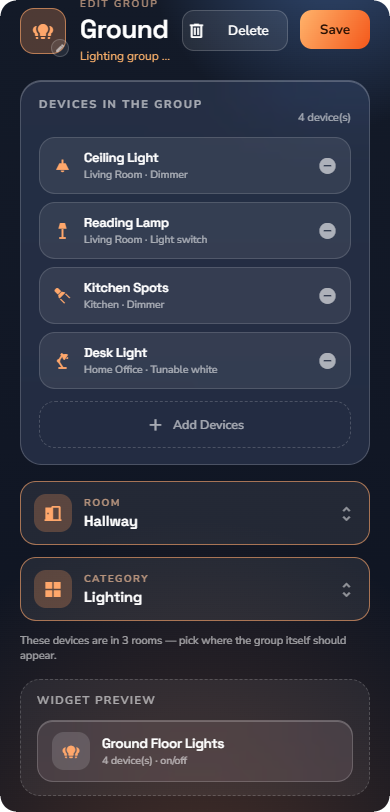
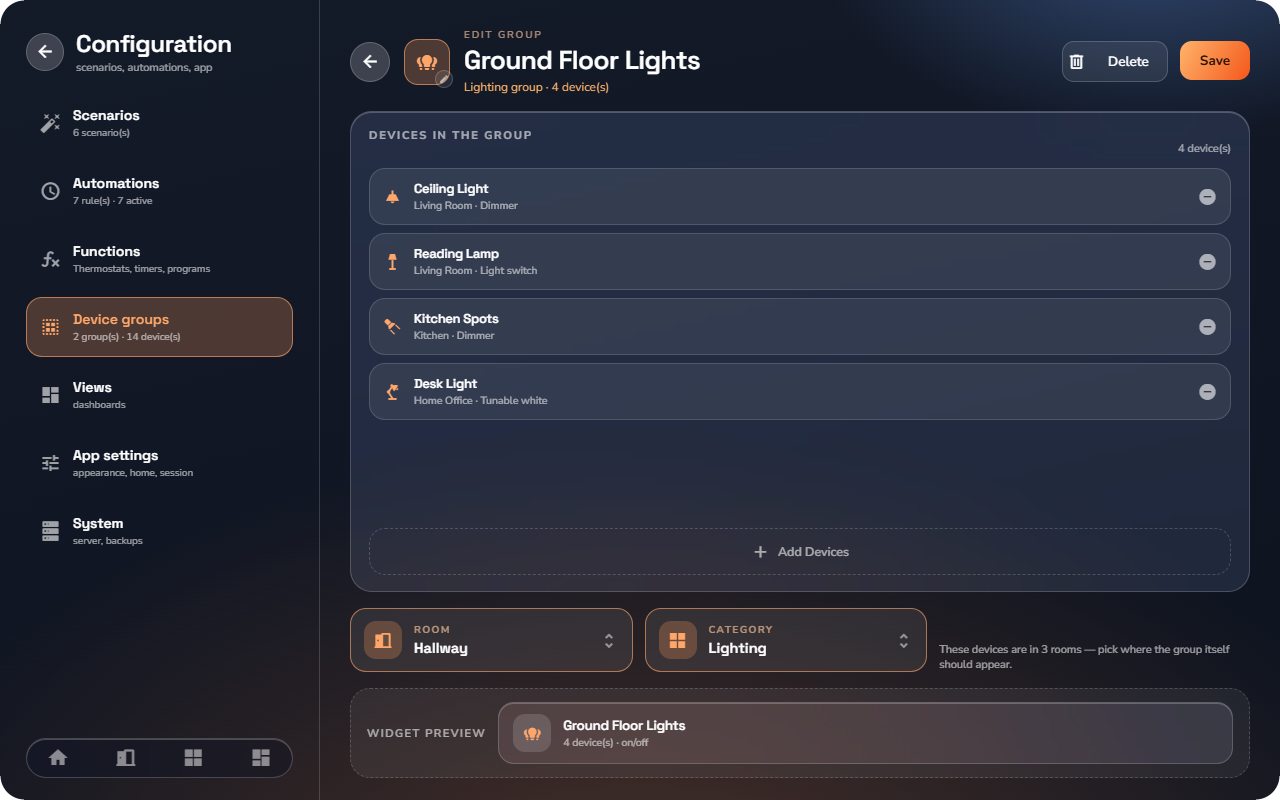
- Open Configuration → Device groups and tap Create a group.
- Enter a name and tap Choose an icon.
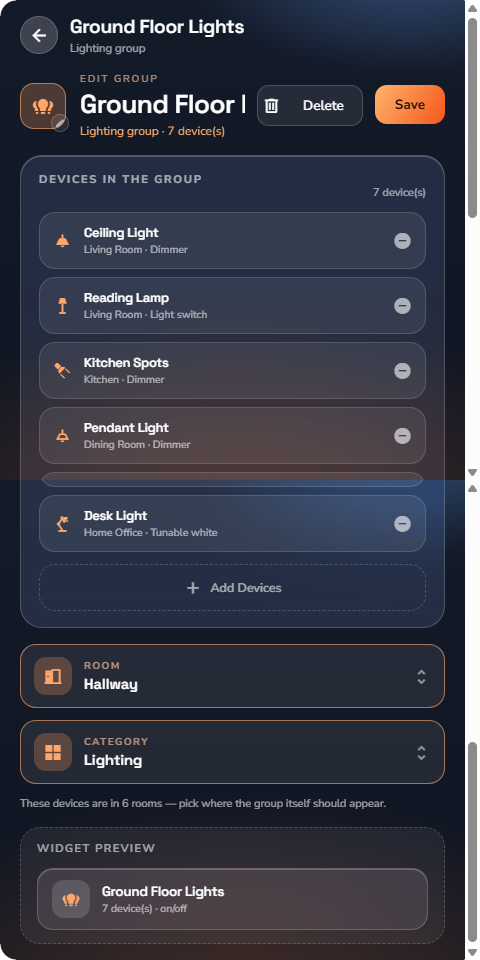
- Tap Add Devices. "The first device you add decides what this group can control." After the first device, the app offers only compatible devices — a note tells you when others are hidden ("6 compatible device(s) — 3 of other types are hidden").
- Choose where the group appears: its Room and Category. "A group lives in one room and one category, like any device." If the members span several rooms, the app asks you to pick where the group itself should appear.
- Tap Save.
📘 Note: "What type of devices this group controls is fixed once you save it. To change it, create a new group."
What controls a group offers
A group offers only what all its members share. A lighting group of dimmers offers on/off and brightness; add a plain switch to it and the group offers on/off only — the app tells you as you add devices.
How the group's state is shown
In plain language:
- An on/off group shows ON as soon as any member is on — so "All ground-floor lights: ON" means at least one light is on, and turning the group off really turns everything off.
- A level (brightness, position) is shown as the average of the members.
- A mode is shown only when all members agree — otherwise the group shows no mode.
Deleting a group
From the groups list, tap Delete on the group. Only the group is removed: "The devices themselves are not affected."