
A weekly schedule (Weekly program) lets a climate device follow a repeating weekly routine — for example "Comfort at 06:30 on weekdays, Night at 22:00 every day". Once the program is on, the device changes mode by itself and you only touch it for exceptions.
🏷️ Availability: Weekly schedules are available on thermostats and air conditioning devices.
How a schedule works — change points
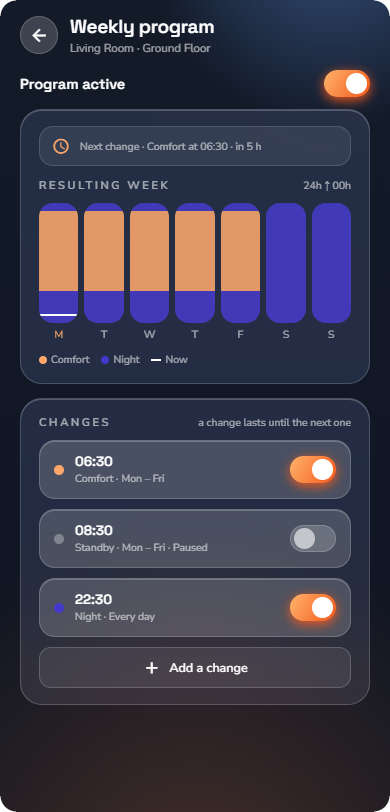
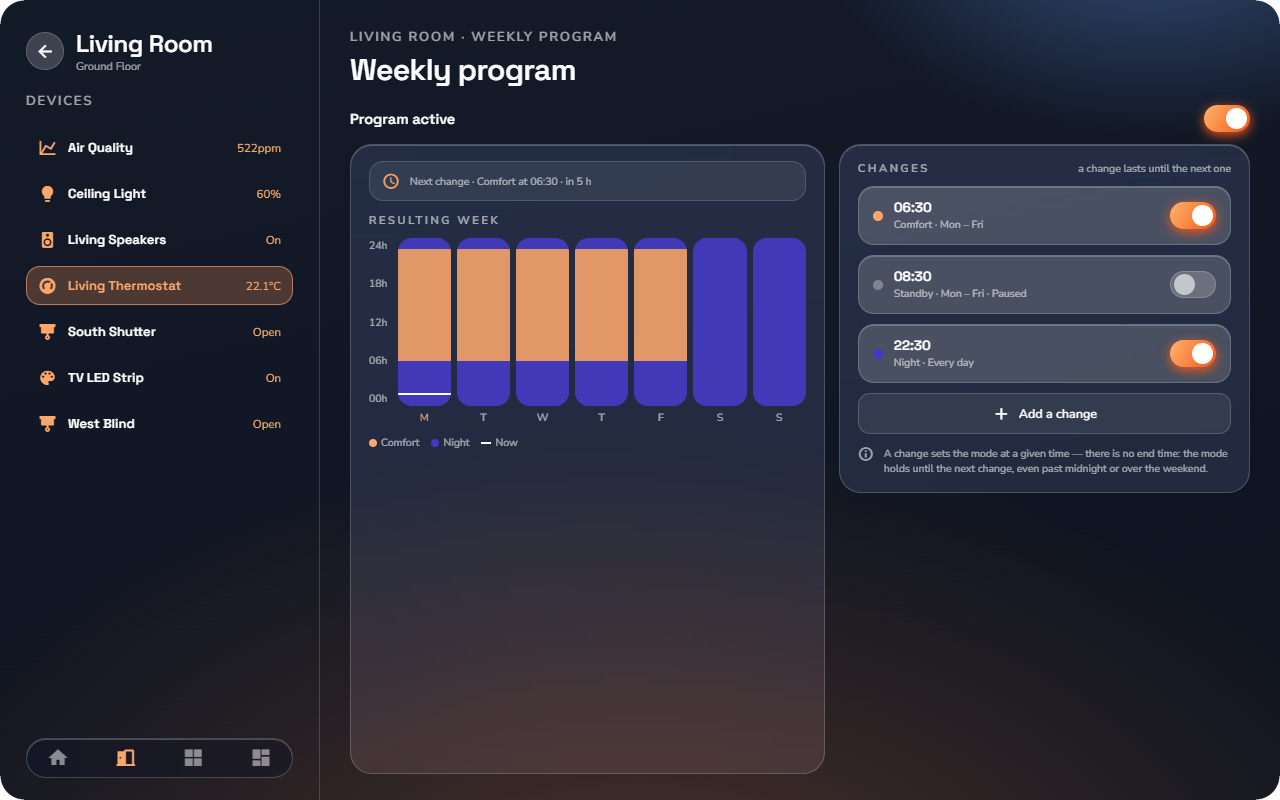
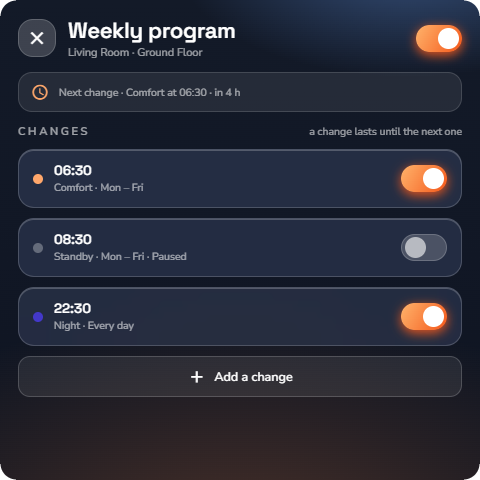
A schedule is a list of changes (change points), not time blocks. Each change says: at this time, on these days, switch to this mode. There is no end time — the mode holds until the next change, even past midnight or over the weekend.
Example: with only two changes, "Comfort at 06:30 Mon–Fri" and "Night at 22:00 Mon–Fri", the device stays in Night mode all weekend, because no change happens until Monday 06:30.
📘 Note: A schedule can hold up to 50 changes. When the limit is reached, the add button reads Limit of 50 changes reached.
Opening a device's schedule
- Open the device's detail page (tap the thermostat or air-conditioning widget).
- Tap the calendar icon (Weekly program).
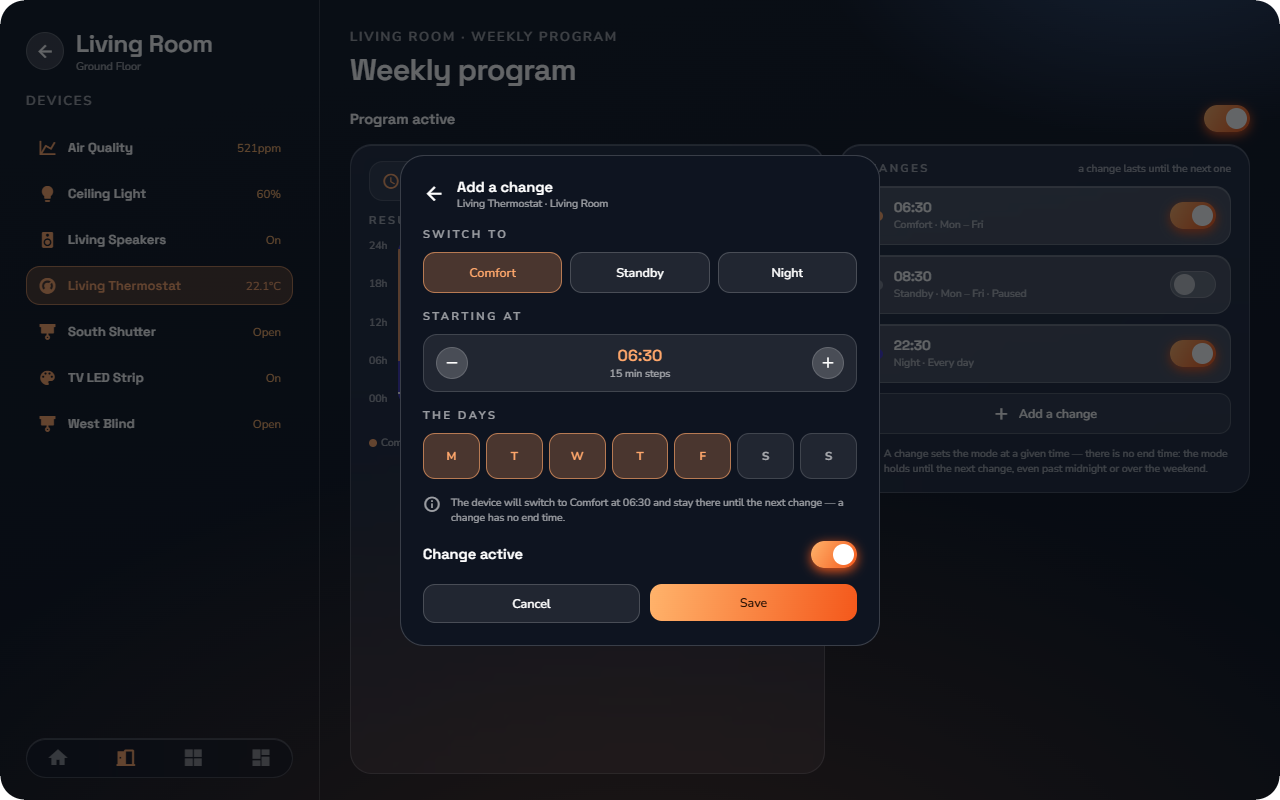
The schedule page shows the master Program active switch, the next upcoming change ("Next change · Comfort at 06:30 · in 2 h"), a strip of the resulting week, and the CHANGES list.
Adding or editing a change
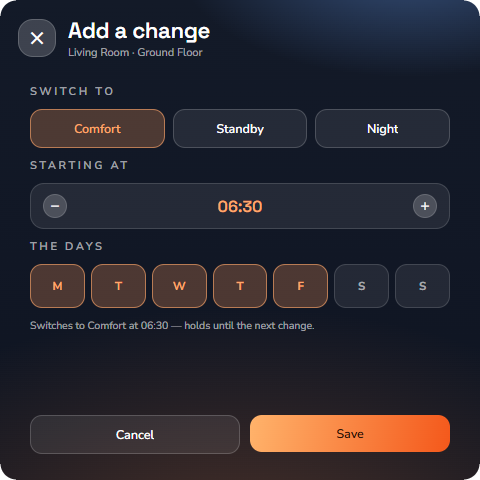
- Tap Add a change (or tap an existing change to edit it).
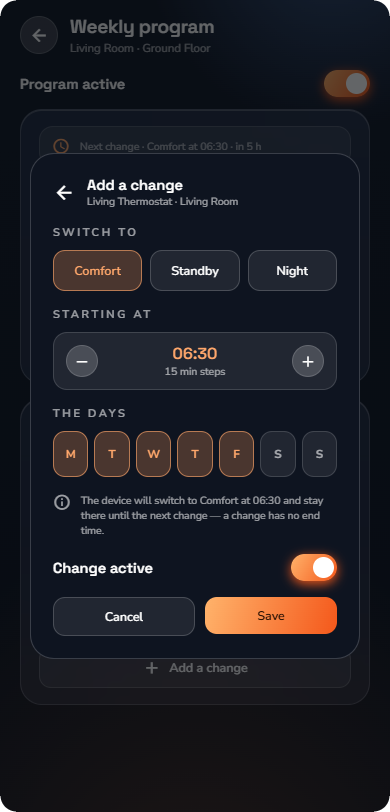
- Switch to — choose the target mode (for example Comfort, Standby, Night) or Custom values.
- Starting at — set the time. The time moves in 15-minute steps.
- The days — tap the weekdays the change applies to.
- Tap Save.
The sentence under the fields confirms what you built: "Switches to Comfort at 06:30 — holds until the next change."
Pausing a change, or the whole program
- One change: open it and turn off Change active. The change is kept but skipped — the list marks it Paused.
- The whole program: turn off Program active at the top. The page confirms "Program switched off — your changes are kept", and the device stays under manual control until you switch the program back on.
Schedules, Boost, and restarts
- Boost always wins. Starting a Boost (see “Thermostats, Air Conditioning & Ventilation”) overrides the schedule for the boost duration. When the boost ends, the device returns to the currently scheduled state — not to a fixed default.
- After a server restart, the schedule catches up: the device is set to whatever the program says it should be right now.
- Edits sync instantly. A change saved on one phone appears on every connected phone and tablet immediately.