
Account Registration
Creating a New Account
To begin using ElauPro, you need to create an account by following these steps:
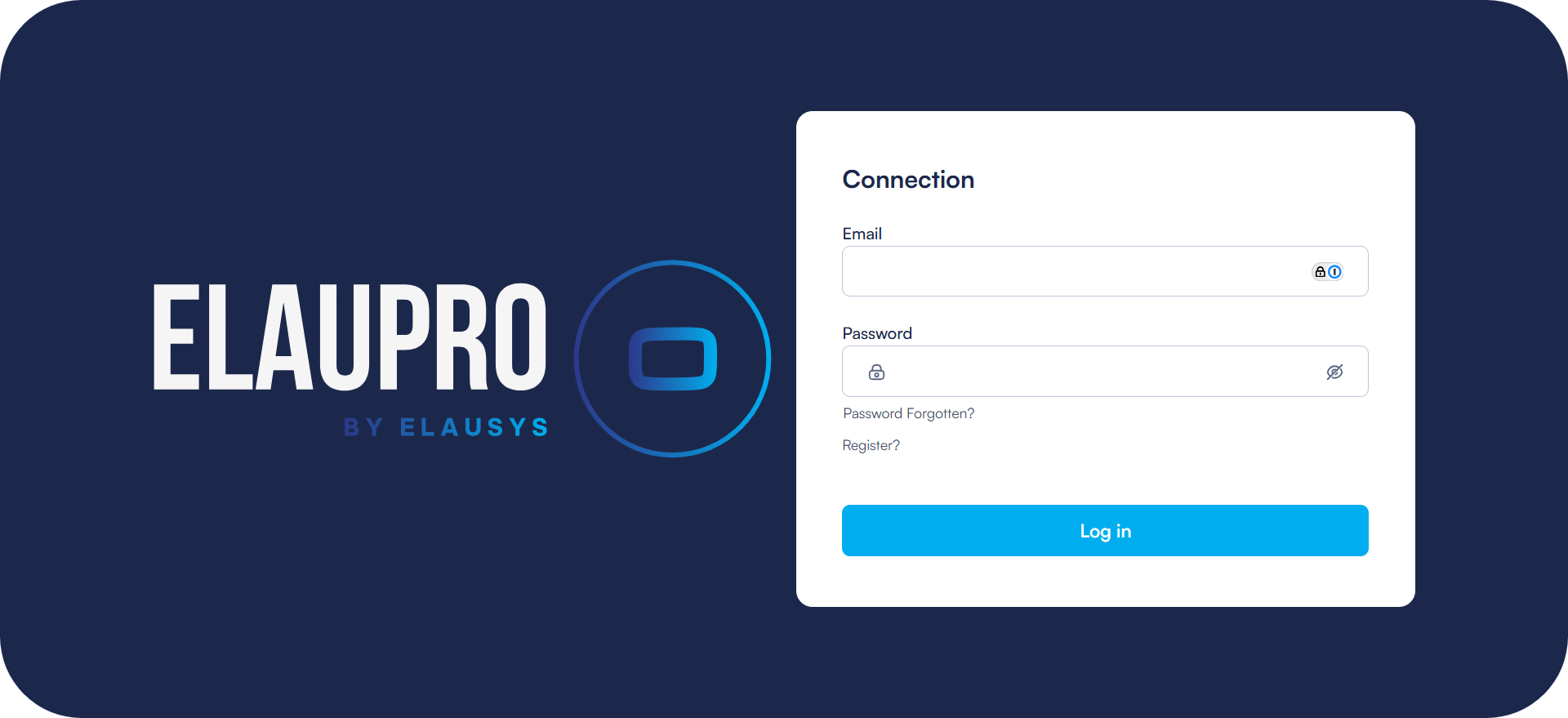
- Navigate to the ElauPro login page.
- Click the "Register?" link at the bottom of the login screen.
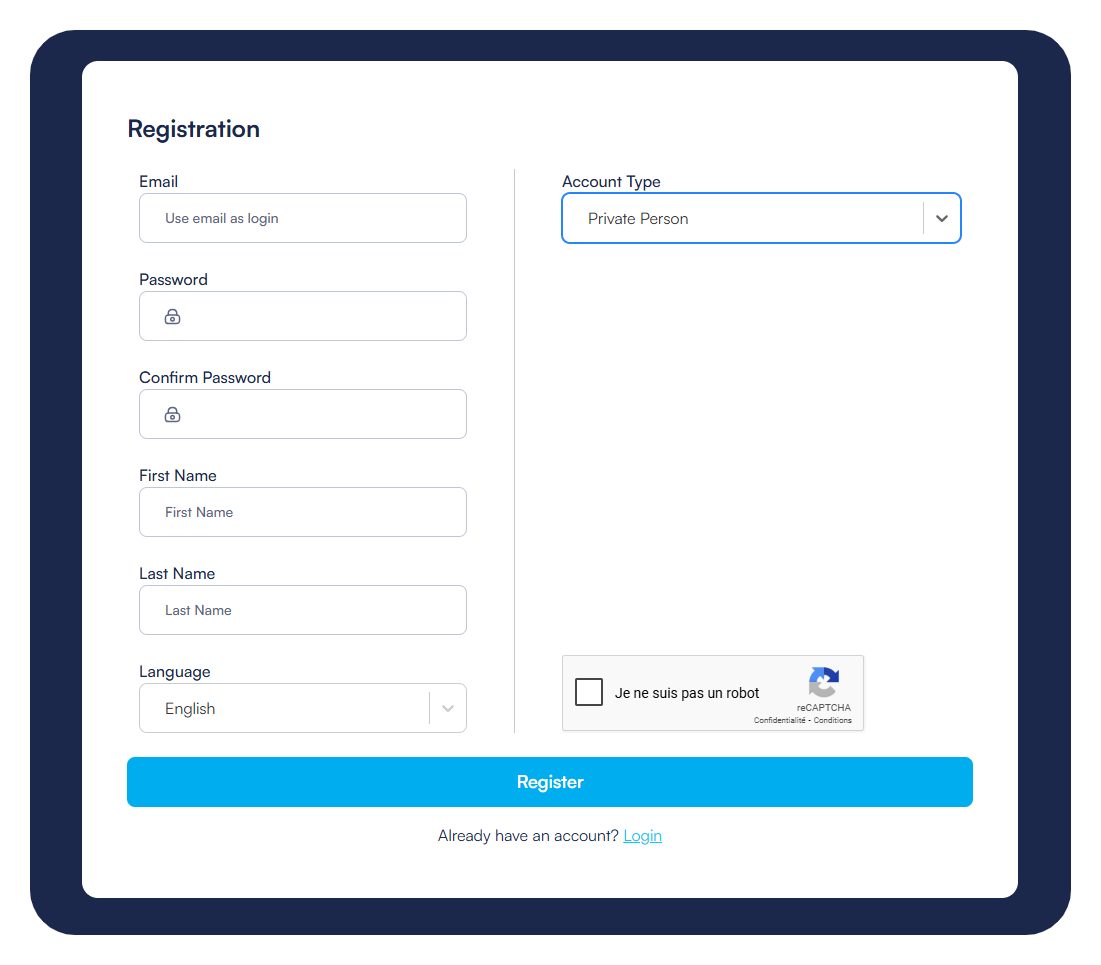
- On the registration page, complete the form with your information:
- Email: Enter your email address that will serve as your login ID
- Password: Create a secure password
- Confirm Password: Repeat your password for confirmation
- First Name: Enter your first name
- Last Name: Enter your last name
- Language: Select your preferred language from the available options (English, French, Dutch, German, Spanish, Italian, Portuguese, or Greek)
- Account Type: Choose between "Private Person" (personal account) or "Company" (business account)
- If you select "Company," additional fields will appear:
- Company name
- VAT number
- Check the reCAPTCHA verification box to confirm you are not a robot.
- Click the "Register" button to finalize your registration.
Note: The information you provide during registration will appear in reports generated for your projects. Make sure this information is correct.
Email Verification
After submitting your registration form, an email verification process will begin:
- A confirmation email will be automatically sent to the address you provided.
- Open this email and click the confirmation link it contains.
- This link will redirect you to the ElauPro platform and activate your account.
- Once your account is activated, you can log in with your email and password.
Important: If you do not receive the confirmation email within minutes of registering, check your junk or spam folder. If the email is not there, you can contact support via the chat button located at the bottom right of the login page.
Password Recovery
If you forget your password, you can easily recover it:
- On the login page, fill your email address and click the "Password Forgotten?" link located below the password field.
- An email containing a reset link will be sent to your email address.
- Open this email and click the link it contains.
- You will be redirected to a page where you can create a new password.
- Enter your new password and confirm it.
- Once your password has been reset, you can log in with your new credentials.
Security Tip: Choose a strong and unique password for your ElauPro account. A good password should contain a mix of uppercase and lowercase letters, numbers, and special characters, and be at least 8 characters long.
Once you have created your account and logged in, you can begin setting up your user profile and creating your first projects.
User Profile
After registering and logging into ElauPro, you can access and manage your user profile. This section contains your personal information, company details, language preferences, and account type settings.
Personal Information
Your personal information is essential for identification and communication within the ElauPro platform.
To access and edit your personal information:
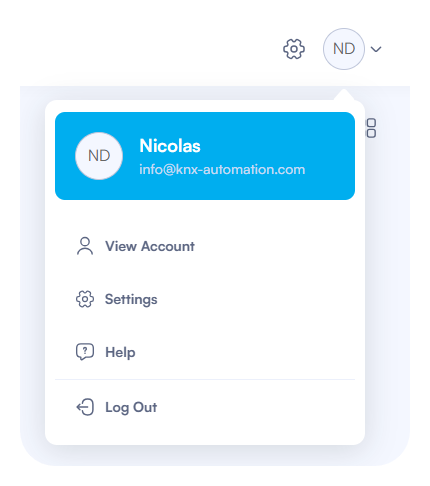
- Click on the circle with your initials in the top-right corner of the screen
- Select "View Account" from the dropdown menu
- The "My Profile" section will be displayed on the left side of the screen
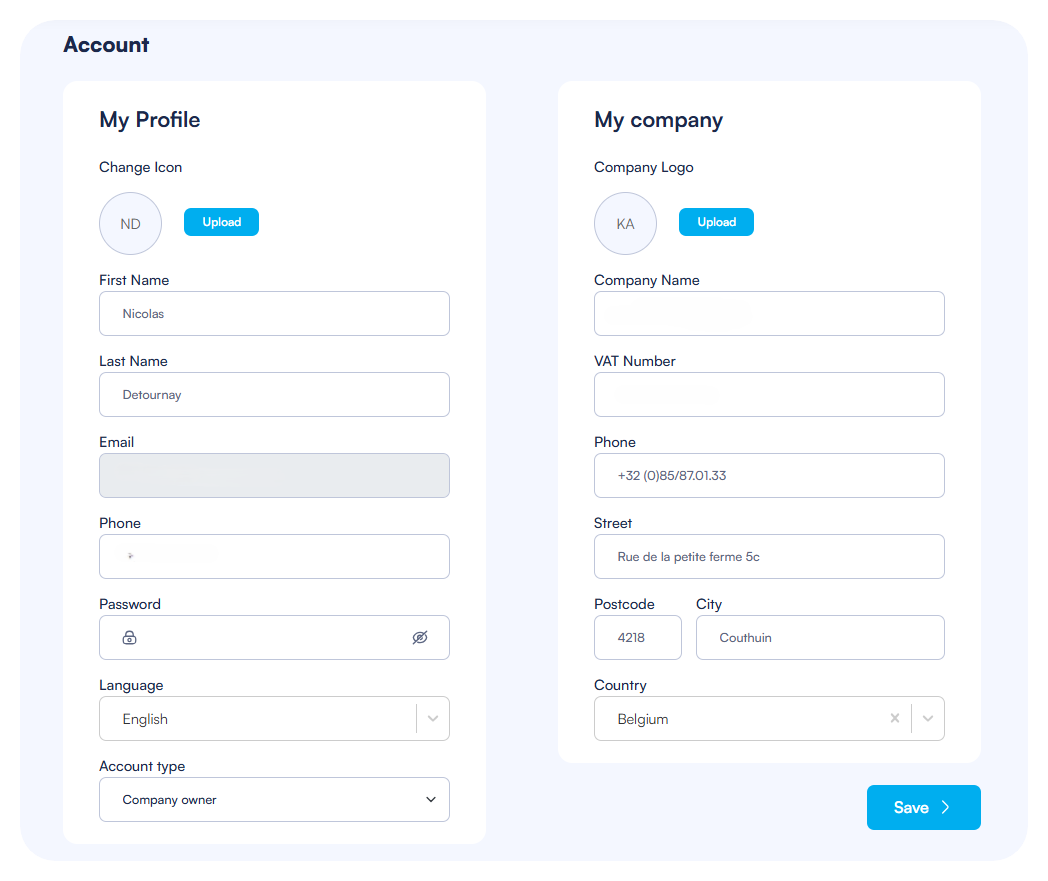
In the Personal Information section, you can manage the following:
- Profile Picture: Click "Change Icon" to upload a personal profile picture
- Click "Upload" to select an image from your device
- Your initials will be displayed if no image is uploaded
- First Name: Enter or update your first name
- Last Name: Enter or update your last name
- Email: Provide your email address (this is used for login and communications)
- Phone: Enter your contact phone number
- Password: Update your account password
- Use the eye icon to show/hide the password
- Language: Select your preferred interface language from the dropdown menu
- ElauPro supports English, French, Dutch, German, Spanish, Italian, Portuguese, and Greek
Click the “Save” button to save your changes.
Company Information
If you have a company account, you can manage your company details in the "My Company" section.
In the Company Information section, you can manage:
- Company Logo: Upload your company logo
- Click "Upload" to select an image file
- The logo will appear on reports generated for your projects
- Company Name: Enter or update your company name
- VAT Number: Enter your company's VAT identification number
- Phone: Provide your company's contact phone number
- Address Information:
- Street: Enter the street address
- Postcode: Enter the postal/zip code
- City: Enter the city name
- Country: Select your country from the dropdown menu
Company information is particularly important as it will appear on reports and documentation generated through ElauPro.
Language Selection
ElauPro supports multiple languages to accommodate users from various regions:
- To change your interface language:
- Go to your profile by clicking your initials in the top-right corner
- Select "View Account" from the dropdown menu
- Find the "Language" dropdown in the Personal Information section
- Select your preferred language
Available languages include:
- English
- French
- Dutch
- German
- Spanish
- Italian
- Portuguese
- Greek
- Romanian
- Arabic
The interface will update immediately after selecting a new language.
Account Types (Private User, Company Owner, Company Member)
ElauPro offers different account types to support various user roles:
Private User
- Intended for personal use
- Has access to all ElauPro features for their own projects
- Cannot add company members or share projects with company colleagues
- Can still share projects with external contacts
Company Owner
- Creates and manages the company account
- Can add company members to the account
- Has full administrative rights over company projects
- Can assign company members to projects
- Can set roles and permissions for company members
- Has complete access to all company projects
Company Member
- Belongs to a company account created by a Company Owner
- Access to projects is determined by the Company Owner
- May have different roles and permissions assigned
- Can be assigned to specific projects
- Can collaborate with other company members
- Access to projects is based on assigned permissions
To change your account type:
- Go to your profile settings
- If you're a Private User and want to upgrade to a Company Owner:
- Enter your company details including name and VAT number
- The system will update your account type to Company Owner
- To become a Company Member:
- You must be invited by a Company Owner
- Accept the invitation through the email you receive
- Your account will be linked to the company
Note: Changing from Company Owner to Private User will remove all company associations and may affect project access for company members. This action should be performed with caution.