Cameras & videophone objects
- Camera devices carry a Camera Stream URL object — the stream address the app plays (RTSP or HTTP). Streams are served through the camera streaming service; enable it in Services (see “Services & Protocols”).
- Videophone devices carry the door station's brand, address and credentials, and each one is configured from its own device — see below. The resident-side call experience is described in “Notifications & Videophone”.
Videophone devices
What you need: the SIP Server service running (see “Services & Protocols”). Without it a videophone shows its picture but takes no calls, and the apps say so on the call screen.
An installation can hold several videophones — a front door and a gate, for example. Each one gets its own extension on the SIP server, its own video stream and its own bell notification, and each is configured from its own device.
The door station editor. Open any of the videophone's objects with Edit: one form covers the whole door station, and each field is saved to its own object.
- Brand — DoorBird, 2N, Dahua VTO, Akuvox, Grandstream GDS, or Custom SIP door station. For a known brand, HyperVisu builds the video stream and the door-open call from the device address. Changing the brand resets any address you edited.
- Device Host — the door station's IP address, or
host:port. - Username / Password — the account HyperVisu uses on the door station. They are added to the stream and door-open calls automatically.
- Stream URL — for a known brand, the address HyperVisu will use, marked Brand default. Click Edit to replace it (for another stream profile, say), and Reset to brand default to go back. For a custom station, type the full address (
rtsp://…orhttp://…). - Door control — shows the Open Door button in the apps. Turn it off for a building that uses the videophone only to talk: the button disappears and the server also refuses door-open requests.
- Door open — for a known brand, the call HyperVisu makes to release the lock, marked Brand default; Edit replaces it with a single address of your own. For a custom station this is the Door Open URL: the full
http://orhttps://address that triggers the relay. - Door PIN — Grandstream only: the station's Remote PIN to Open Door. The Grandstream door API authenticates with this PIN and the station's
adminpassword (see the Grandstream entry below).
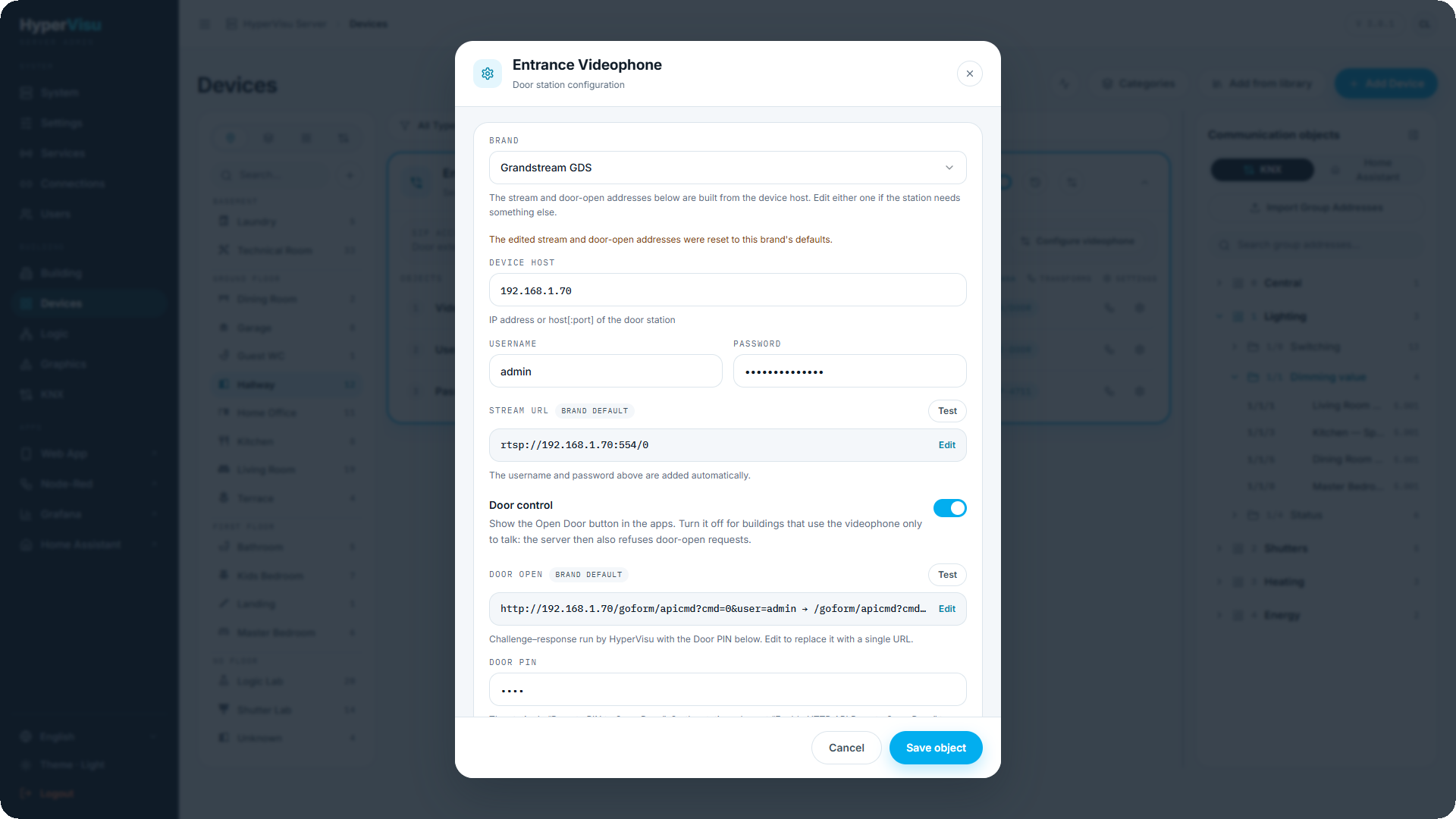
Test before you save. The Test buttons check the values in the form, before anything is saved.
- Stream Test connects to the door station and reports Video OK with the video (and audio) format. Otherwise it names the problem: Device unreachable, Wrong port: no video stream answers there, Username or password refused or Wrong stream address. H.265 video gets a note: it plays only on devices with an H.265 decoder and starts a few seconds behind live, so set the station to H.264 where you can.
- Door Test physically opens the door: click Test, then Open the door? to confirm. Several door stations answer "success" to a request they actually refused. HyperVisu reads each brand's own answer, so the result says The device refused the request with the station's reason (a missing permission, a disabled setting, a wrong PIN) rather than reporting a door that stayed shut as open.
After a door Test that reports success, check that the door actually opened: the result only says the station accepted the request.
The SIP account panel. Above its objects, each videophone shows a SIP account card with the door extension it was given, and the Configure videophone button.
The Videophone Configuration dialog holds everything the door station needs:
- Door station SIP account — what you type into the door station: SIP server, Port / transport, User name (extension), Password, Dial when the bell is pressed (the ring group, which rings every running app) and Allow calls from, the single identity that covers every HyperVisu user, so adding or removing users never changes the station's list.
- Ring Webhook — the address the station calls when the bell is pressed. It wakes wall-panel screens and sends the push notification to phones that are not running the app.
- Provision SIP — rewrites the server's SIP configuration from the current devices and users.
- Test door open — triggers the door relay once, so you can check the wiring without walking to the door.
A bell press reaches the residents twice over: the station's call rings every running app, and the ring webhook notifies the phones that are not. Each half works on its own, so set up both.
Door station setup (DoorBird). For a DoorBird, HyperVisu can commission the station over its own API instead of you typing anything into the DoorBird app: it writes the station's SIP account, its allowed callers and the bell binding. Fill in the device address, user name and password first, then click Configure door station. The dialog then reports the station's SIP registration, Incoming calls, Allowed callers and Ring binding — each half of the binding reads Bound or Does not match. The DoorBird account used here needs the API operator permission, set in the DoorBird app under Administration → User → the user → permissions; without it the station refuses the setup.
Door station settings by brand
Every station needs the same things from the Videophone Configuration dialog: its SIP account; Dial when the bell is pressed (6000); Allow calls from, the one caller identity HyperVisu presents; and, where the brand supports it, the Ring Webhook. Where each brand keeps these settings, and what trips installers:
- DoorBird — use Configure door station (above), or type it in the DoorBird app. Allowed callers are written without
sip:(6000@<server address>): with the prefix, every call is declined. The HyperVisu user needs API operator (for the setup) and Watch always: without it, video and door open work only for a minute after a ring, and HyperVisu reports the refusal. Use port 554 for video, never 8557. - 2N — Services → HTTP API: enable the Switch API with connection type Unsecure (TCP) (the factory setting accepts only secure connections, and HyperVisu reports "invalid connection type") and give the API account Switches – Control. Set Switch 1 to Monostable, or the lock stays open. RTSP video needs the Gold licence and an ONVIF user with the same name and password. 2N has no caller list: turn on the IP Address Filter on the SIP account. The ring webhook needs Automation (Gold) or a spare switch's Switch-On Command.
- Dahua VTO — Network → SIP Server: server type Third-party, not enabled as its own server. Local Setting → Basic: Villa Call No.
6000. Main stream H.264 (the sub stream is often H.265). A VTO cannot call a webhook: the apps ring from its SIP call, and push notifications to closed apps are not available. Type the password carefully: wrong attempts lock the HyperVisu server out for several minutes, video included. - Akuvox — Access Control → Relay → Open Relay Via HTTP: enable it with the same username and password, and Session Check off; otherwise the station refuses every open and HyperVisu says so. With Prevent SIP Hacking on, add
6000to the contacts. The ring webhook is the Action URL of the Make Call event. The station hangs up by itself 5 s after the door is opened during a call. - Grandstream GDS — Door System Settings → Basic Settings: set Enable HTTP API Remote Open Door to Challenge + Response, and a Remote PIN to Open Door. In HyperVisu, enter the
adminaccount and its password, and the same PIN in Door PIN. White list: add6000. Event Notification pushes every event (a card opening the door included) to the webhook, so it also rings on those; leave it off unless closed apps must be notified. The station ends any call after 300 s. - Custom SIP door station — register it with the SIP account, have the bell dial
6000, and allow calls from the Allow calls from identity. Offer G.711 audio and RFC 2833 DTMF. In HyperVisu, type the Stream URL and the Door Open URL yourself.
On every brand, give the station a fixed address on the same network as the HyperVisu server, and use H.264 for its video stream.