
The Devices Library
The Devices Library is a catalog of ready-made device templates for equipment that has already been mapped for you: energy meters, solar inverters, home batteries, EV chargers, smart relays, media players and Sonos speakers. You pick the model, fill in a couple of fields — usually little more than the device's address — and the library creates the widgets with all their communication objects already bound: registers, topics, paths, data types, scaling and units included. Work that otherwise means an afternoon with a register manual takes a minute.
Open it from Devices → Add from library.
What you need: the device on the network at a fixed address (a DHCP reservation), whatever option it needs switched on in its own configuration — Modbus TCP is off by default on most inverters — and the protocol enabled in Services (see “Services & Protocols”).
Browsing the catalog
Every template is a card carrying the brand, the model, the protocol badge and a one-line description. Narrow the list with:
- the search field — brand, model, device name or description; the counter on its right shows matching / total;
- the category chips — one per category the catalog actually contains (today Lighting, Shading, Energy and Audio / Video);
- the Brand and Protocol dropdowns.
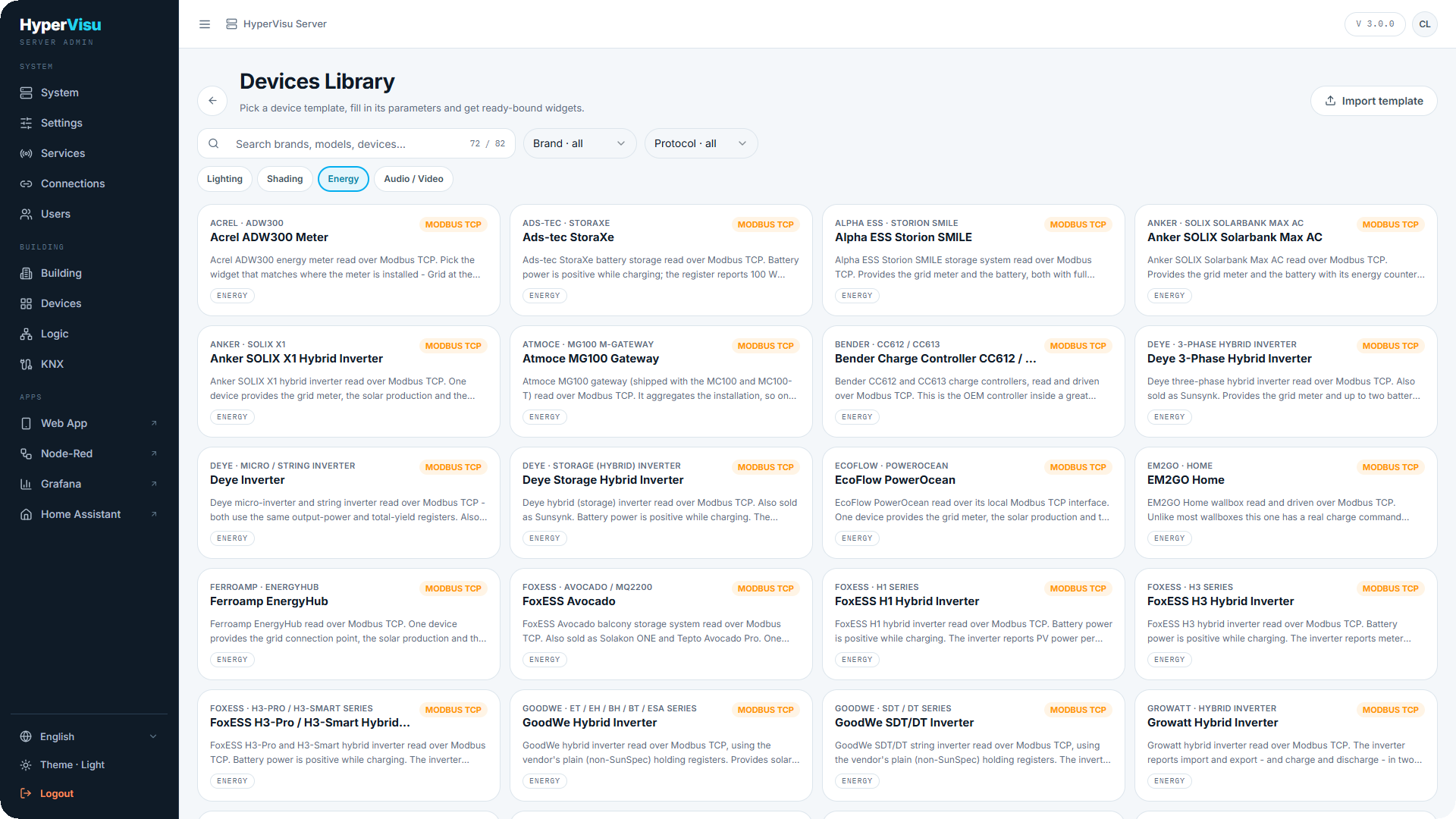
What the library covers. The catalog ships with the server and grows with every update. It currently holds 82 templates from 48 brands:
| Device family | Brands covered |
|---|---|
| Solar inverters & hybrid inverters | SMA · Huawei (SUN2000) · SolarEdge · Sungrow · GoodWe · Growatt · FoxESS · Solax · Deye · SAJ · SofarSolar · Solplanet · Solinteg · SolarMax · M-TEC · Senergy · IBC Solar · Anker (SOLIX X1) · EcoFlow (PowerOcean) |
| Home batteries & storage | Marstek (Venus) · Alpha ESS · SAX Power · Siemens (Junelight) · INTILION · Ads-tec · Anker (Solarbank) · SolarMax (MAX STORAGE) |
| Energy managers & dataloggers | Huawei (EMMA, SmartLogger) · SMA (Data Manager, WebBox) · Sungrow (iHomeManager) · Ferroamp · OpenEMS / FENECON · Atmoce · Plexlog · Powerdog |
| Energy meters | HomeWizard (P1) · Siemens (SENTRON 7KT PAC) · Kostal (Smart Energy Meter) · Acrel · my-PV · Shelly (Plus Plug S) |
| EV chargers | KEBA · Mennekes · Schneider (EVlink Pro) · Phoenix Contact (CHARX, EM-CP-PP-ETH, EV-SER) · Heidelberg · Bender · Peblar · EM2GO · OBO Bettermann · openWB · Stark in Strom |
| Lighting & shading relays | Shelly (1 / 1PM, Plus 1 / 1PM, RGBW2, Plus RGBW PM, 2.5 roller) |
| Audio / video | Sonos (any zone) · AUDAC (XMP44) |
Most energy devices talk Modbus TCP. Shelly units are offered over both HTTP and MQTT — two cards; pick the one matching how the device is set up. HomeWizard uses HTTP, AUDAC TCP/UDP, and Sonos its own protocol (see “Sonos Integration”).
📘 Note: A template covers a product family, not one part number: the Sonos template fits every zone, and the Shelly Plus 1 template fits the 1 and the 1PM. Where a manufacturer changed its register map between generations, the generations are separate cards (Shelly Gen1 and Shelly Plus).
Creating a device from a template
- Click the template card. The configure page opens with the template's description and, where it has any, a Setup requirements panel. Read it first — it lists what must be true on the device: an installer account, a Modbus option to switch on, an inverter that answers slowly and needs a longer poll interval.
- Enter the Device name. It prefixes every widget the template creates, so "Garage" gives "Garage — Grid", "Garage — Solar", and so on.
- Fill in the template's parameters — what the widgets themselves need: a Modbus unit ID, a model variant from a dropdown, the Sonos zone. Address fields are not here: they belong to the connection and are asked for in step 4.
- Pick the Connection. For a device that carries its own address (an inverter, a wallbox, a speaker), choose Create a new connection…: a dialog asks for the address, creates the connection and selects it — you do not have to visit the Connections page first. If a connection already points at that address, the library says so and reuses it rather than creating a duplicate. Templates for shared infrastructure — an MQTT broker — default to the existing connection.
- Pick the Room and the Category the widgets go into.
- The Widgets to create panel previews the result live.
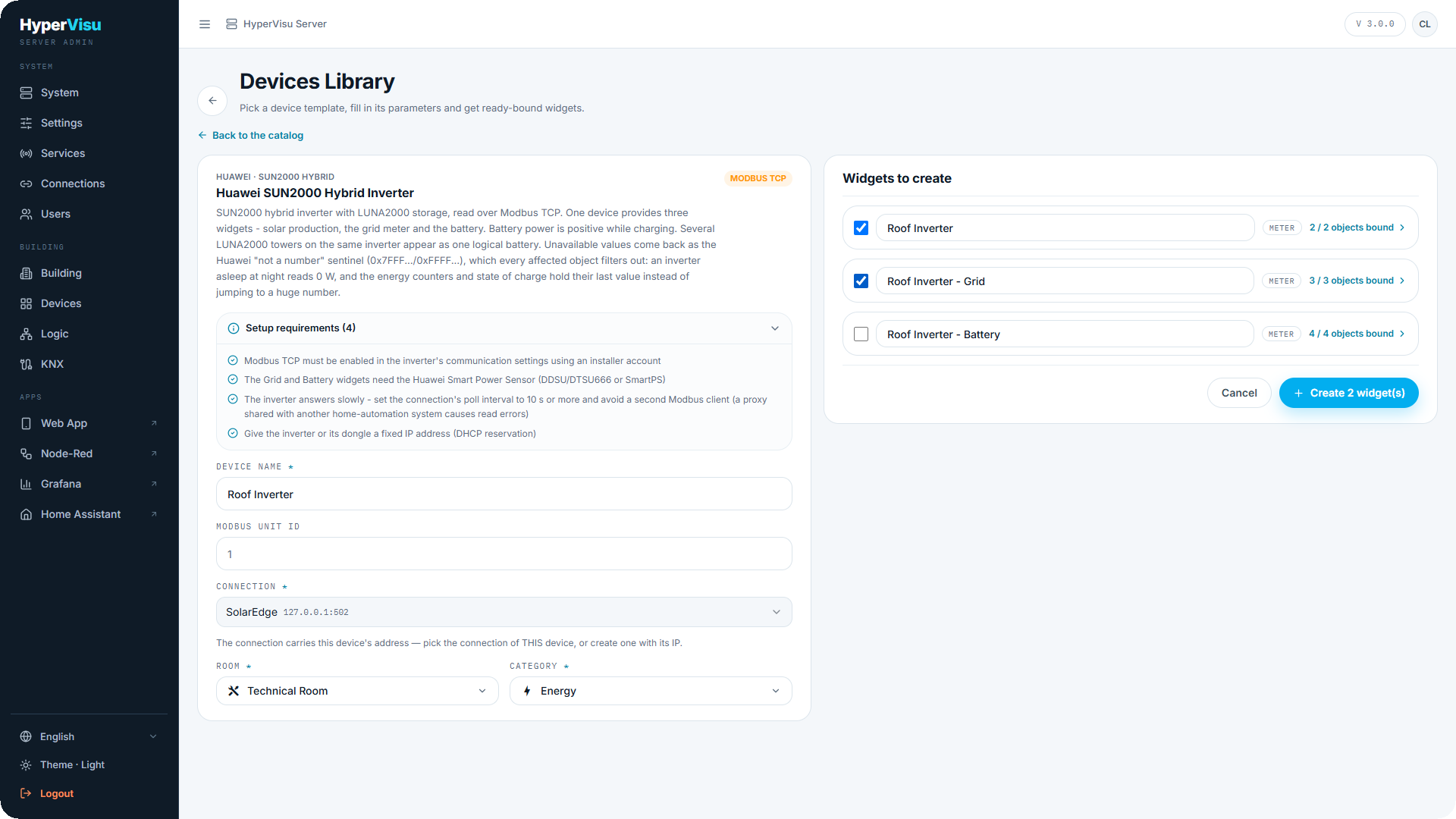
The preview, and what you can change
Each widget in the preview shows its name, its widget type and an N / M objects bound counter. The template decides which widgets start ticked — usually the one every installation has. The rest are offered unticked because they depend on extra hardware: the Huawei template ticks the solar meter and leaves the grid and battery meters for you to add once the Smart Power Sensor is fitted. Read the setup requirements, then tick what this installation actually has. Before anything is created you can:
- tick or untick each widget — a solar-only installation has no battery to create;
- rename a widget in place;
- expand the object counter to inspect every object: its number, its name, the address resolved for it and its data type. Objects the template deliberately leaves open show no address.
A widget that cannot be built — a missing parameter, a value out of range — is outlined in red with the reason under it.
Click Create N widget(s). The result page reports what was created with its object count, what failed and why, and offers Add another device to run the library again. That is the normal case for a Sonos household or a multi-zone system, where you apply the same template once per zone.
📘 Note: The widgets are saved but not yet live. Use the Apply changes bar to restart the protocols and push them to every client.
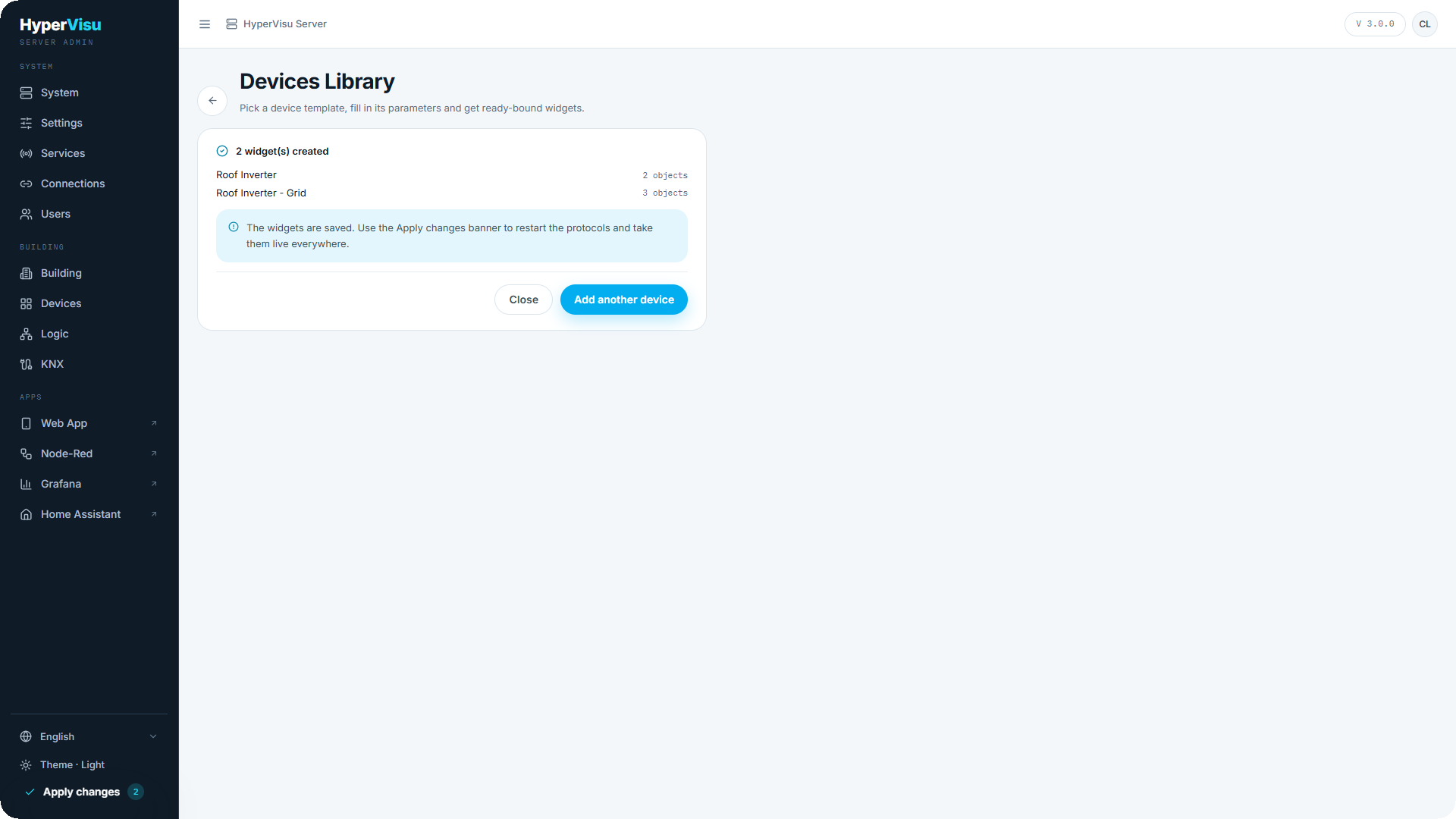
After creating
From that moment the widgets are ordinary devices — rename them, change icons, move them between rooms, switch on logging, use them in views, scenes and automations. The bindings are ordinary bindings too: open an object and edit it exactly like a hand-made one (see “Modbus TCP Integration”, “MQTT Integration”).
Meters created by an energy template arrive with their role already set — grid, solar, battery, charger, consumer — which is what lets the Energy section and its balance work with no further setup (see “Energy Devices”, “Energy Overview”).
Importing and exporting templates
The library accepts your own templates: a .yaml file in the same format as the bundled ones.
- Import template (top right) uploads a file. It is validated first — a template with problems is refused with the issue count and the details, and nothing is written. An imported template shows an imported chip on its card.
- An imported template that carries the same identifier as a bundled one replaces it, and its card reads replaces built-in. Deleting it brings the bundled version back.
- Imported templates can be exported as YAML and deleted from the icons on their card. Bundled templates cannot: they ship with the server and are restored by every update.
⚠️ Warning: Deleting a template does not touch the devices already created from it. They keep working — only the recipe goes away.
Binding Sonos
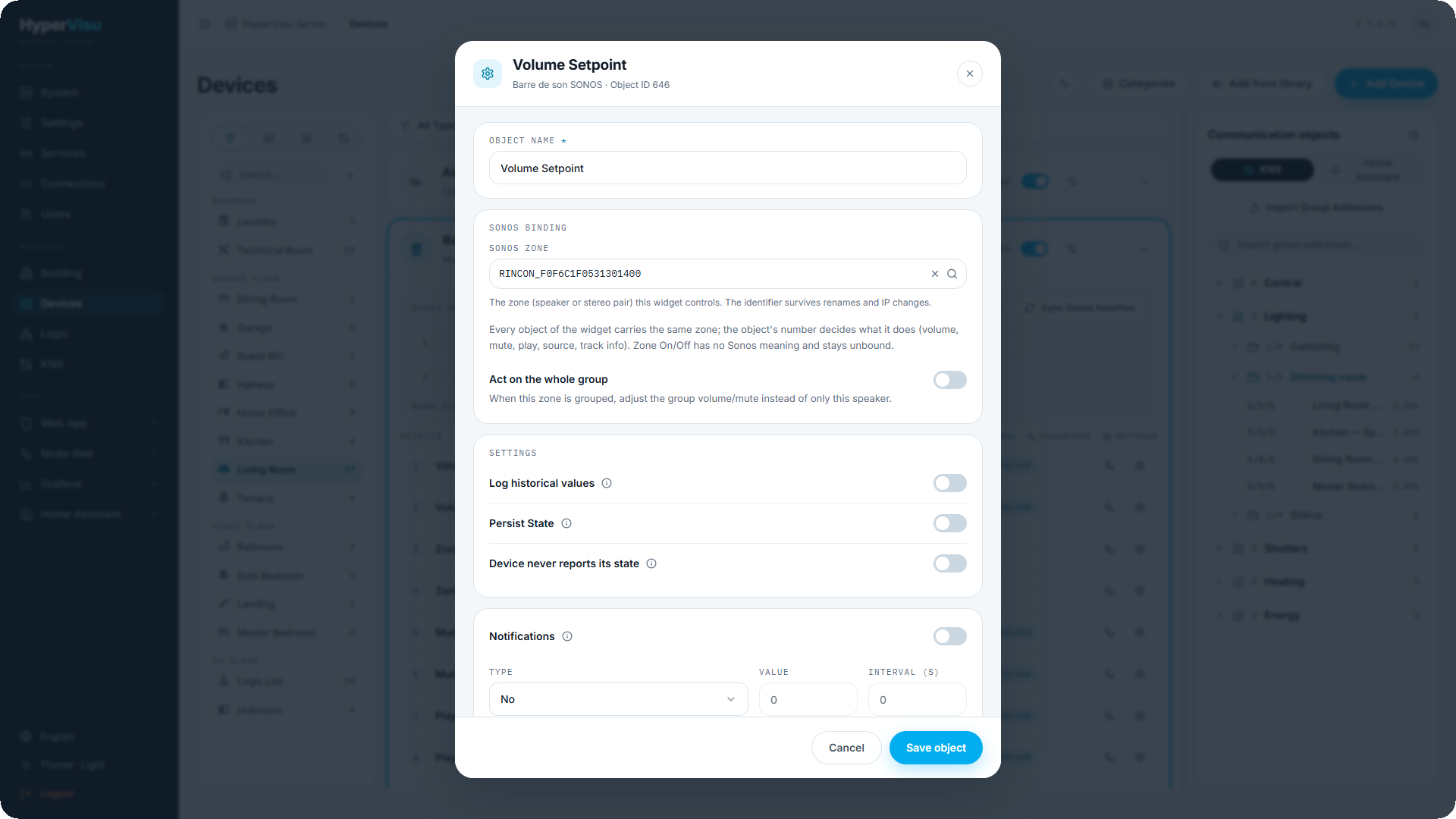
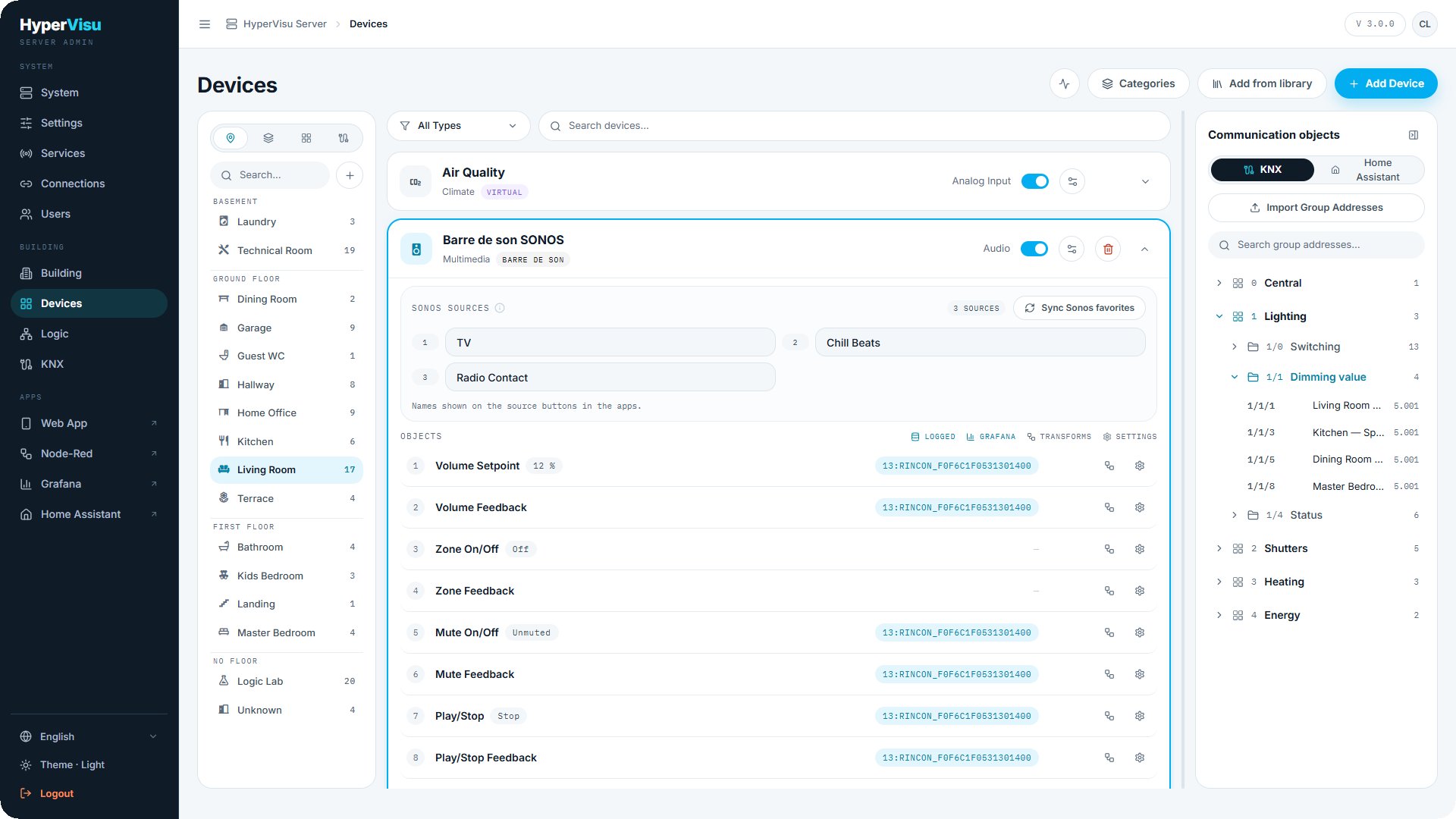
Sonos objects are bound to a zone, not to an address you type. Set the device's protocol to Sonos — or let the library do it — and each object's editor offers:
| Field | Description |
|---|---|
| Sonos zone | The zone this widget controls, picked from the household's live zone list. The stored identifier survives renaming the room in the Sonos app and any change of IP address. |
| Act on the whole group | On the volume and mute objects: when the zone is grouped with others, adjust the group instead of this one speaker. |
Every object of the widget carries the same zone; the object's number decides what it does — volume, mute, play/pause, source, previous/next, track title, artist, artwork. Zone On/Off has no meaning on a Sonos speaker and stays unbound, which is why the library's template uses the audio sub-type without zones.
Sources are Sonos favorites. Above the widget's object list sits the Sonos sources panel. Press Sync Sonos favorites and the server reads the household: the speaker's own inputs first (TV on a soundbar, Line-In on models that have one), then the favorites saved in the Sonos app. Their names and their count are written onto the widget, and the apps draw one source button per entry.
The list is read-only here — Sonos owns it. Re-sync after adding, removing or renaming favorites in the Sonos app, or the apps keep offering the old buttons.
💡 Tip: Past six sources the apps show a dropdown instead of buttons, so a household with a long favorites list stays usable.