Configuration import/export (CSV)
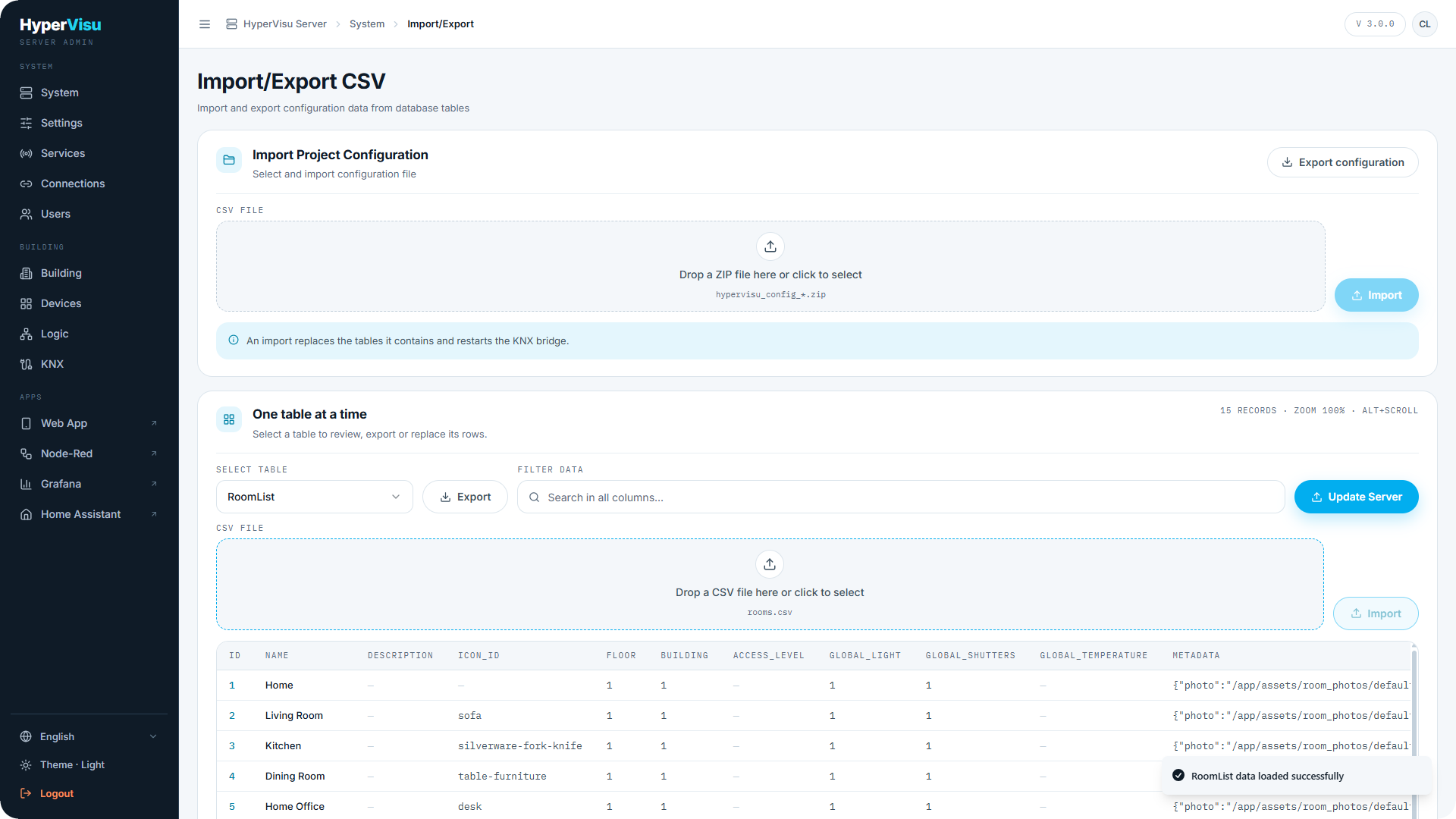
The Import/Export CSV page reads and writes whole configuration tables as CSV — useful for bulk edits in a spreadsheet. It has no entry of its own in the sidebar: open System and click Import/Export.
⚠️ Warning: Import replaces the whole table in the server's database the moment you click it. There is no preview and no confirmation, and rows missing from the file are deleted from that table. Make a backup first (see “Backup & Restore”).
Thirteen tables are available: Server Config, IconList, Protocols, CategoryList, RoomList, WidgetTypes, WidgetSubTypes, WidgetList, Communication Objects, Users, User Settings, Scenarios, Automations.
Working with one table:
- Under One table at a time, pick a table under Select Table. Its current rows load into a searchable, zoomable grid (filter box, Alt+Scroll to zoom).
- Click Export to download the table as CSV, for example
rooms.csv. Keep this file untouched as your reference. - Edit a copy of the file. Keep the header row, every column and the
idvalues, and keep every row you do not want to lose. - With the table still chosen, drop the edited file on Drop a CSV file here or click to select. Check the file name shown beside Ready to import.
- Click Import. The table is replaced in the database at once. The grid then shows the table as it now is on the server — it is the result, not a preview.
- Click Update Server. The running server reloads the configuration and restarts its protocol connections, so devices may be unavailable for a moment.
- Check the result on the relevant admin page and in the app. If it is wrong, import your untouched export of the same table and click Update Server again, or restore the backup.
📘 Note: Update Server does not commit the import — the database has already changed. It only makes the running server load the new data. Until you click it, the database and the running server disagree.
Working with everything at once:
- Export configuration downloads all thirteen tables in one ZIP archive (
hypervisu_config_*.zip). - To import such a ZIP, drop it on Drop a ZIP file here or click to select and click Import. Every table found in the file is replaced, one after the other, and the server is updated at the end without a further click. Allow a few minutes and leave the page open until the result message appears.
What an import cannot do:
- Scenarios and Automations can be exported but not imported. Importing either file ends in an error; in a ZIP import those two files fail while the other tables are imported. Recreate them in the app, or restore a backup.
- The export contains no passwords and no alarm PIN codes. After an import of Users, an existing user keeps their password, and a user that is new in the file is created with a default password that you must change at once on the Users page. After an import of WidgetList, set the alarm PIN codes again.
- The ZIP is not a full backup. It holds the thirteen tables only: Logic functions, views, graphics, recorded history and uploaded files are not in it. Use Backup (see “Backup & Restore”) to keep or move a whole installation.
- Other tables refer to the
idvalues: a device points to its room, category and protocol, and an object points to its device. Changing anidbreaks those links.
⚠️ Warning: Treat an export as confidential. The tables hold addresses, user names and email addresses, and Server Config holds settings of the connected services.