
The email service lets HyperVisu send email through your own mailbox (outbound SMTP). It is used by application features: the E-mail action in automations (see “Automations”) and the Send an e-mail action on a Logic output (see “Function Setup & Outputs”). No dedicated domain or mail server is needed.
📘 Note: System email — such as the admin password-reset code — is sent through the built-in Elausys relay and needs no setup. You only configure the email service if you want automations or Logic functions to send email.
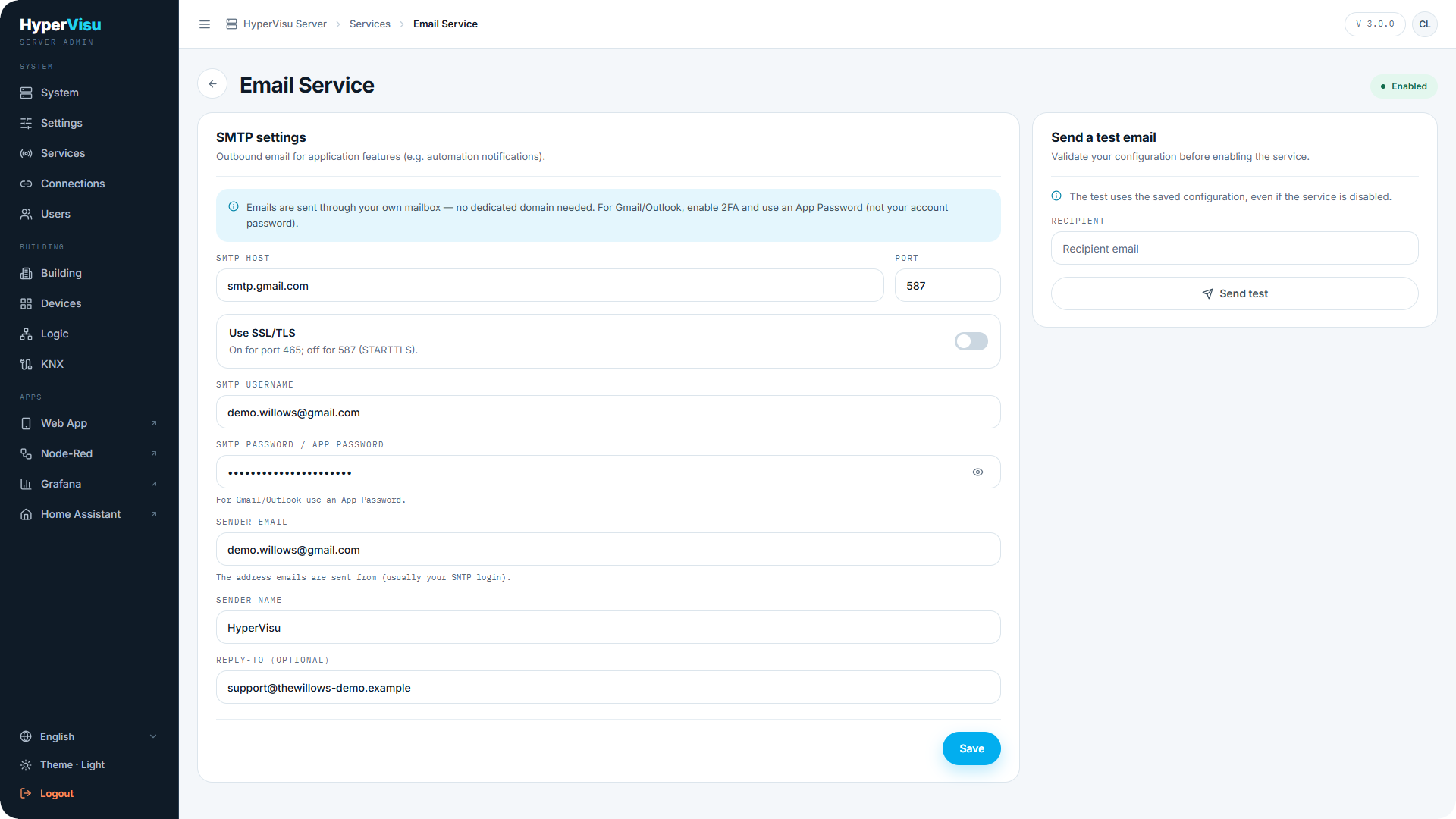
SMTP settings
- Open Services in the sidebar.
- In Application services, find Email Service and click Configure.
- Fill in the SMTP settings:
| Field | What to enter |
|---|---|
| Sender email | The address emails are sent from — usually your SMTP login. |
| Sender name | The display name recipients see. |
| Reply-to (optional) | A different address for replies. |
| SMTP host | Your provider's server, e.g. smtp.gmail.com. |
| Port | 465 or 587 (see below). |
| Use SSL/TLS | On for port 465; off for port 587 (STARTTLS). |
| SMTP username | Usually the full email address. |
| SMTP password / app password | For Gmail and Outlook, enable two-factor authentication and use an App Password, not your account password. |
- Click Save.
- Send a test email (see “Send a test email” below).
- Go back to Services and switch Email Service on. The settings page has no switch of its own: its status pill only reads Enabled or Disabled.
📘 Note: The E-mail action is absent from the automation editor in the app — not greyed out — until the Email Service is switched on. A test email that arrives does not switch the service on.
⚠️ Warning: Always select the recipients of an e-mail action. An action with no recipient selected is sent to every user who has an email address.
Send a test email
Use the Send a test email card to validate the configuration before relying on it: enter any Recipient address and click Send test.
📘 Note: The test uses the saved configuration and works even while the service is disabled — save first, then test. For the same reason, a test that passes does not prove that an automation will send: check that the status pill reads Enabled.
💡 Tip: If the test fails on port
465, try port587with Use SSL/TLS off. Some networks and security software block outbound port 465.