
The weather service fetches live weather and forecasts for the building's location and makes them available everywhere in HyperVisu: on the app home screen, in view cards, in automations, and as inputs to the Logic engine. You configure it once with an API key from a weather provider.
What you need: a free API key from Pirate Weather or OpenWeatherMap, and the server's location set in Settings → Time & location (see “Network & Time Settings”).
Enabling and configuring the provider
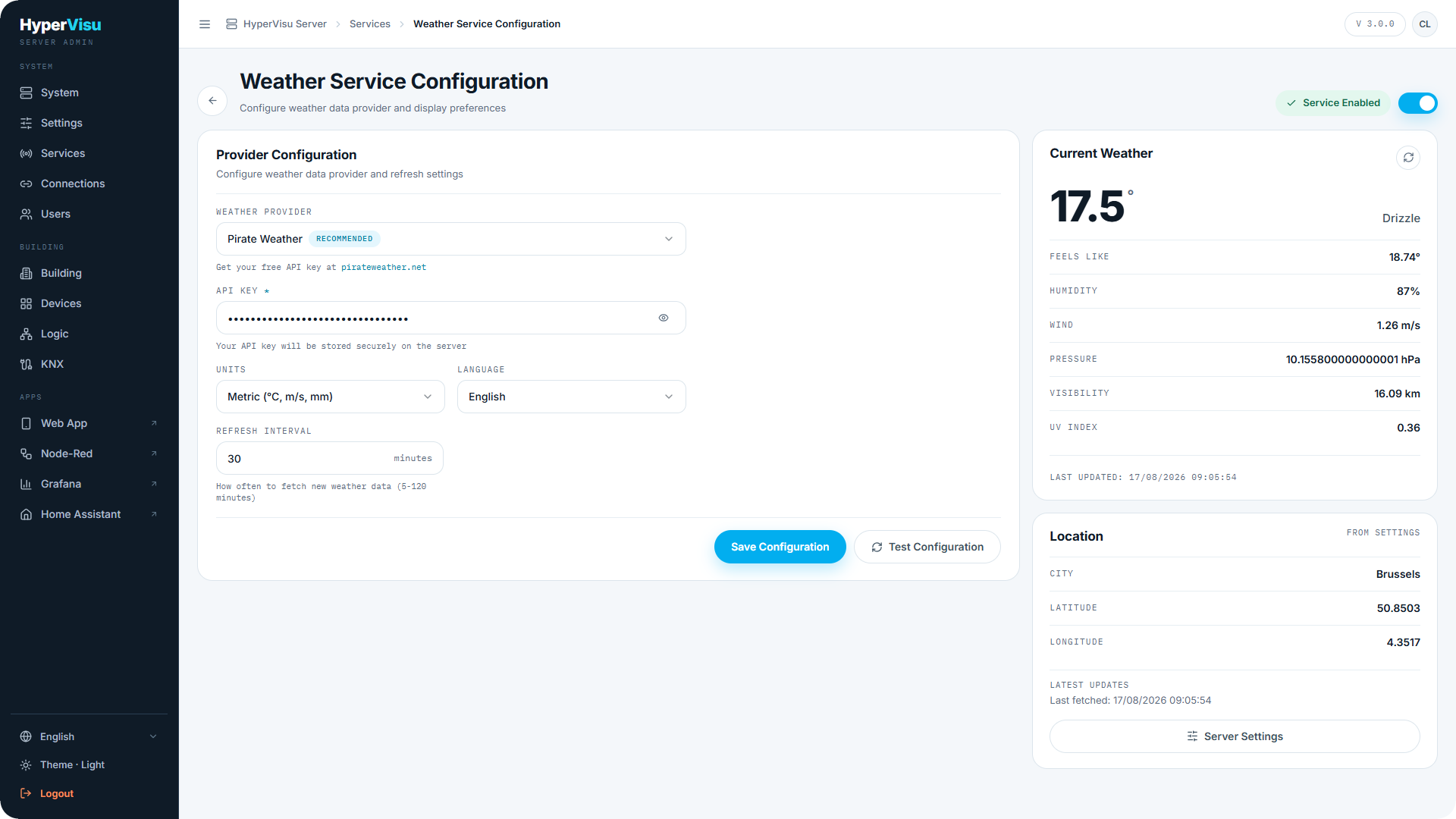
- Open Services in the sidebar.
- In Application services, find Weather Service and click Configure.
- Choose the Weather Provider: Pirate Weather (marked Recommended) or OpenWeatherMap. The hint below the field links to the provider's site (
pirateweather.netoropenweathermap.org) where you can create a free API key. - Paste your API Key. Use the eye button to show or hide it. The key is stored on the server only.
- Pick the Units:
| Option | Meaning |
|---|---|
| Metric (°C, m/s, mm) | Celsius, wind in m/s |
| Imperial (°F, mph, in) | Fahrenheit, wind in mph |
| Canada (°C, km/h, mm) | Celsius, wind in km/h |
- Pick the Language for weather descriptions (English, Italian, German, French, Spanish, Dutch, Polish, Greek).
- Set the Refresh interval in minutes (5–120). This is how often the server fetches new weather data.
- Click Save Configuration.
- Turn the service on with the toggle in the page header. The status pill switches to Service Enabled.
📘 Note: Save before you turn the service on. Turning it on fetches the weather at once with the saved configuration; if that fetch fails (no API key, invalid key, no location, no internet), the toggle goes back to off.
Testing the configuration
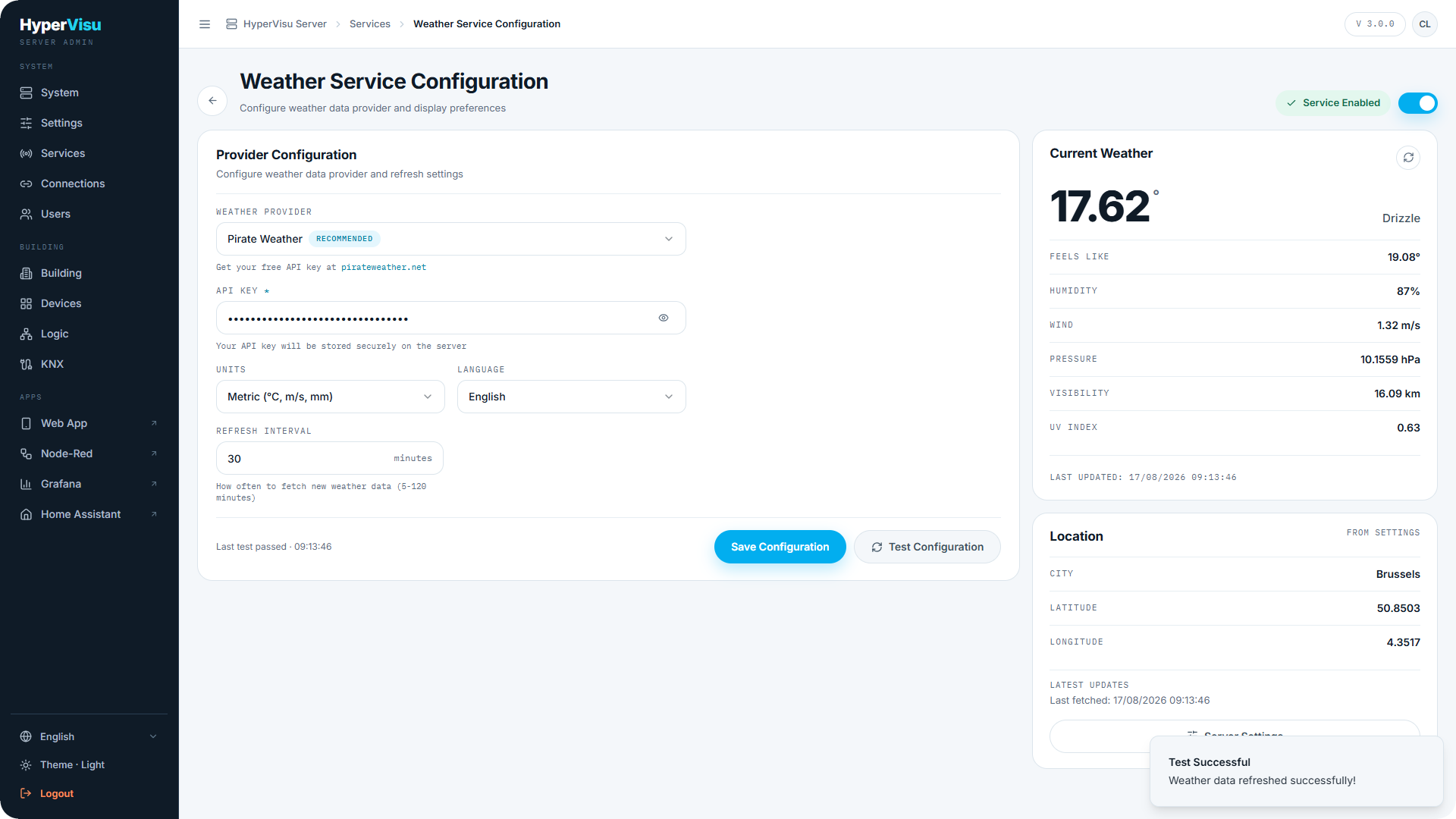
Click Test Configuration. The server forces an immediate weather refresh with your saved settings. On success the footer shows Last test passed with the time; on failure a red callout explains what went wrong (usually an invalid API key or missing location).
The Current Weather card on the right is the live proof that your key works: temperature, description, Feels Like, Humidity, Wind, Pressure, Visibility, UV Index, and the Last updated timestamp. If the data is old, a Data may be outdated callout appears.
Location
The weather service does not have its own location setting — it uses the city and coordinates from Settings → Time & location. The Location card on the weather page shows the city, latitude and longitude it is using, marked From settings. If no location is set, a Location Required callout appears with a Server Settings button that takes you there.
📘 Note: Coordinates also drive sunrise/sunset times, so setting them correctly benefits automations and the Logic engine too (see “Network & Time Settings”).
Where weather appears
- The app home screen hero reading (when weather is chosen as the hero source, see “App Settings & Personalization”).
- Weather cards in views — daily and hourly forecasts (see “Custom Views”).
- Automation triggers and conditions on forecast values (see “Automations”).
- Logic engine inputs — weather readings as a service source on the function canvas (see “Logic Engine — Concepts & Canvas”).