The admin panel is where you configure the HyperVisu server: system settings, protocols, users, the building structure, and every device. This section shows you around the shell — the sidebar, the topbar, and the Apply changes bar — so the rest of Part IV can focus on the individual pages.
What you need: an administrator account (level 5) signed in to the admin panel (see “Accessing the Admin Panel”).
The sidebar
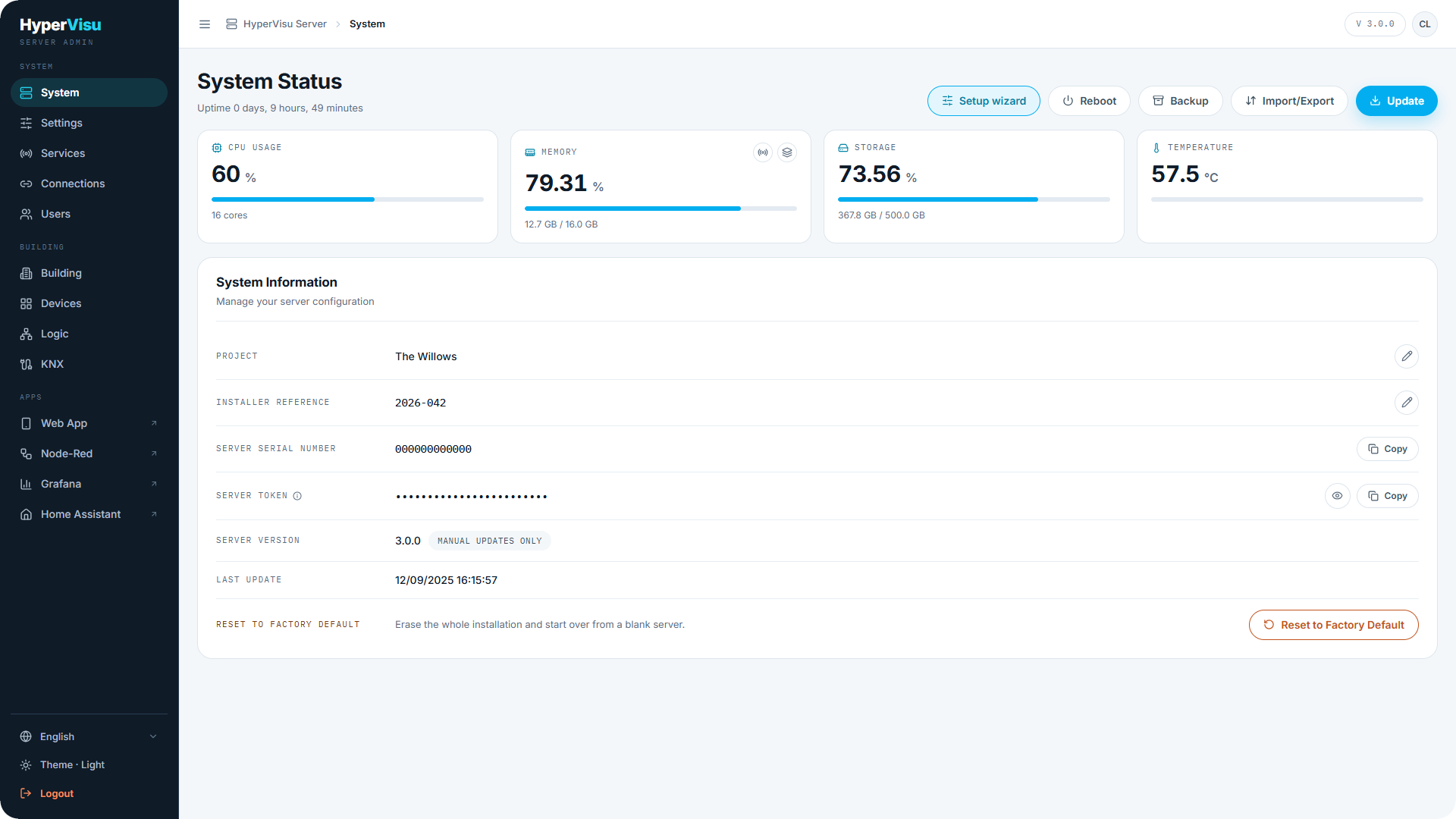
The left sidebar is organized in three groups:
| Group | Entries | What they cover |
|---|---|---|
| SYSTEM | System, Settings, Services, Connections, Users | The server itself: health, network & time, services & protocols, connections, accounts. |
| BUILDING | Building, Devices, Logic, KNX | Your installation: floors & rooms, devices & objects, the Logic engine, KNX tools. |
| APPS | Web App, Node-Red, Grafana, Home Assistant | External links that open the corresponding application in a new tab. |
📘 Note: Some entries appear only when they are relevant. KNX is hidden until the KNX protocol is enabled (see “Services & Protocols”). Each link in APPS is shown only while its service is enabled — if Grafana is off, the Grafana link disappears.
At the bottom of the sidebar you find:
- Language — the admin panel is available in 11 languages.
- Theme — switch between Light and Dark.
- Logout — signs you out of the admin panel.
The sidebar can be collapsed to icons with the Collapse sidebar control.
The topbar
Across the top of every page:
- The breadcrumb, starting at HyperVisu Server, shows where you are.
- A version chip shows the server version at a glance.
- Your avatar on the right opens your own user page — a shortcut to change your password or app title (see “Users & Access Levels”).
The Apply changes bar
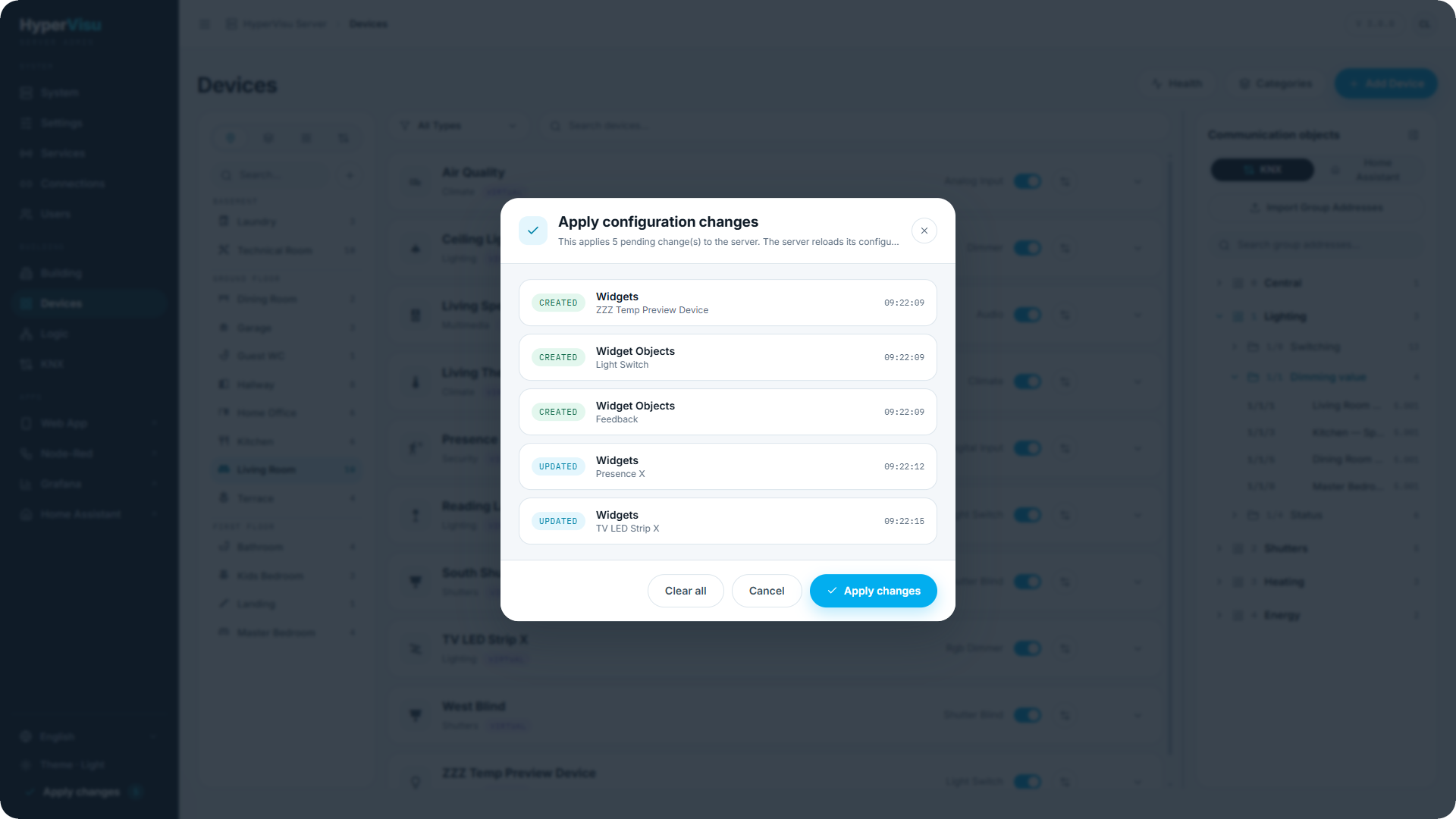
Most configuration edits in the admin panel are staged, not written immediately. As you create, update or delete items, a bar appears showing the pending counts (Created, Updated, Deleted).
- Make your edits across one or several pages.
- Click Apply changes.
- Confirm in the Apply configuration changes dialog. All pending changes are applied to the server in one pass.
- The server reloads its configuration and the page refreshes.
📘 Note: Changes are saved even without the “apply change” but are not taken into account in the live project until you apply them. Not everything goes through the Apply changes bar. Services and protocols apply through their own flows on the Services page (see “Services & Protocols”), and network changes apply from the Settings page (see “Network & Time Settings”).