
System (sidebar group SYSTEM) is the server's home page: live health, identity, and the main maintenance actions. Open it first when something feels wrong, and when you commission a new server.
Live health cards
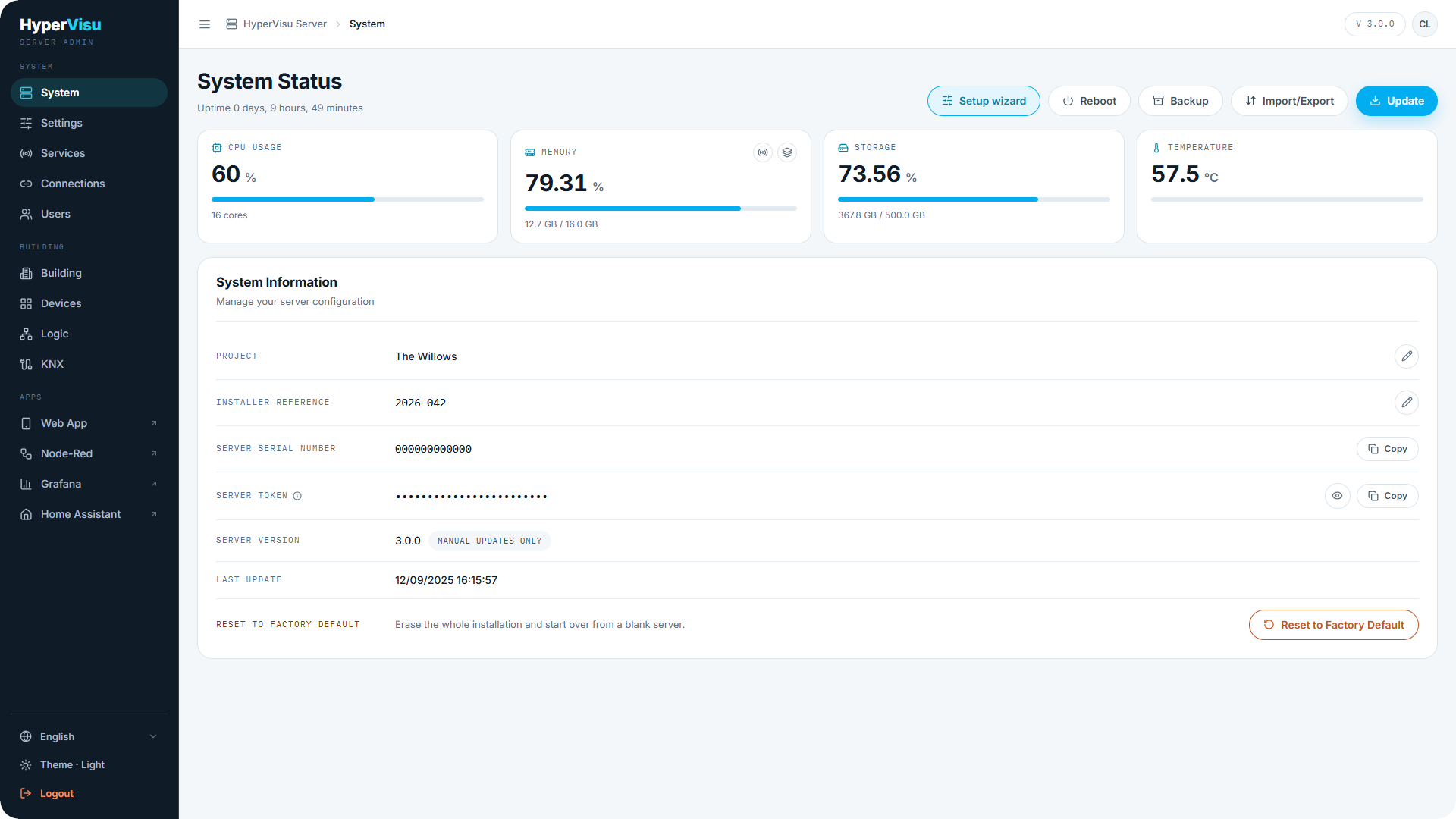
The top of the page shows live resource cards:
| Card | What it shows |
|---|---|
| CPU Usage | Current CPU load in %, with the number of cores. |
| Memory | RAM in use. |
| Storage | Disk space in use. |
| Temperature | The server's temperature. |
| Uptime | Time since the last boot (days, hours, minutes). |
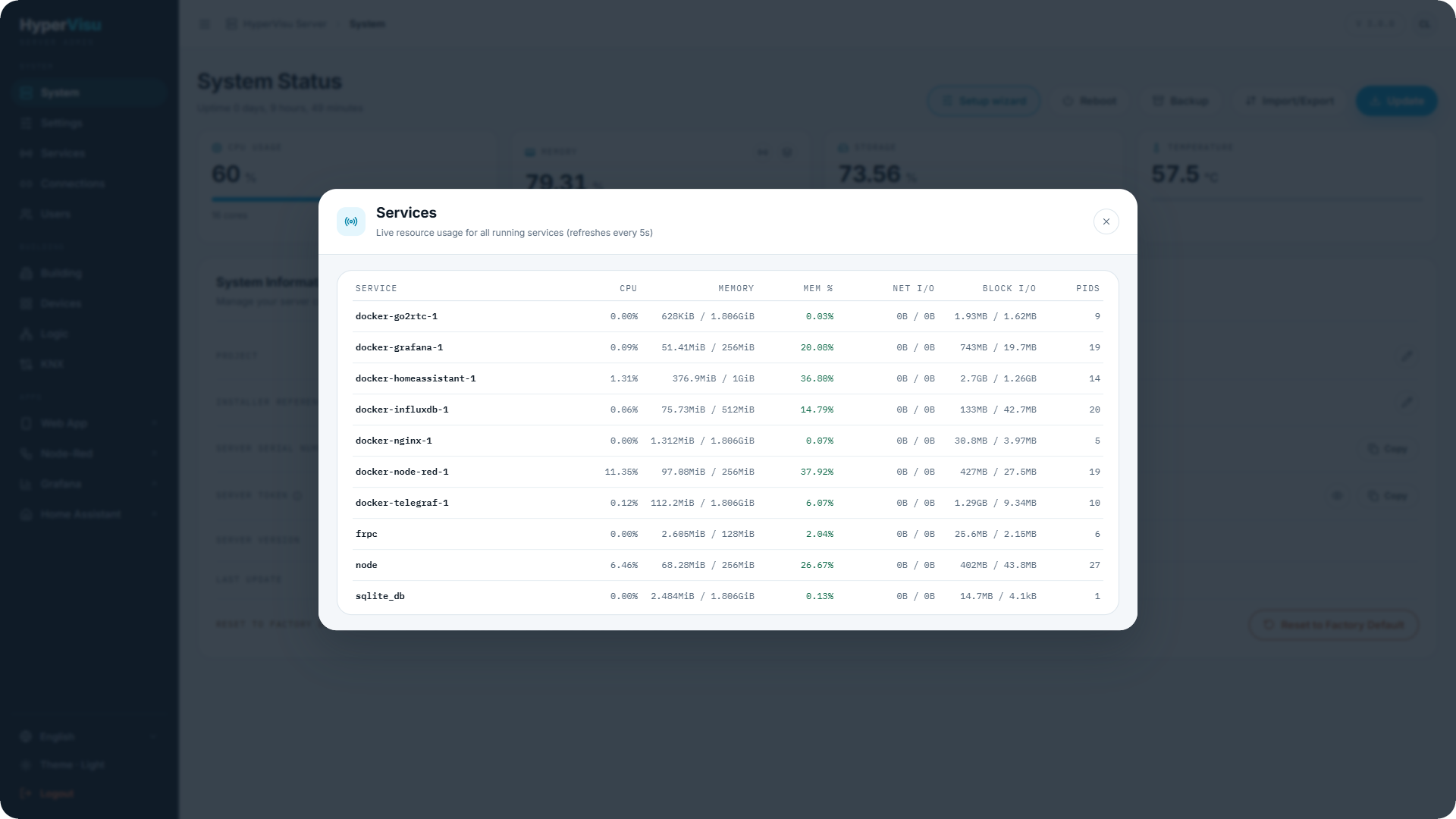
Two detail views are available from this area:
- Services — live resource usage for every running service (CPU, memory, network I/O, disk I/O, process count), refreshed every 5 seconds.
- Process Memory Details — the runtime memory of the HyperVisu application itself (heap used, heap allocated, heap limit, RSS).
System Information
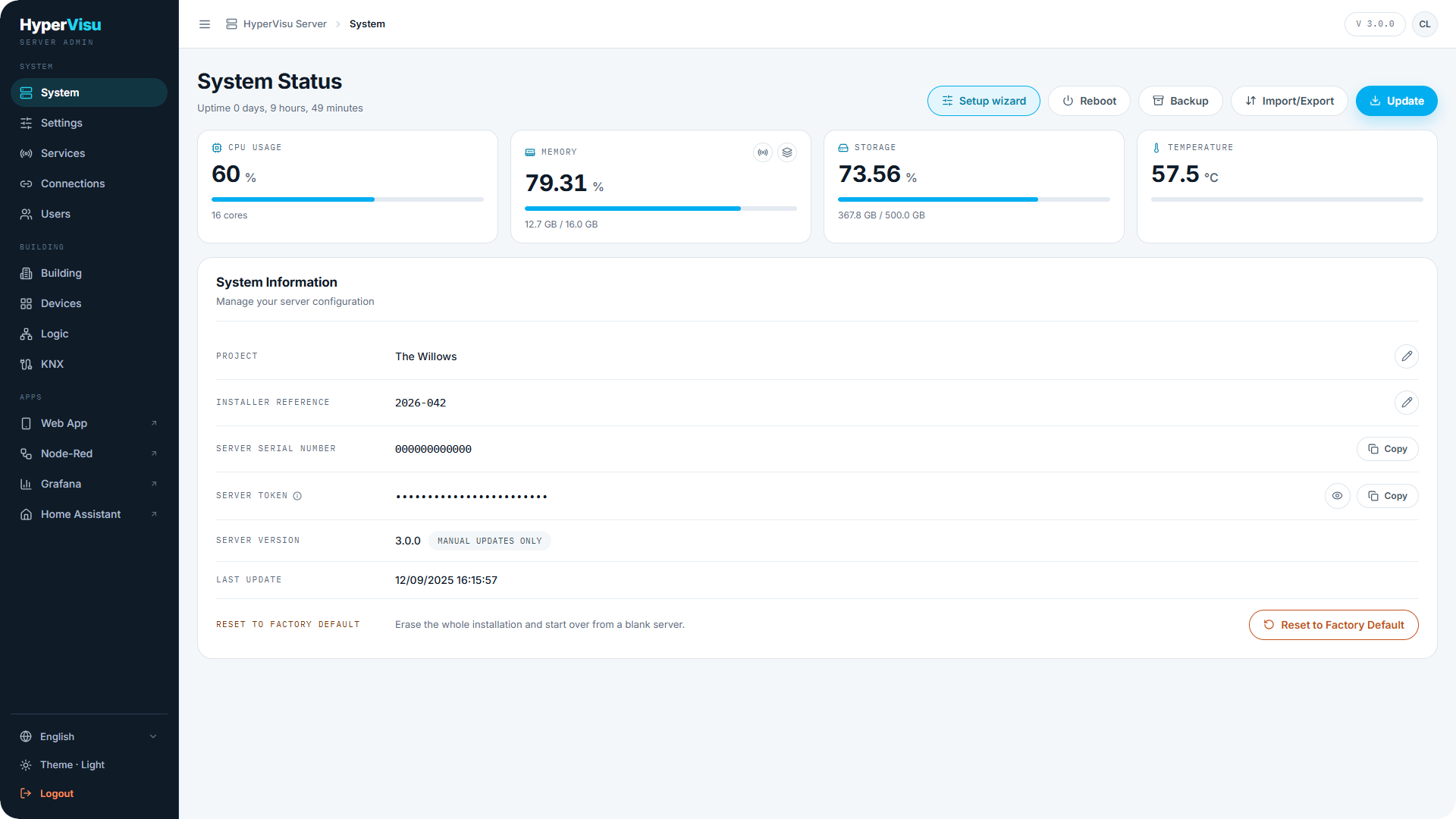
The System Information card holds the server's identity:
| Field | Description |
|---|---|
| Project | The project name (e.g. Villa Deschamps). Editable. |
| Installer reference | Your own job number, quote or client reference. Editable. |
| Server Serial Number | The unique serial of this server. Click to copy. |
| Server Token | The secret token of this server. Hidden by default — show or copy it. |
| Server Version | The installed software version, with an update-policy chip (Auto-update enabled or Manual updates only). |
| Last Update | When the server was last updated. |
📘 Note: The Server Serial Number and Server Token are what you paste into an ElauPro project to link this server to it (optional — see “Integration with ElauPro”).
Actions
The page header offers the main maintenance actions:
- Setup wizard — re-run the first-run setup wizard (see “First-Run Setup Wizard”).
- Reboot — restarts the server. A progress screen shows Server is rebooting… and waits for the server to come back (about 2 minutes), then reconnects automatically.
- Backup — shortcut to backups (see “Backup & Restore”).
- Import/Export — shortcut to the configuration import/export tools (see “History & Data Logging”).
- Update — updates the server software. A progress screen waits while the server updates and restarts (about 5 minutes), then reconnects (see “Software Updates”).
⚠️ Warning: Reboot and update temporarily interrupt all services — devices are not controllable from the app while the server is down.
Danger Zone
At the bottom of the page, the Danger Zone contains the Reset to Factory Default action. It erases the whole installation and cannot be undone — read “Factory Reset” before using it.