
Users & access
Users (sidebar group SYSTEM) manages every account on the server — administrators, residents and guests. Each user has a permission level and, optionally, a restriction to specific rooms and categories.
The users list
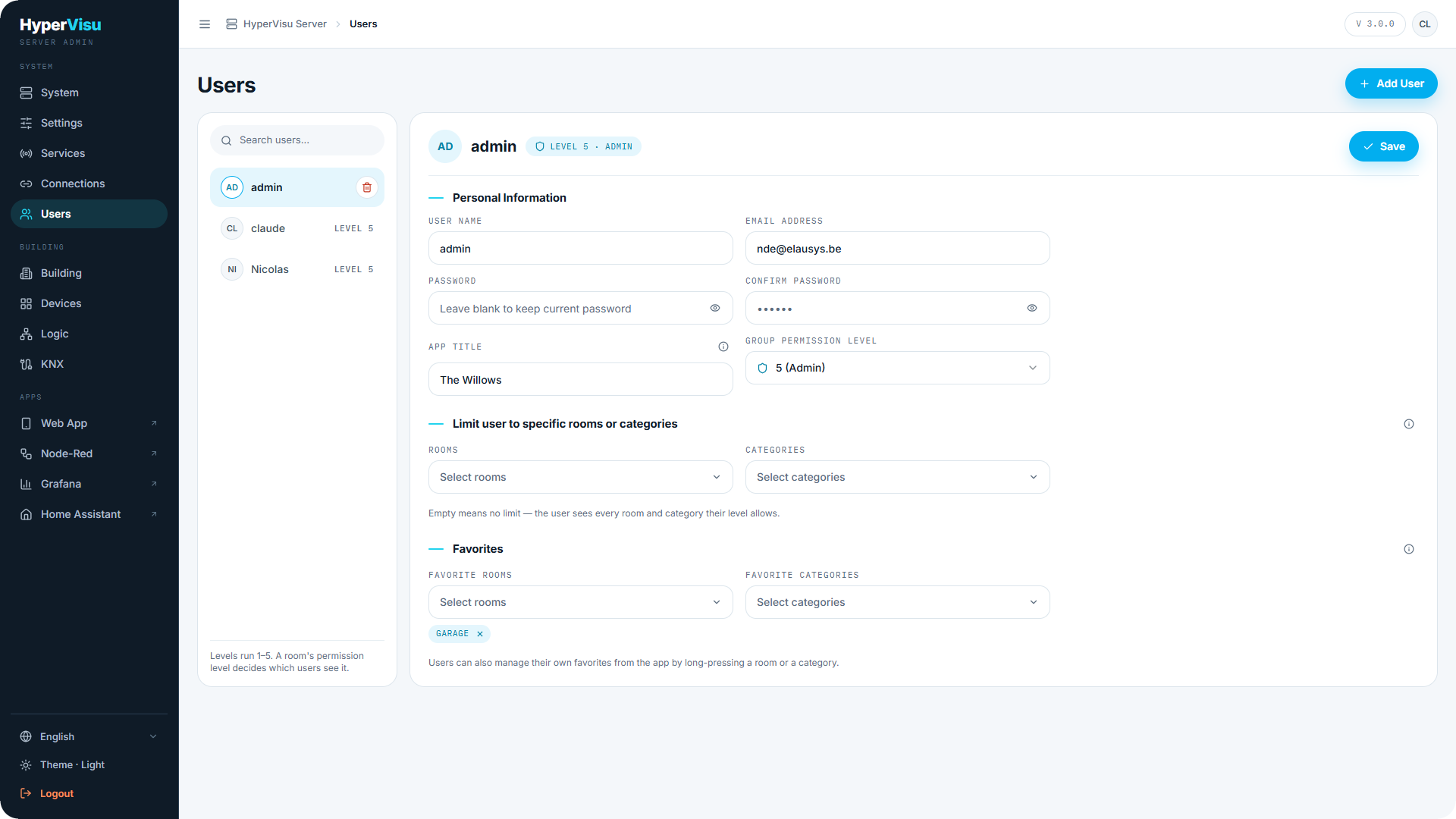
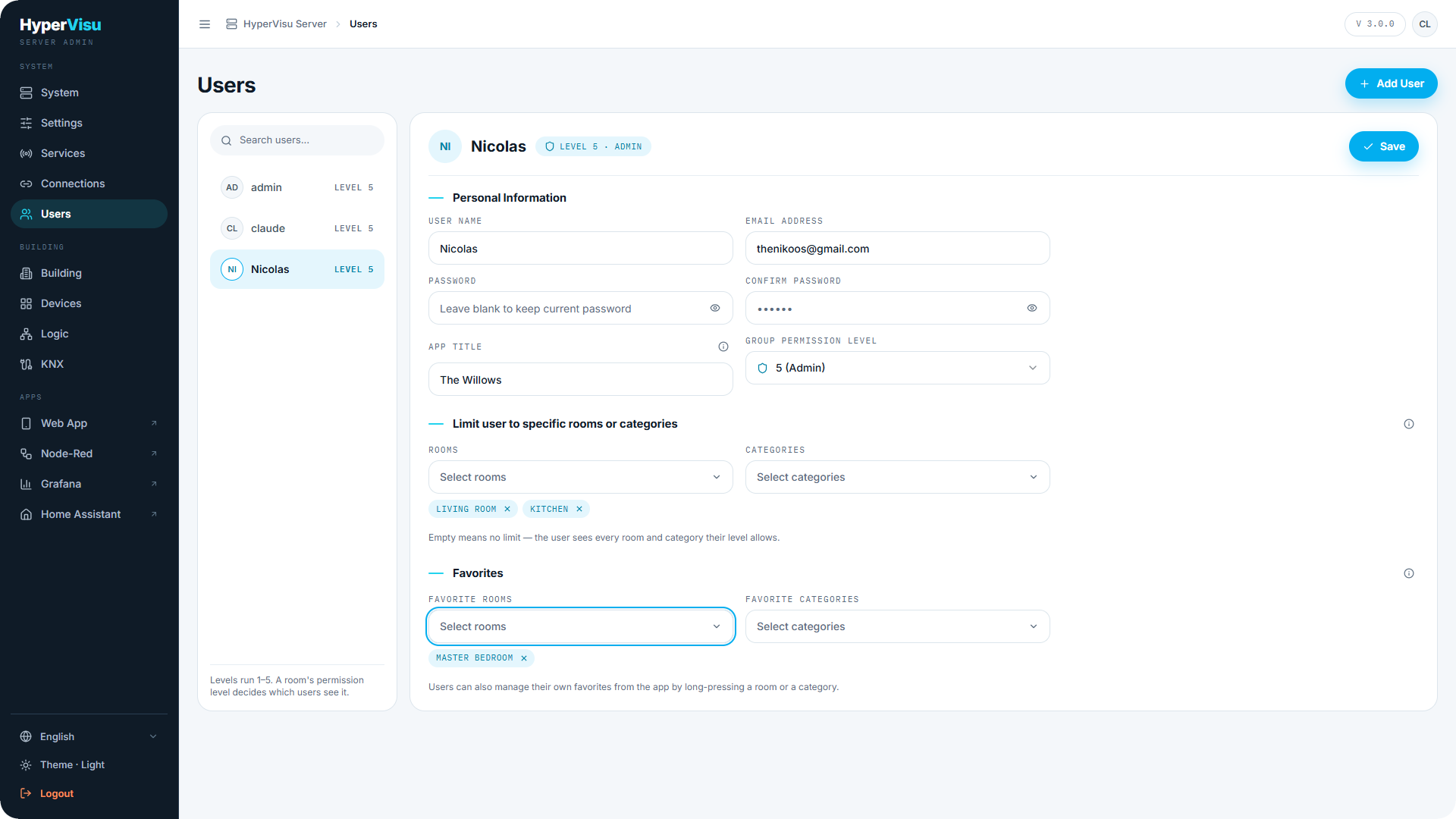
The list shows each account with a Level badge (Level 1–5). Select a user to edit, or click Add User to create one. Your own account is also reachable through the avatar in the topbar (see “Admin Panel Tour”).
Creating and editing a user
| Field | Description |
|---|---|
| User Name | The sign-in name. |
| Email Address | Used for password-reset e-mails. Optional here — but an administrator account without one has no way to reset its own password, because the one-time recovery code exists only for the first administrator (see “Creating the First Administrator”). |
| Password / Confirm Password | At least 12 characters. When editing, leave blank to keep the current password. |
| App Title | The title shown on the home page of the app for this user (e.g. "Welcome home"). |
| Group Permission Level | 1 (Guest) to 5 (Admin) — see this article. |
Click Delete to remove an account. Three guard rails keep the server manageable:
- You cannot delete the last user.
- You cannot delete the last administrator.
- You cannot lower the last administrator below level 5. The lower levels are greyed out in the list, with the note The last administrator must stay at level 5. Promote another account to level 5 first.
Permission levels
Levels run 1 to 5. Every account can control the devices it sees; the level decides what it sees.
- Level 1 — Guest: sees only the rooms and categories left at level 1.
- Levels 2–4: intermediate levels; rooms and categories carry a minimum level (see “Building Structure & Categories”), so these levels decide which parts of the building a user sees.
- Level 5 — Admin: full app features, in-app edit mode, and access to the admin panel.
The complete level-by-capability matrix is in this article.
📘 Note: A room's permission level decides which users see it. A Level 2 user never sees a room set to minimum level 3.
Restricting a user to rooms or categories
Turn on Limit user to specific rooms or categories and pick the allowed Rooms and Categories. The user then sees only those areas in the app.
📘 Note: Empty means no limit — the user sees every room and category their level allows.
Favorites
Per user, you can pick Favorite rooms and Favorite categories. Favorites are pinned to the top of the app's home, rooms and categories screens; up to three are shown at a time.
💡 Tip: Users can also manage their own favorites from the app by long-pressing a room or a category (see “App Settings & Personalization”).
Access levels & permissions matrix
Every user account carries an access level from 1 (Guest) to 5 (Admin). Every account can control the devices it sees. The level is compared with the minimum level (1 to 5) an admin can set on each room and category — a user below a room's minimum level does not see that room at all. Independently of the level, a user can be restricted to specific rooms and categories: everything outside the allowed set is simply not shown.
| Level | Typical use |
|---|---|
| 1 — Guest | Visitors: see and control what the admin leaves at level 1 |
| 2–4 | Household members: graded against per-room / per-category minimum levels |
| 5 — Admin | The owner/installer: full control plus everything in the right-hand column below |
Permissions matrix
| Capability | Levels 1–4 | Level 5 (Admin) |
|---|---|---|
| Control devices | Yes — in rooms/categories at or below the user's level | Yes |
| Run scenarios | Yes | Yes |
| Create & edit scenarios and automations | Yes | Yes |
| Adjust weekly schedules (thermostat, AC) | Yes | Yes |
| Create & edit personal views | Yes | Yes |
| Adjust exposed function settings / Resume a suspended function | Yes (only settings the installer exposed) | Yes |
| Manage device groups | No | Yes |
| Author system views (shared, read-only for others) | No | Yes |
| In-app edit mode (rename rooms, categories, devices; change icons) | No | Yes |
| Open admin page shortcut in app settings | Not shown | Yes |
| Sign in to the admin panel | Refused | Yes |
📘 Note: Room and category global commands appear only where the admin enabled them (see “Global Commands”, “Building Structure & Categories”).