
KNX integration
The KNX page in the admin panel is the workbench for everything KNX: the bus connection, ETS programming access, the group-address library, the bus monitor, the KNX Bridge and KNX triggers. Open it from the sidebar; a connection strip at the top always shows the Protocol, the Gateway IP and the live status (Connected / Disconnected), and below it three tabs: Bridge, Bus monitor and Group addresses.
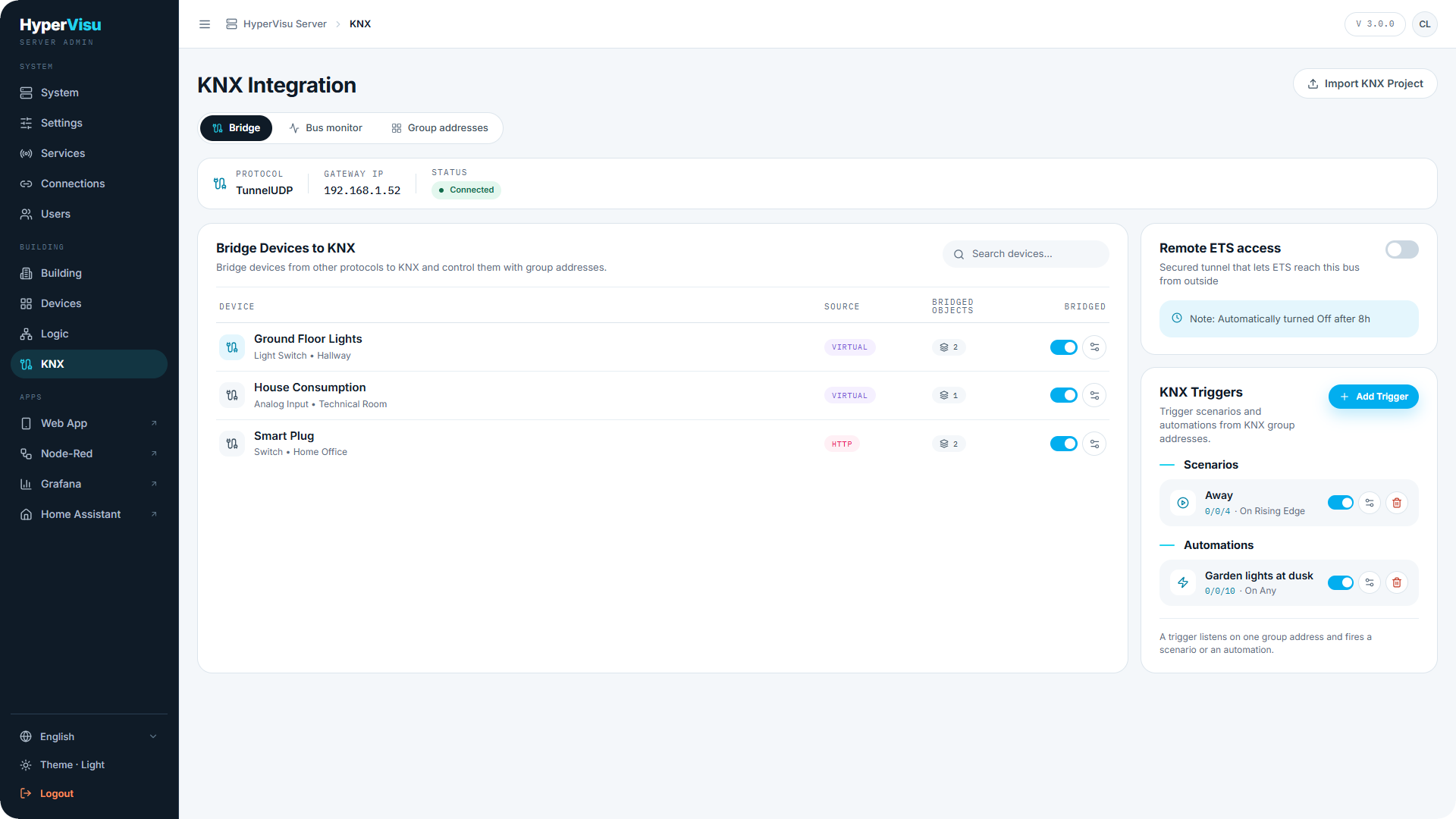
Connection & ETS mode
What you need: a configured KNX connection (see “Connections”) showing Connected.
The connection strip mirrors the KNX connection you configured on the Connections page. If it shows Disconnected, fix the connection there first — nothing on this page works without the bus.
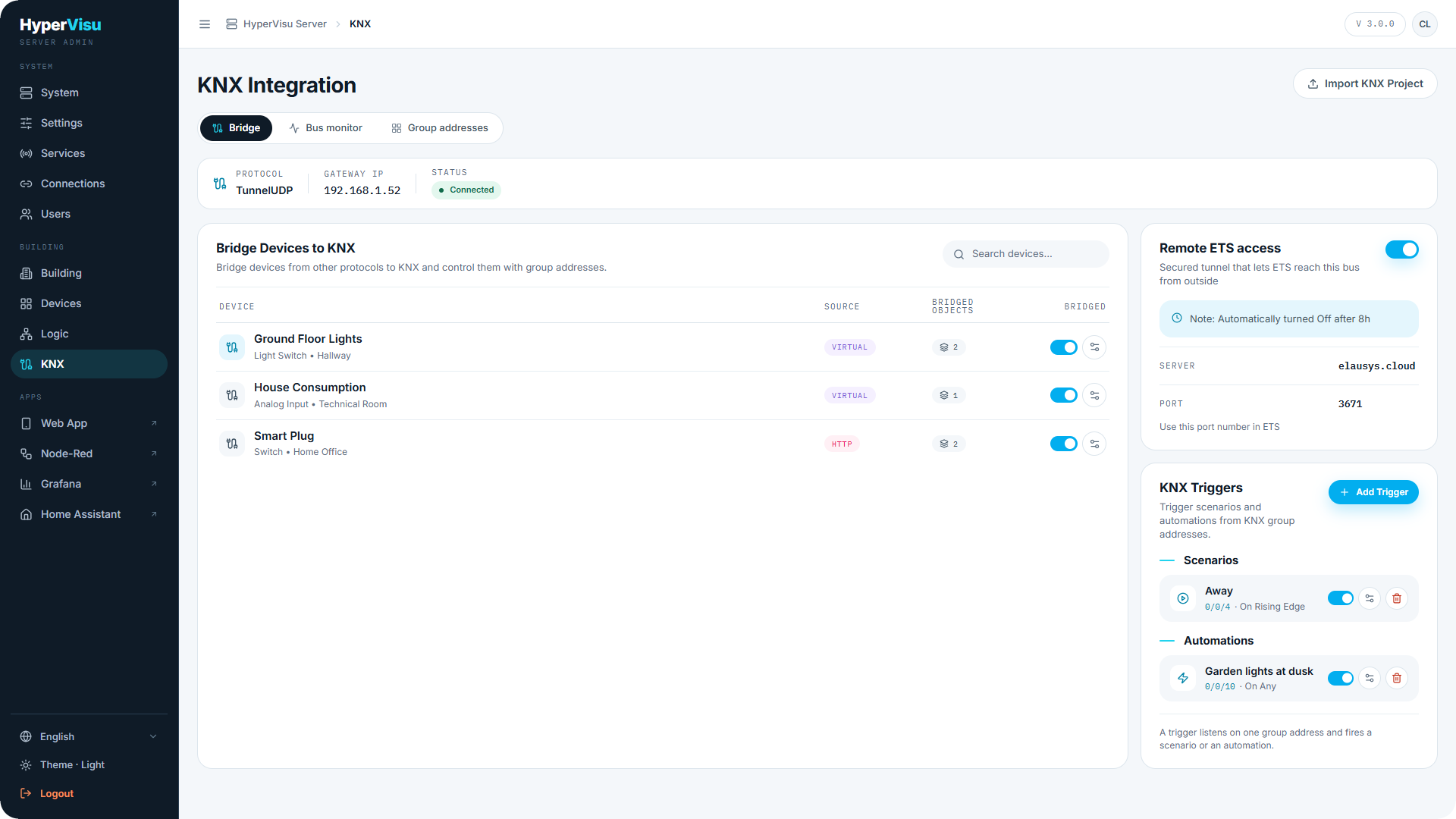
Remote ETS access. To program the bus with ETS from outside the building, enable Remote ETS access. This opens a secured tunnel through the cloud connection and displays a Port number.
- On the KNX page (Bridge tab), switch on Remote ETS access.
- Note the displayed port number.
- In ETS, configure a KNX/IP tunnelling connection to the server's cloud address and enter that port.
📘 Note: The remote tunnel closes automatically after 8 hours. Re-enable it if you need more time.
Group addresses
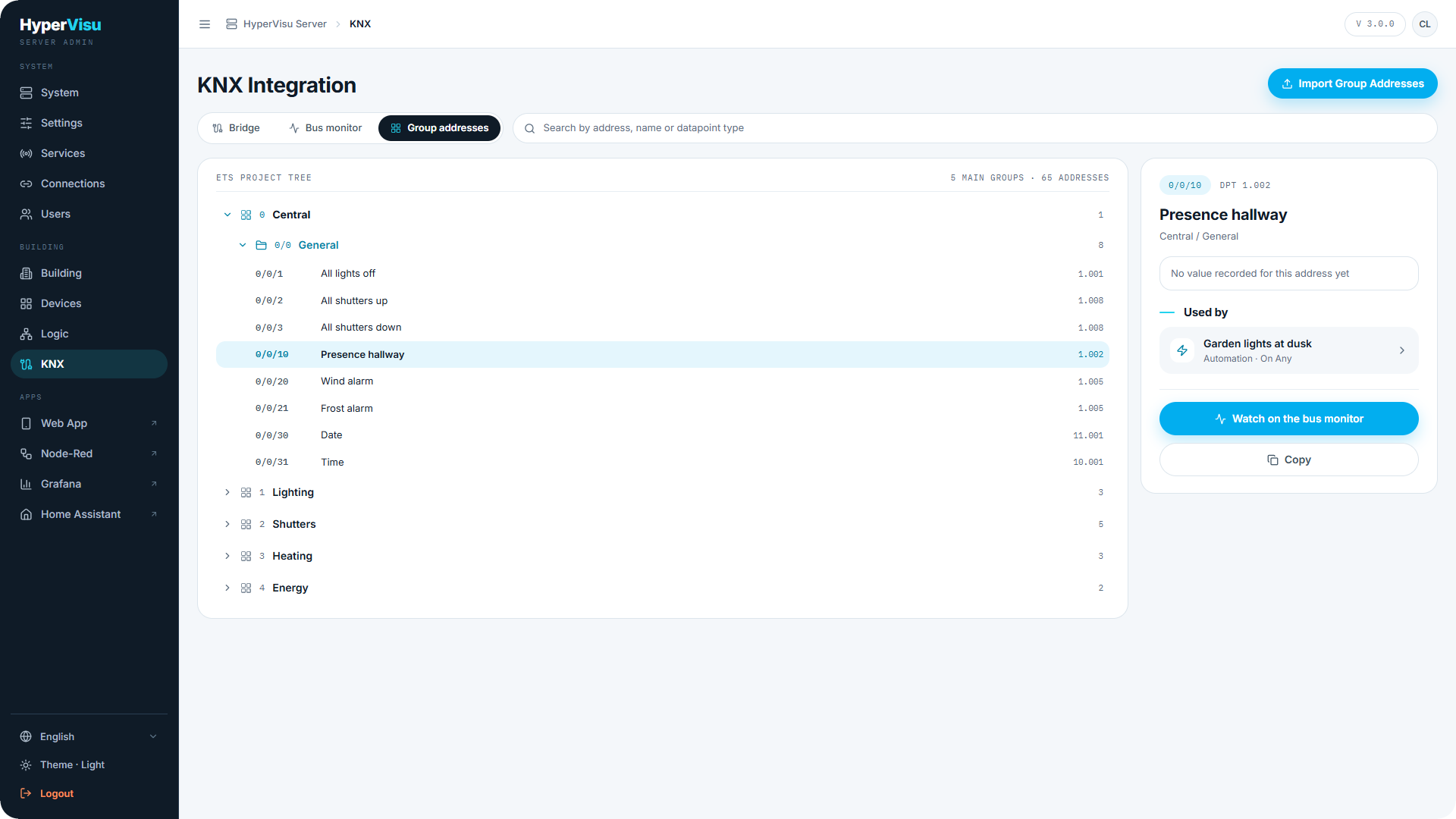
The Group addresses tab holds the server's group-address library — every address known from ETS, browsable as the ETS project tree ("N main groups · M addresses"). This is the same library the Devices workspace offers for drag-and-drop binding.
- Search by address, name or datapoint type using the search field above the tree.
- Import addresses from an ETS group-address XML export if you do not want to import the whole project: use the import action on this tab and upload the file ETS produces via Group Addresses → Export.
Select an address in the tree to open its detail panel:
| Field | Meaning |
|---|---|
| Last value | The most recent decoded value seen on the bus. |
| Last seen | When that value arrived. |
| Used by | Every device and automation bound to this address ("Not used by any device or automation" when free). |
| Watch on the bus monitor | Jumps to the Bus monitor tab pre-filtered on this address. |
💡 Tip: "Used by" is the quickest way to answer "what happens if this address changes?" before you rewire anything.
Binding KNX
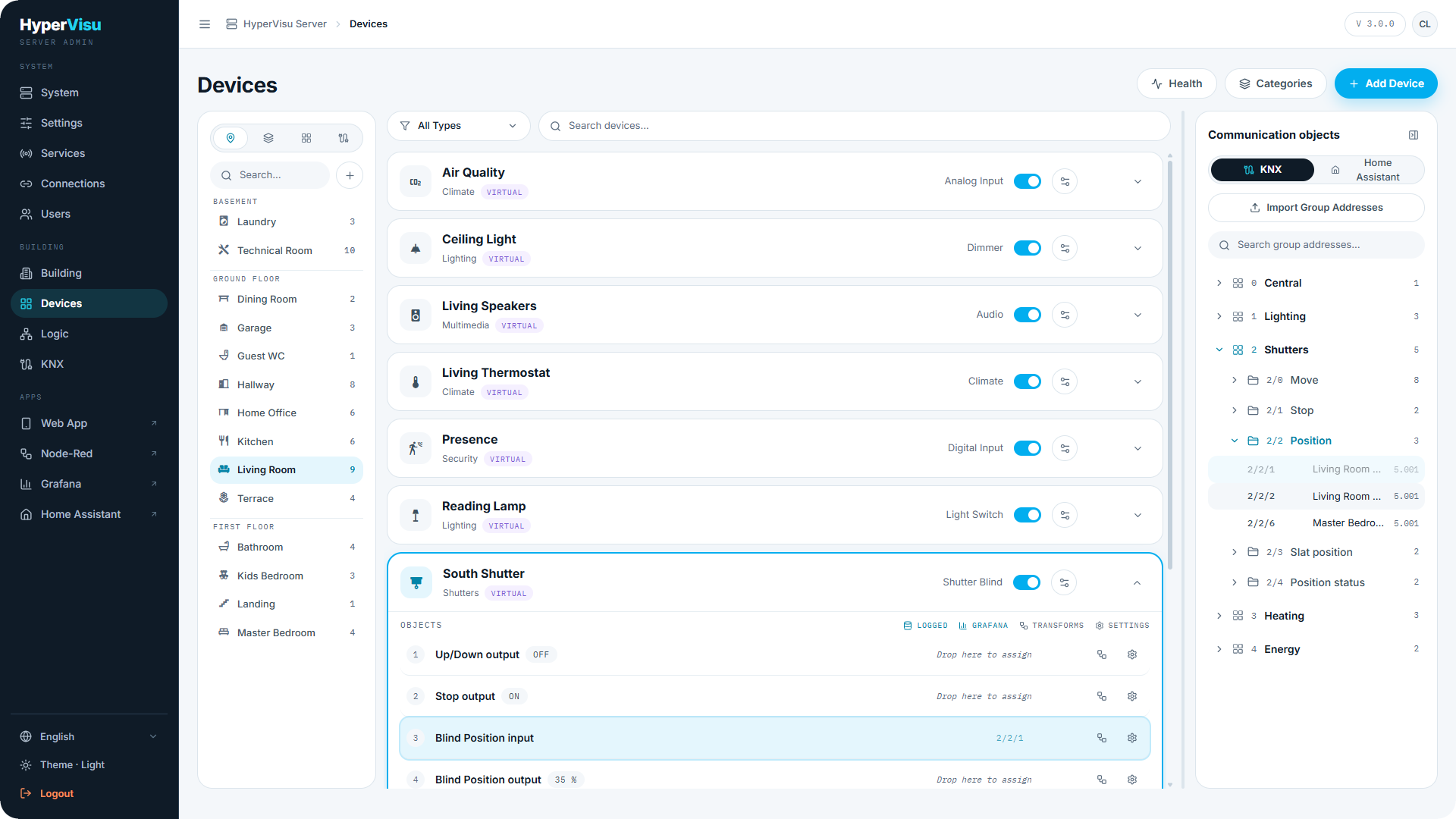
With a KNX device selected (or the KNX protocol filtered), the right rail shows the ETS project tree — your group addresses, organized as in ETS. If the tree is empty, import your ETS group-address export (XML) first.
To bind:
- Expand the device row to show its communication objects.
- Drag a group address from the tree onto an object row. The address is assigned and its datapoint type (DPT) is filled in automatically from the ETS data.
When the data type does not match. If the group address's DPT differs from what the object expects, a dialog explains the mismatch: the address's real data type will be bound to the object, and a transformation is required to convert between them. You can choose Map anyway — the object then stays flagged on the Health page until you add the transformation (see “Value Transformations & Health”).
💡 Tip: Typical case: a status byte (DPT 5.010) feeding a boolean object — map anyway, then add a Bit Check transformation (see “Value Transformations & Health”).