MQTT integration
MQTT connects HyperVisu to the publish/subscribe world: Zigbee2MQTT, Tasmota, Shelly (MQTT mode), ESPHome, energy gateways and any custom firmware that talks to an MQTT broker. HyperVisu is an MQTT client — it subscribes to the topics on which devices publish their state and publishes commands on the topics devices listen to. There is no polling: a device that changes state publishes, and the widget updates at once.
A broker sits in the middle. It can be one you already run (Mosquitto, EMQX, the one shipped with a Zigbee2MQTT installation, …) or the broker built into HyperVisu, which the server can run itself so that devices connect straight to it (see “The Built-in MQTT Broker”). Everything in this article applies either way — the built-in broker is an ordinary broker, reached through an ordinary connection.
What you need: the broker address and port, its credentials if it requires any, and the device's topics and payload format — from the device documentation, or read straight off the broker with the topic browser (below).
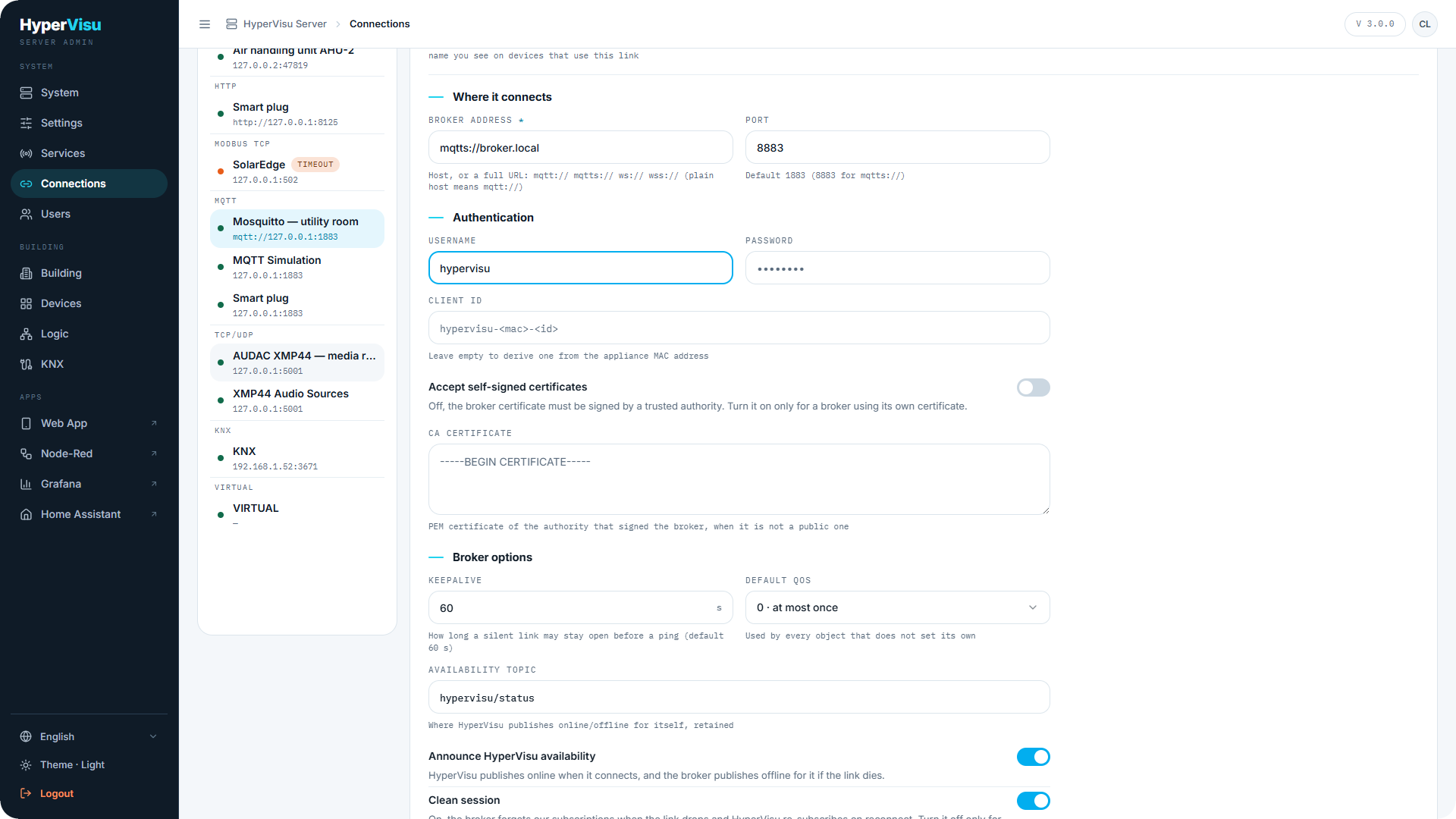
Connections. Switch on MQTT Protocol on the Services page first (see “Services & Protocols”); it is off on a new server. MQTT is multi-connection: one connection per broker (see “Connections”). In Add connection, select the MQTT card: the dialog asks for an Instance Name, the Broker address, the Port, the Client ID and the credentials, and has a Test button. CA certificate and the Broker options (Keepalive, Default QoS, Availability topic, Clean session) are not in the dialog: set them on the saved connection, which opens in its editor as soon as you click Create connection. The connection editor has:
| Field | Description |
|---|---|
| Broker address | Host, or a full URL: mqtt://, mqtts://, ws://, wss:// (a plain host means mqtt://). A path in the address is kept, for example ws://192.168.1.30/mqtt. |
| Port | The listener's port — usually 1883 for plain MQTT and 8883 for MQTT over TLS. Always type it: in the Add connection dialog an empty port is saved as 1883 whatever the scheme, and the Port field overrides a port written in the address. |
| Username / Password | Leave empty for an anonymous broker. |
| Client ID | Leave empty to derive one from the server's MAC address. |
| Accept self-signed certificates | Shown only for mqtts:// / wss://. Off by default: the broker certificate must be signed by a trusted authority. Switched on, the certificate is not verified at all. |
| CA certificate | Shown only for TLS: the PEM certificate of the authority that signed the broker, when it is not a public one. |
| Keepalive | How long a silent link may stay open before a ping (default 60 s). |
| Default QoS | 0 · at most once, 1 · at least once or 2 · exactly once — used by every object that does not set its own. |
| Availability topic / Announce HyperVisu availability | Where HyperVisu publishes online / offline for itself (default hypervisu/status, retained). The broker publishes offline on its behalf if the link dies. |
| Clean session | On (default): the broker forgets the subscriptions when the link drops and HyperVisu re-subscribes on reconnect. Turn it off only for a broker that should queue messages while HyperVisu is down. |
Test on an MQTT connection is a real test: the server connects to the broker and waits for its acknowledgement (within 10 s). A good result reads Connection succeeded. In the Add connection dialog, Test tries the values you typed, before you create the connection. On a saved connection, Test checks the saved connection, not the fields you have not saved yet: click Save connection first, then Test. A successful test proves that the address, the port, the credentials and the TLS settings are accepted by the broker; it does not prove that any topic carries data.
The status of the connection reads Connected while the broker link is up. A broker that goes away is retried every few seconds, without limit — it never needs a server restart.
📘 Note: After you create or save a connection, Apply changes appears in the sidebar with a counter. The connection already works without it; applying reloads the server configuration and clears the counter.
Binding an object (see “Binding MQTT” below). Per object you enter a Topic; the admin stores it as <connection>:<topic> so two brokers can carry the same topic name. The object's direction decides what happens:
| Direction | Behavior |
|---|---|
| In | Subscribes to the topic (state topic). Wildcards are allowed: + for one level, # for the rest. |
| Out | Publishes to the topic (command topic). Must be a concrete topic — no wildcards. |
| In/Out | Subscribes and publishes on the same topic. Only correct for devices that keep retained state on one topic; prefer two objects (one In, one Out). |
The payload codec — how the payload is turned into a value and back — is the object's data type string, built by the editor from these fields:
| Field | Stored as | Meaning |
|---|---|---|
| Payload format | — / PATH= | Raw value: the whole payload is the value. JSON: the value is read at the JSON path (state, sensor.temperature, values[0]). |
| ON token / OFF token | ON= / OFF= | For boolean objects: what the device writes and expects for true/false (e.g. ON / OFF). Without tokens, true/false, 1/0, on/off are understood on the way in and true/false is published. |
| Scale / Offset | SCALE= / OFFSET= | Reading: value = raw × scale + offset; publishing uses the inverse, raw = (value − offset) ÷ scale. A command object and its feedback object therefore take the same scale. |
| Payload template | PUB= | Optional publish template; {{value}} is replaced by the value, e.g. {"state":"{{value}}"}. Leave empty to publish the bare value. |
| QoS | QOS= | Broker default, 0, 1 or 2 for this command. |
| Retain published messages | RETAIN=1 | Off by default. |
| Minimum interval (ms) | THROTTLE= | Chatty sensors are collapsed to this rate (default 100 ms); the last value always arrives. 0 disables it. |
The string has the form TYPE:param:param… — for example BOOL:PATH=state:ON=ON:OFF=OFF or FLOAT:SCALE=0.3937:PUB={"brightness":{{value}}}. An empty string means "take the raw payload as the object's type". The object editor has no data type field: the type is the one shown on the field you click in the topic browser (below), and clicking a field changes the object's type to match it. Colour (RGB) objects accept {"r","g","b"}, {"red","green","blue"}, [r,g,b], #RRGGBB and 255,128,0 on the way in, and publish {"r":…,"g":…,"b":…} unless a template says otherwise.
⚠️ Warning: A retained command re-fires every time the device reconnects to the broker. Retain state, not commands — the editor warns when you switch retain on for an outgoing object.
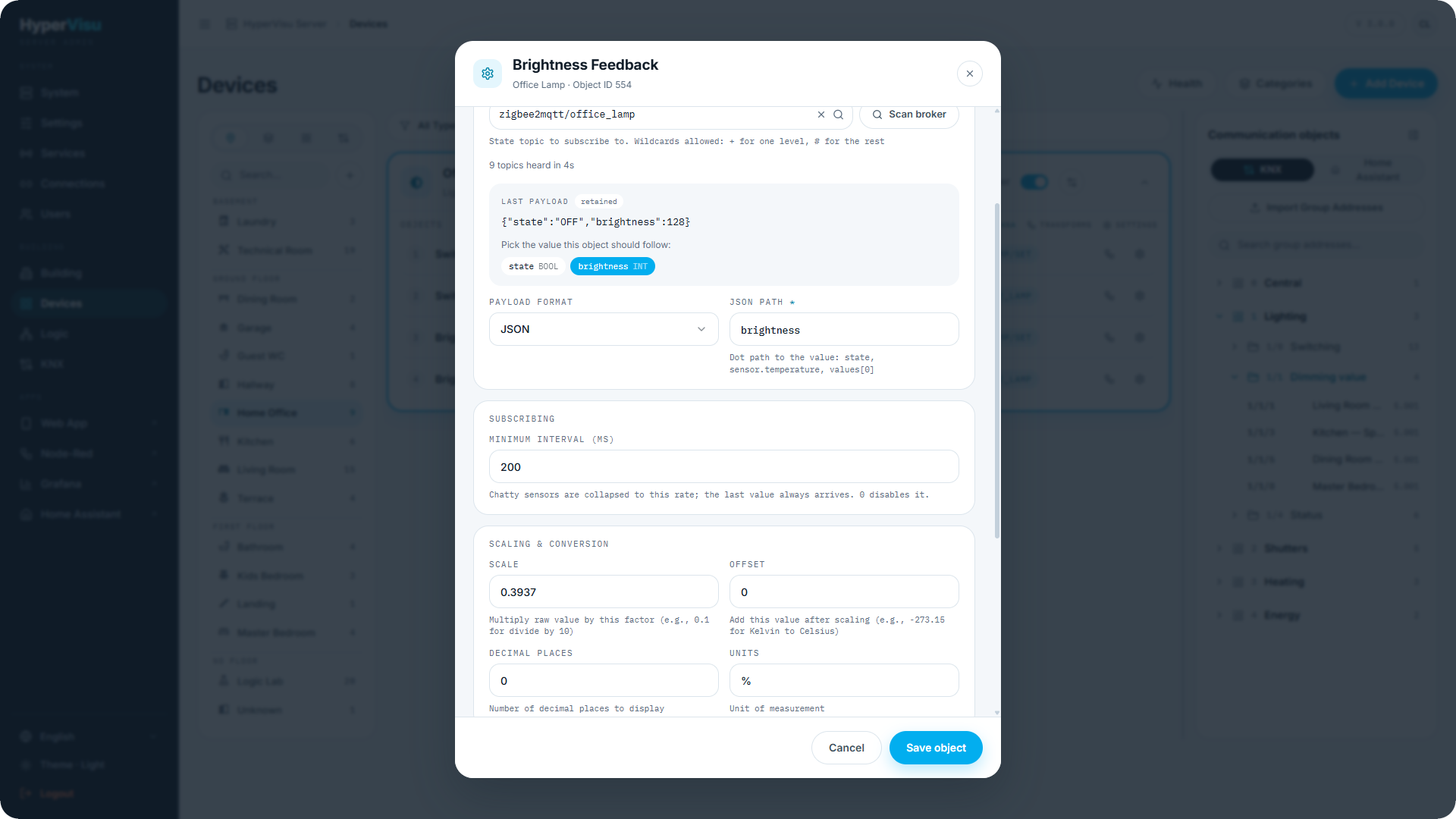
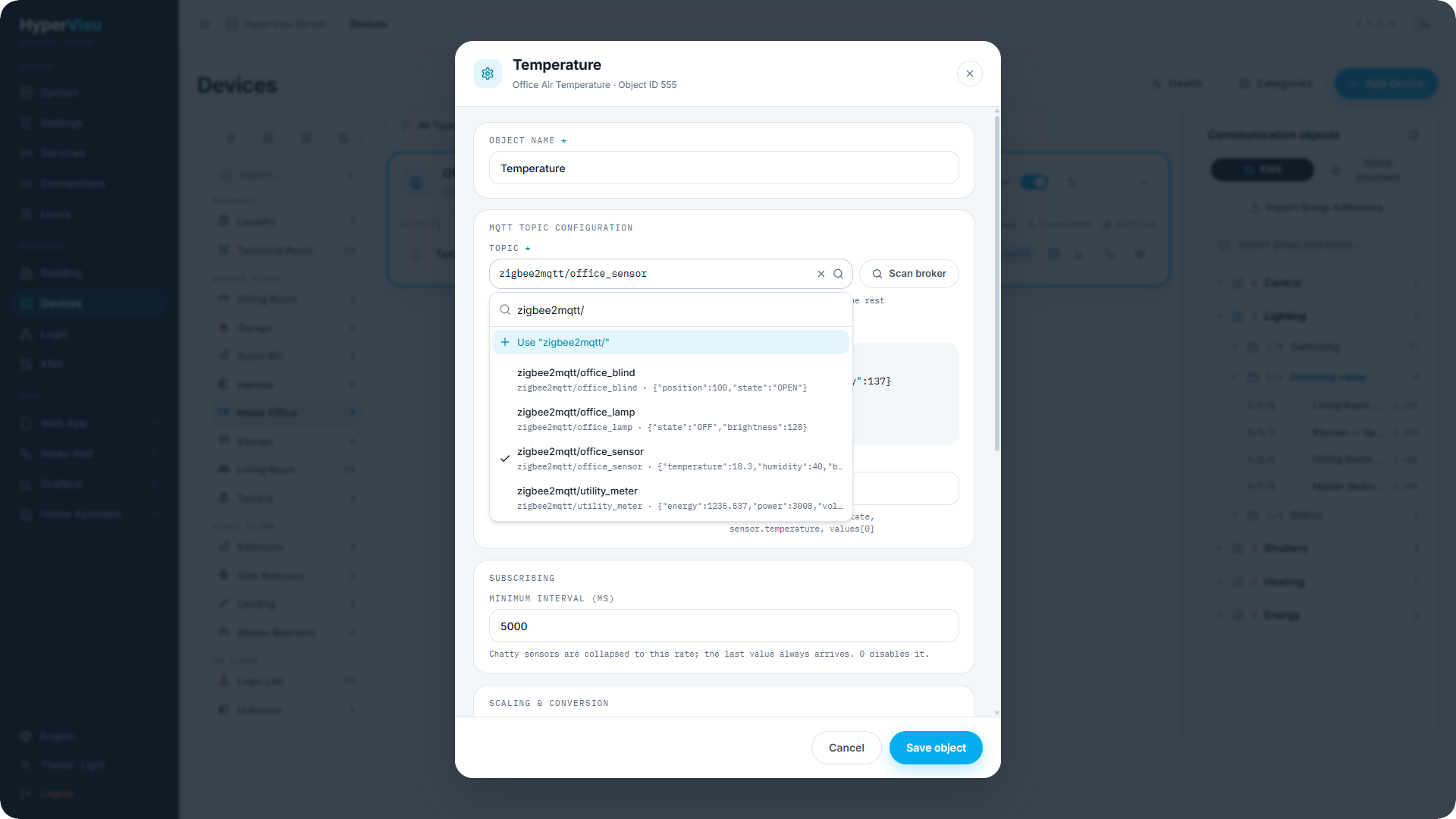
Topic browser. MQTT is the one protocol whose addresses can be read off the network. In the object editor, under MQTT topic configuration, click Scan broker: the server listens to the whole broker for four seconds and reports how many topics it heard (retained topics arrive immediately, so a short scan already shows most of what is worth binding; for a device that does not retain, trigger a fresh reading and scan again). The list is capped at 500 topics. The object editor cannot scan a part of the broker: open Topic and type in Search topics… to filter what was heard, or type the full topic yourself. Each row shows the topic and its last payload, with a retained badge. Pick a topic and:
- for a JSON payload, every field is listed under Pick the value this object should follow — one click sets the JSON path, the object type and, for booleans, the ON/OFF tokens in the device's own spelling;
- for a plain payload, Use the raw payload as
fills the type.
Choose the topic before you click a field: selecting another topic resets the payload format, the JSON path and the tokens. The click does not fill Scale and Offset.
You can still type a topic the scan did not hear — a command topic may never have been published, and an incoming object may want a wildcard. Type it in Topic and click Use "…" in the list.
Behavior worth knowing
- Instant state after a restart. Retained messages are replayed by the broker on every (re)connect, so widgets show values without waiting for the next device publish.
- No invented feedback. A command is confirmed only when the device publishes its state topic (or the broker replays it) — exactly like KNX status objects. If the device is dead, the widget does not pretend.
- Commands during an outage. Commands with QoS 1 or 2 are queued while the broker is unreachable and delivered on reconnect; QoS 0 commands to an unreachable broker fail and are logged.
- Protection. Payloads larger than 64 KB are dropped with a warning; one subscription per distinct topic filter is opened, however many objects share it.
Worked example — a Zigbee2MQTT dimmable lamp
Zigbee2MQTT publishes the lamp's state as JSON on zigbee2mqtt/lamp ({"state":"ON","brightness":178}) and accepts commands on zigbee2mqtt/lamp/set. Brightness runs 0–254.
- Create an MQTT connection for the broker (see “Connections”): broker address
192.168.1.10, port1883, the Zigbee2MQTT broker credentials if any. Click Test — it must report success. - In Devices, add a Dimmer widget "Office lamp". Under Protocol, select your broker connection, listed by the name you gave it. The device arrives with four objects: Switch ON/OFF, Switch Feedback, Dimming setpoint and Dimming feedback.
- On Switch ON/OFF (the on/off command): type
zigbee2mqtt/lamp/setin Topic and click Use "…" in the list. Set ON token toON, OFF token toOFFand Payload template to{"state":"{{value}}"}. Type the tokens: the greyONandOFFare only hints, and without tokens the switch publishestrueorfalse. - On Switch Feedback (the on/off state): click Scan broker, pick
zigbee2mqtt/lamp, then click thestatefield — the editor sets JSON pathstateand tokensON/OFF. - On Dimming setpoint (the brightness command): topic
zigbee2mqtt/lamp/set, Payload template{"brightness":{{value}}}, Scale0.3937, Offset0. - On Dimming feedback (the brightness state): topic
zigbee2mqtt/lamp, click thebrightnessfield, and set the same Scale0.3937. This is approximately100/254: incoming values are multiplied by it (Zigbee 0–254 becomes 0–100 %), outgoing values are divided by it (0–100 % becomes 0–254). - Click Save object on each object, then click Apply changes in the sidebar and confirm.
- Set the brightness to
50 %in the app. The lamp receives approximately127, and its feedback returns approximately50 %. The slider confirms from the state topic, and turning the lamp with its physical remote updates the app too.
📘 Note: The value sent is not rounded:
50 %is published as127.000254. The object editor has no data type field, so you cannot make a command object send a whole number. Check that your lamp accepts a decimal brightness.
Binding MQTT
MQTT objects are configured in the object settings dialog (open the object with Edit, see “Object Settings, Logging & Notifications”). The protocol-specific part is in three cards:
MQTT topic configuration
| Field | Description |
|---|---|
| Topic | The topic this object subscribes to (In: a state topic — wildcards + and # allowed) or publishes to (Out: a command topic — no wildcards). Pick it from the list after Scan broker, or type it. The stored address is <connection>:<topic>. |
| Scan broker | Listens on the broker for a few seconds and lists the topics heard, each with its Last payload and a retained badge. With a topic selected, a JSON payload offers its fields under Pick the value this object should follow — one click fills the JSON path, the data type and the ON/OFF tokens; a plain payload offers Use the raw payload as |
| Payload format | Raw value (the whole payload is the value) or JSON with a JSON path (state, sensor.temperature, values[0]). |
| ON token / OFF token | Boolean objects: what the device writes and expects for true/false (e.g. ON / OFF). |
Publishing (outgoing objects)
| Field | Description |
|---|---|
| Payload template | Optional. {{value}} is replaced by the value; leave empty to publish the bare value. |
| QoS | Broker default, 0, 1 or 2 — the delivery guarantee for this command. |
| Retain published messages | Off by default. A retained command re-fires every time the device reconnects — retain state, not commands. |
Subscribing (incoming objects)
| Field | Description |
|---|---|
| Minimum interval (ms) | Chatty sensors are collapsed to this rate (default 100 ms); the last value always arrives. 0 disables it. |
| Scale / Offset | Numeric objects: value = raw × scale + offset on the way in, the inverse when publishing. |
The fields are stored as the object's data type string (e.g. BOOL:PATH=state:ON=ON:OFF=OFF) — the grammar, the topic browser and a worked example are in the MQTT chapter above.