
HyperVisu speaks to Sonos speakers natively, over the local network — the server talks to the speakers directly, the way the Sonos app does. There is no cloud account, no Sonos API key, no bridge and no third-party integration in between, and nothing stops working when the internet does. Speakers push their state to the server as it changes, so volume, transport, source and track information in the app follow whatever anyone does — in the Sonos app, on the speaker's buttons, or from a HyperVisu automation.
What you need: the Sonos system on the same network as the HyperVisu server, the IP address of any one of its speakers, and the Sonos protocol enabled in Services (see “Services & Protocols”).
One connection is one household
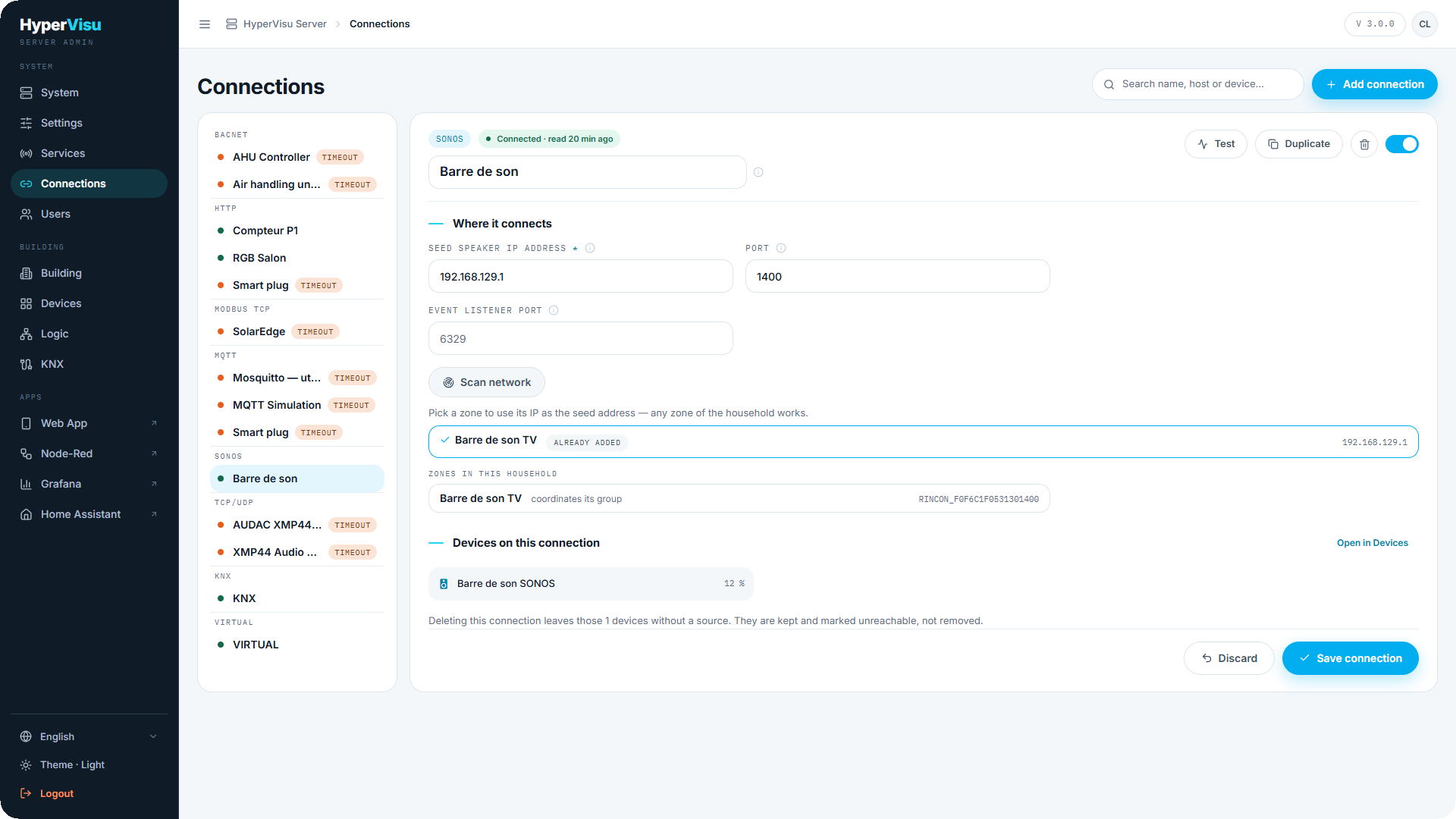
A Sonos household is the whole system as the Sonos app shows it. You add one connection and give it a seed speaker — any single speaker's address; every zone of the household is discovered from it. You do not add a connection per speaker.
| Field | Description |
|---|---|
| Seed speaker IP address | The address of any one speaker of the household. |
| Port | The Sonos control port — 1400 on every current speaker. |
| Event listener port | The local port the speakers send their status events to. Leave it empty for the default (6329); one port serves the whole server. Change it only if something else on the server already uses that port. |
The Add connection dialog has no port field: it creates and tests the connection on port 1400. Port and Event listener port are on the saved connection. Test names the model and the room of the seed speaker.
Scan network finds the speakers for you: it lists every zone with its room name and IP address, marks the households already added, and fills the seed address when you click a zone. A stereo pair or a bonded home-theatre set is listed once, as one zone. Use it rather than hunting for an address in the Sonos app. If the scan comes back empty, the speakers are on another network segment where the discovery broadcast does not travel — type the seed address by hand instead.
Once the connection is saved, the editor shows Zones in this household: every zone with its room name, which zone coordinates a group, and which zones are grouped with it. That list is the live picture of the household and is what the zone pickers offer when you bind objects.
Adding the speakers
One HyperVisu device is one zone. The fastest way is the Devices Library (see “Devices Library & Sonos Binding”): pick the Sonos speaker / zone template, name the device, choose the zone from the dropdown, and repeat with Add another device for the next zone. Binding by hand is described in the same article.
Behavior worth knowing
- Zones, not speakers. You bind zones, one HyperVisu device per zone. Scan network lists a stereo pair or a bonded home-theatre set once, as one zone. Check the Zones in this household list of your own system before you create the devices.
- Identity survives changes. The zone is stored by its own identifier, so renaming the room in the Sonos app or a new IP address after a router reboot does not break the binding.
- Groups. When speakers are grouped in the Sonos app, the group's coordinator drives playback and the members mirror it. Volume and mute objects can be set to act on the whole group instead of the single speaker.
- Sources are the household's favorites, plus the physical inputs of speakers that have them (TV, Line-In). They are read from the household and stored on the widget with Sync Sonos favorites (see “Devices Library & Sonos Binding”): physical inputs first, then the favorites in the order Sonos lists them. The names are saved at once — there is nothing to apply — and the list is kept until you sync again, so sync after you change favorites in the Sonos app. The apps show up to six sources as buttons; with more than six they use a dropdown.
- No power state. Sonos speakers have no on/off, so the audio widget's zone button stays unbound and the without zones sub-type is used.
- Reconnection is automatic: an unreachable household is retried with increasing delays, and the zones come back on their own when the speakers return.
📘 Note: Cover artwork is served by the speaker itself over the local network. Inside the home it appears on the device's page in the web app; from outside, the app falls back to the placeholder image.