
Settings holds everything about how the app looks and behaves on this device. Open it from the Configuration menu (gear on the home screen) → App settings.
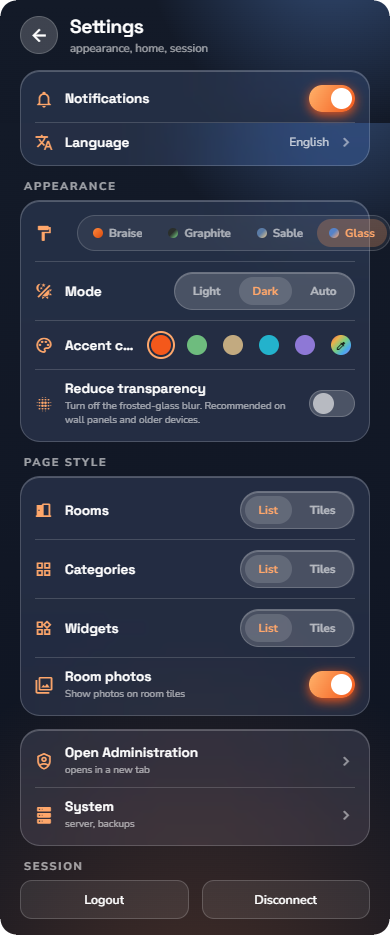
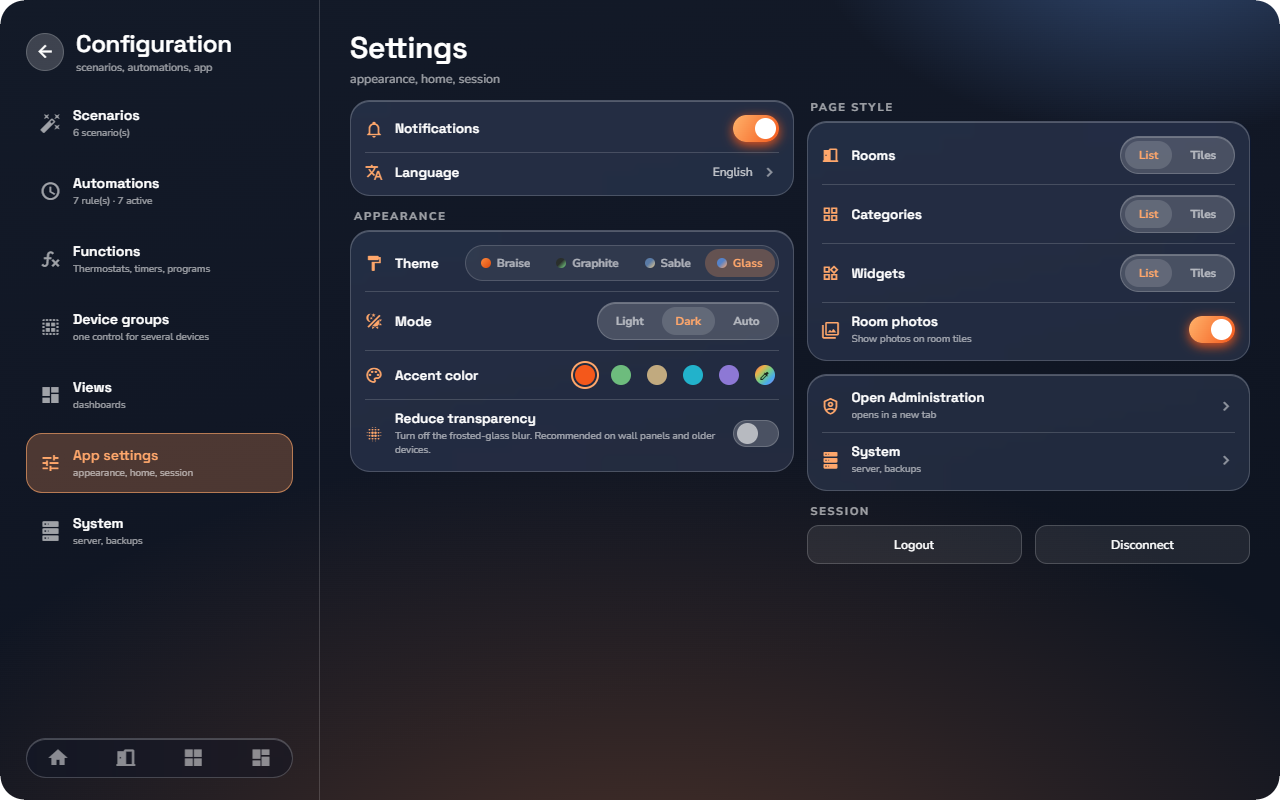
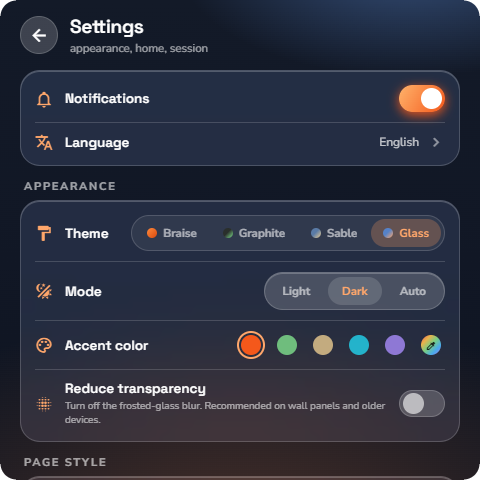
Notifications
The Notifications toggle enables or disables push notifications for your account (see “Notifications & Videophone”). Each user decides for themselves.
Language
Tap Language and pick from the nine languages the app ships: English, Français, Nederlands, Deutsch, Español, Italiano, Ελληνικό, Português, हिन्दी. The change applies immediately.
Appearance
| Setting | Options | What it does |
|---|---|---|
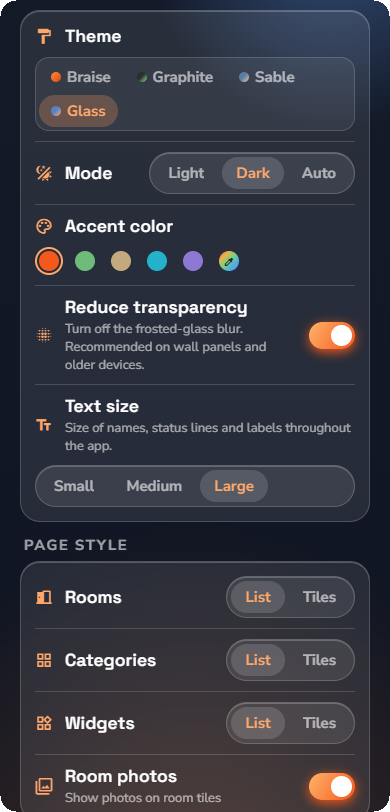
| Theme | Braise (default) · Graphite · Sable · Glass | The overall visual family — surfaces, shapes and corner styling. |
| Mode | Light · Dark · Auto | Auto follows your device's light/dark setting. |
| Accent color | 5 preset swatches + a custom swatch | The accent used across the app. The custom swatch opens a colour picker — "Pick any color — the theme is rebuilt around it." |
| Reduce transparency | on/off | Turns off the frosted-glass blur. Recommended on wall panels and older devices, where the blur costs real performance. |
| Text size | Small · Medium (default) · Large | The size of the words the app draws — device, room and category names, their status lines, section labels and buttons. |
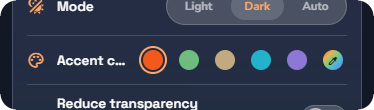
Text size changes the whole app at once — pick the size that reads comfortably and everything follows. Rows, tiles and cards grow with the text, so nothing is cut off; the big numeric readouts (the weather figure, a thermostat dial) keep the size their container was drawn for. The change is immediate, and like the rest of Appearance it is stored on this device only.
Page style
- Rooms, Categories, Widgets — choose List or Tiles for each page type. The toggle on each page changes the same preference.
- Room photos — show photos on room tiles (Home and Rooms pages). The room's own page keeps its photo banner either way.
System and administration
- System — opens the read-only System page.
- Open Administration — visible to level 5 administrators only; opens the admin panel in a new browser tab, already matched to your language.
Session
- Logout — sign out, stay connected to the server (another user can sign in).
- Disconnect — leave the server and clear its data from the app; the Connect screen opens (see “Connecting & Signing In”).
📘 Note: Appearance, page style and language are stored on the device — each phone, tablet and wall panel can look different. The Notifications toggle is stored with your user account on the server.
Personalizing the home (Home editor)
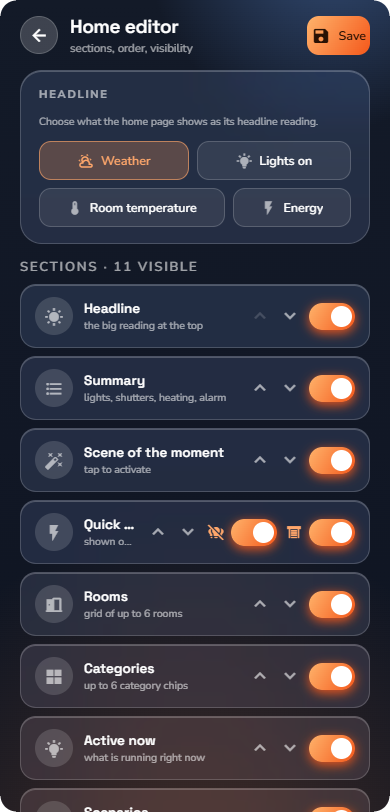
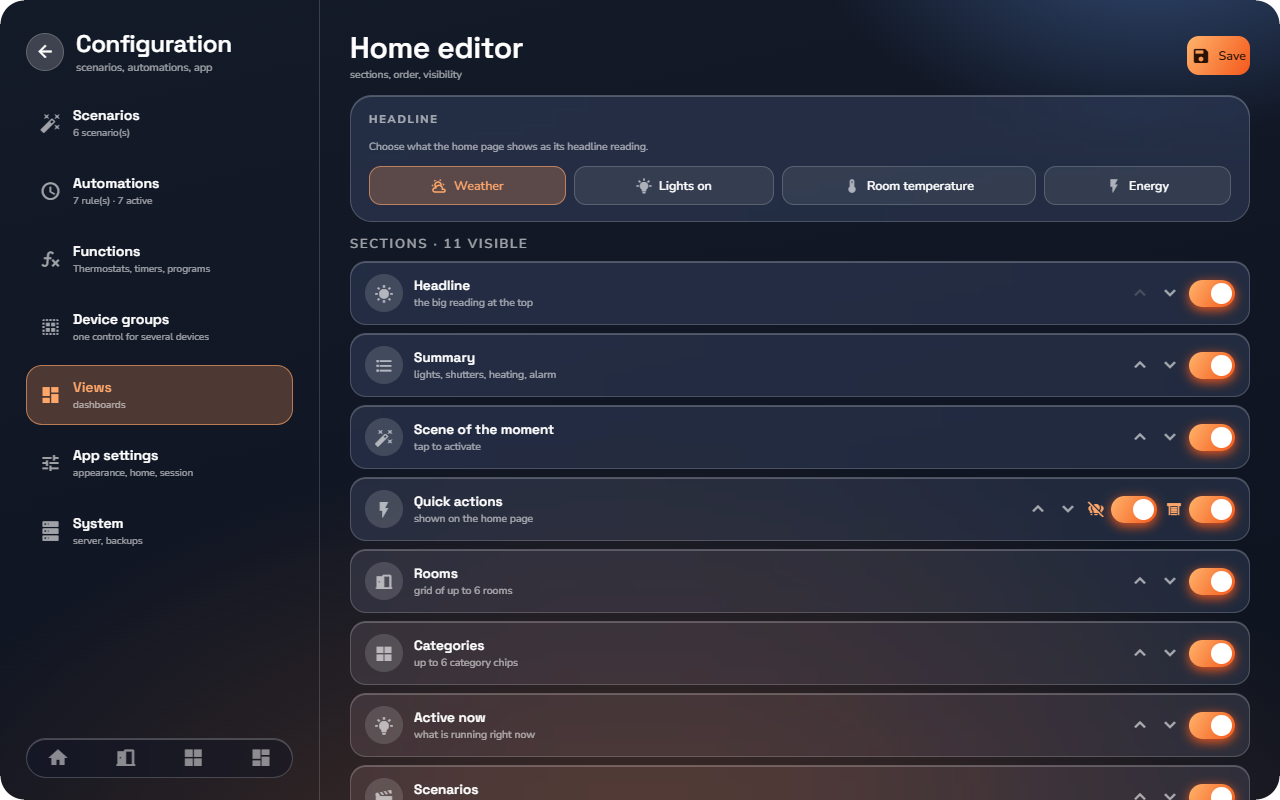
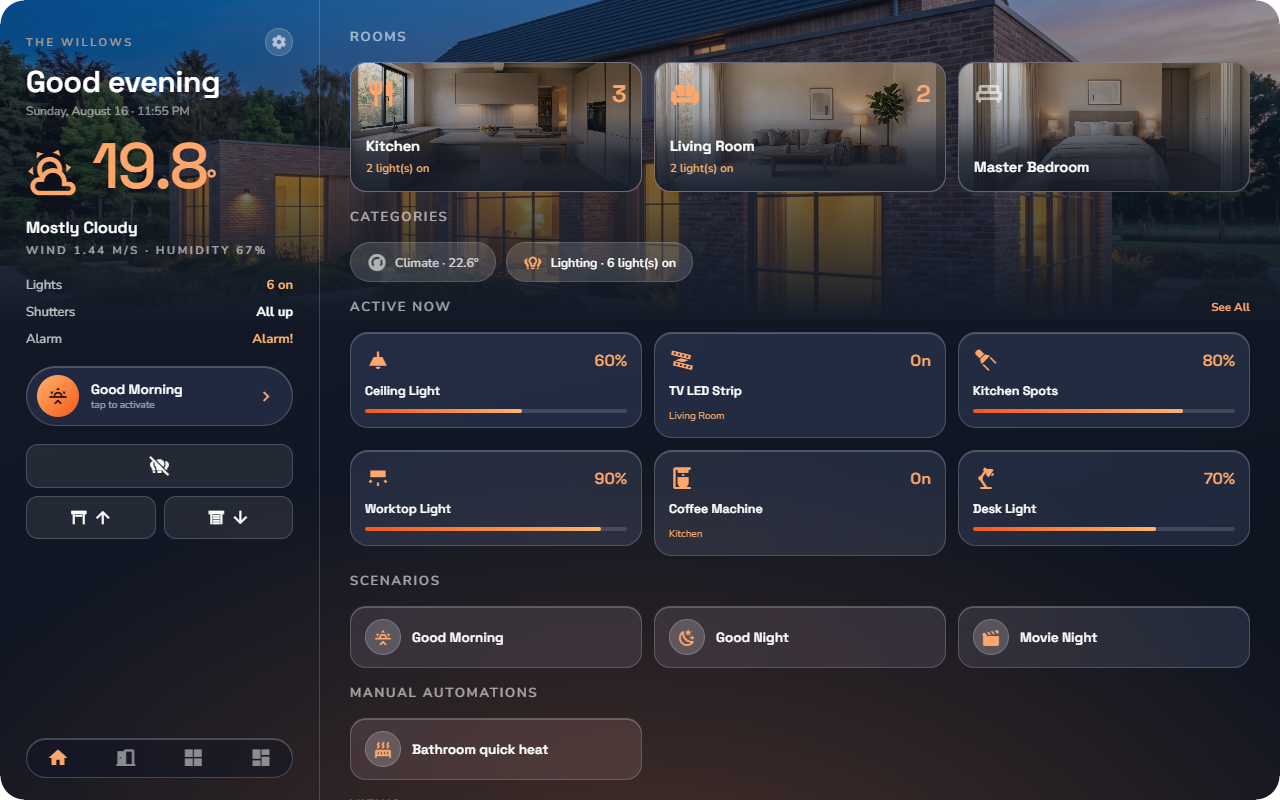
The home editor decides what your home screen shows: which sections appear, in what order, what the headline reads, which quick actions are offered, and which devices are pinned.
What you need: the app open on the Views tab.
Opening the editor
- Open Views.
- Find Home in the list — it is a built-in view.
- Tap the pencil next to it. The Home editor opens ("sections, order, visibility").
Choosing the headline
The Headline card selects the big reading at the top of the home:
| Source | Shows |
|---|---|
| Weather | Outside temperature and conditions (default; needs the weather service). |
| Room temperature | One room's temperature — pick Which room from the chips that appear. Only rooms that report a temperature are offered. |
| Lights on | How many lights are on right now. |
| Energy | The live energy figure. |
Reordering and hiding sections
Under Sections, every home section appears as a row:
- Use the up / down chevrons to move a section.
- Use the toggle to hide it. Hidden sections collect under Hidden, where you can switch them back on.
- Tap Save when you are done. The change appears on the home screen immediately.
The Quick actions row is special: instead of one toggle it carries two — one for the light commands and one for the shutter commands — so you can keep, say, the shutter buttons and drop the light ones. These two switches govern the home page only; each room and category decides for itself (see “Global Commands”).
📘 Note: The section order applies to the home page on phone, tablet and wall panel. The layout is saved for your account on this device — each family member (and each device) can arrange their own home.
Reset to default restores the original order, headline and sections.
Pinning widgets to the home
The Pinned widgets list holds individual devices shown at the bottom of the home:
- Tap + Pin a widget.
- Search or browse by room, then tap a device to pin it.
- Remove a pinned device with the ✕ on its row.
The home banner photo
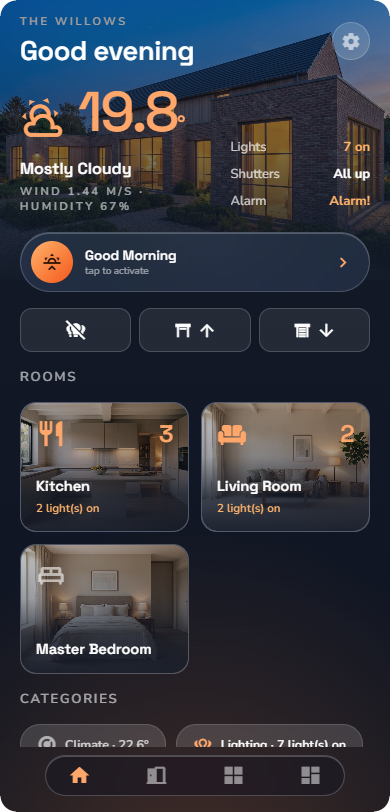
When the house's own room (the first room, named "Home") has a photo, the home screen wears it as a photo band behind the headline; without one, the home uses the plain layout. The photo itself is uploaded in the admin panel under the building structure (see “Building Structure & Categories”) — there is no separate setting in the app.
System information (in-app)
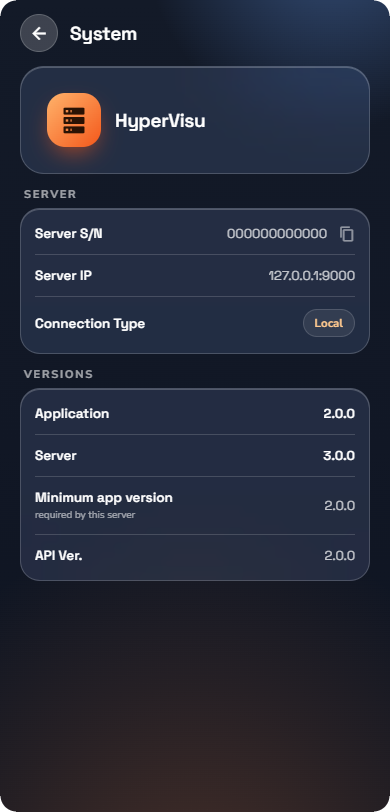
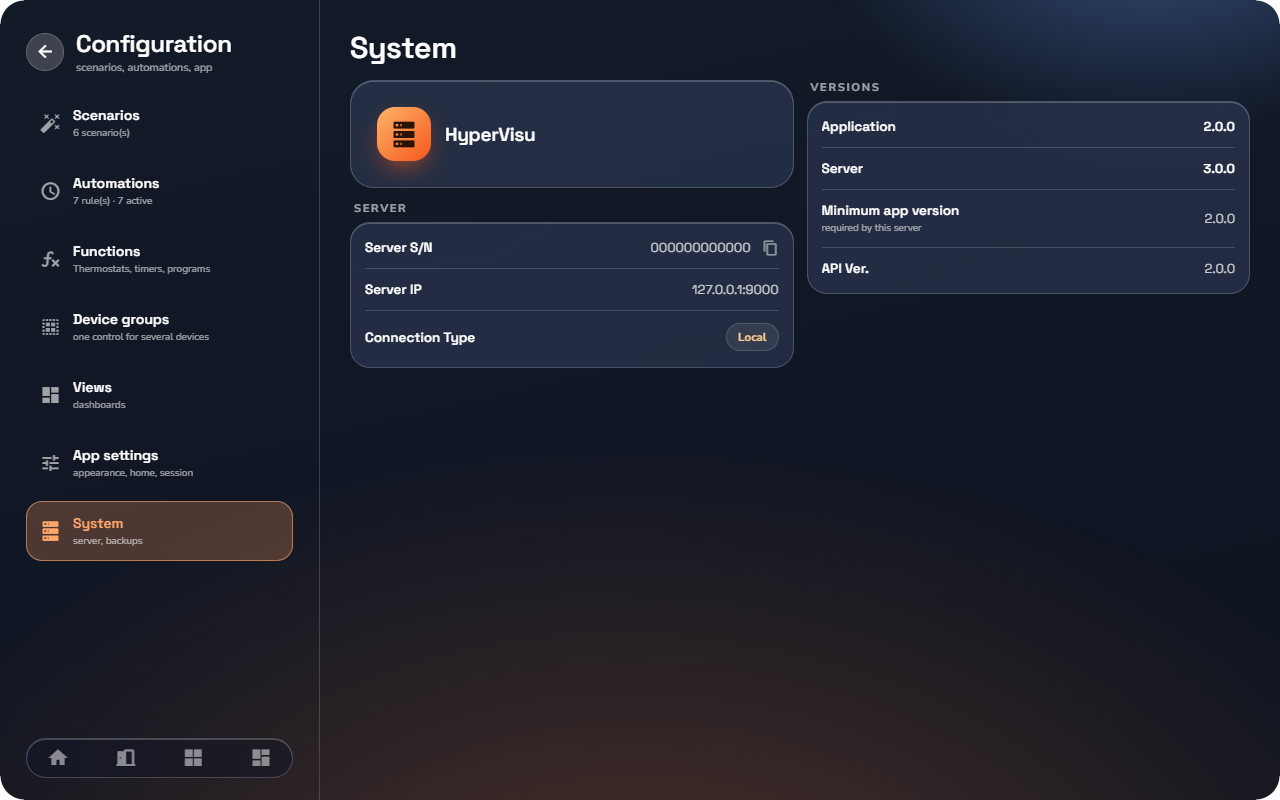
The System page is a read-only card of your connection and version facts — the first place to look before calling for help, and the fastest way to copy your server's serial number.
Open it via Settings → System.
Server
| Row | Meaning |
|---|---|
| Server S/N | The server's serial number. Tap the copy icon to copy it — support and ElauPro identify your server by it. |
| Server IP | The address the app is currently using. |
| Connection Type | A pill: Local (home network), Cloud (via the Elausys Cloud Service) or Custom URL (an address you typed). |
Versions
| Row | Meaning |
|---|---|
| Application | The app version installed on this device. |
| Server | The HyperVisu server software version. |
| Minimum app version | The oldest app version this server accepts ("required by this server"). |
| API Ver. | The protocol version between app and server. |
If your app is older than the minimum, an update notice appears on the home screen (see “Connecting & Signing In”).
What to check here, and when
| Situation | Look at |
|---|---|
| Contacting support or registering in ElauPro | Server S/N — copy it with the copy icon. |
| "Am I on my home network or going through the cloud?" | The Connection Type pill. It reflects how this session connected, so it can read Local at home and Cloud on the road. |
| An update notice on the home screen | Application vs Minimum app version. |
| "Did the server update land?" | Server version, before and after (see “Software Updates”). |
📘 Note: Everything on this page is read-only — nothing here changes the installation. Network settings, updates and the server's name are managed in the admin panel (Part IV).
💡 Tip: When reporting a problem, a screenshot of this page gives support the serial, the versions and the connection route in one image.
Favorites & personalization
Favorites put the things you actually use at the front of every list — and the app quietly fills the gaps with the things you open most.
Pinning
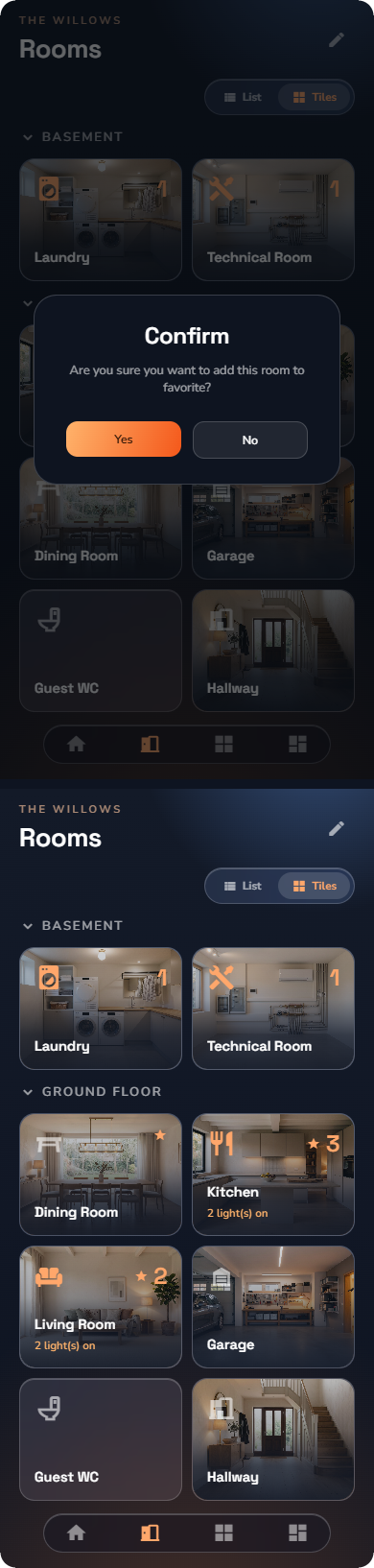
Long-press pins and unpins:
- a room (on the Rooms page or the home grid),
- a category,
- a device (anywhere it appears),
A pinned item moves to the front of its list and of its home section; pinned items are ordered before everything else, which then follows alphabetically. Long-press again to unpin.
Where favorites show up
| You pin a… | It leads |
|---|---|
| Room | The Rooms page (within its floor section) and the home's rooms grid. |
| Category | The Categories page and the home's category chips. |
| Device | Its room page's device preview, and the widget lists. |
| Scenario | The scenario shortcuts on the home and in its room. |
The home's rooms grid and category chips show a handful of slots (up to 6 each) — pinning decides who gets them.
Automatic suggestions
The favourite slots on the Home, Rooms and Categories pages show a fixed number of tiles. When you have pinned fewer than that, the free slots are filled automatically with the rooms and categories you open the most.
What is personal, what is shared
- Pins are stored with your account — your favourites follow you.
- Usage-based suggestions are per device.
- The home layout is per account and device.
So two people on the same installation — or one person on two devices — can each have a differently ordered app, without affecting anyone else.