
Rooms
The Rooms page lists every room you have access to, grouped by floor, each with its live status. A room's own page shows its devices.
The all-rooms page
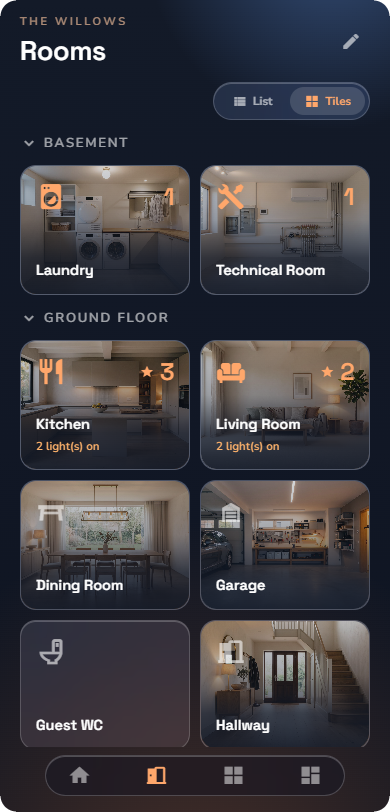
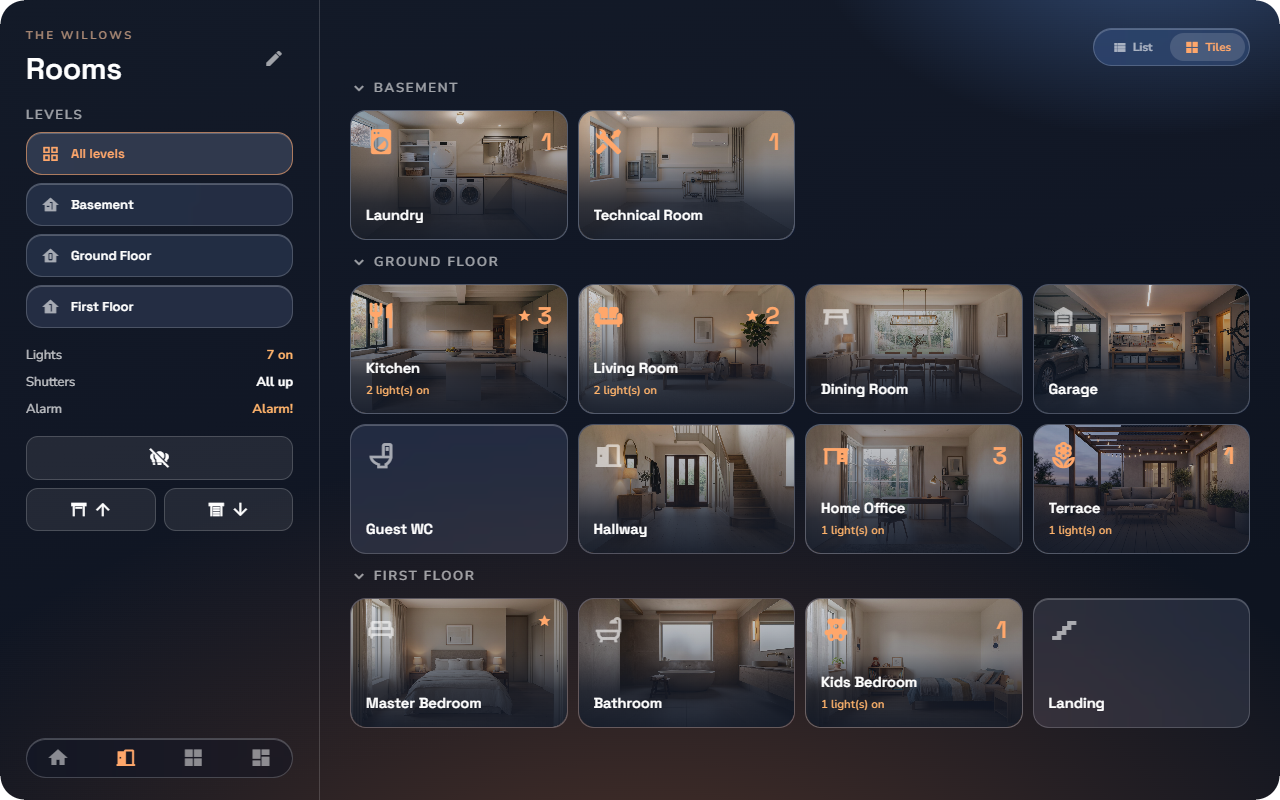
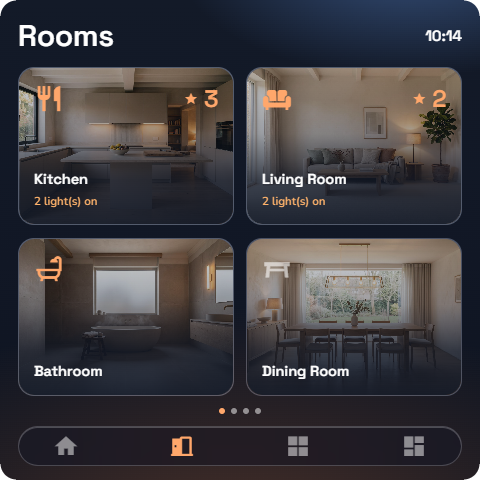
- List or tiles — switch with the List / Tiles toggle at the top. Your choice is remembered (also settable in Settings → Page style, see “App Settings & Personalization”).
- Floor filter — chips for each level let you show a single floor; each floor is a collapsible section.
- Order — your favourite rooms come first, then the rest alphabetically (see “App Settings & Personalization”).
- Live status — each room shows what is going on inside it right now (lights on, temperature, …).
- Room photos — tiles show the room's photo when one is set; you can turn photos on tiles off in Settings → Page style → Room photos.
- Long-press a room to pin it as a favourite, or to unpin it.
📘 Note: If your account has access to exactly one room, the app skips this page and takes you straight into that room.
A room's page
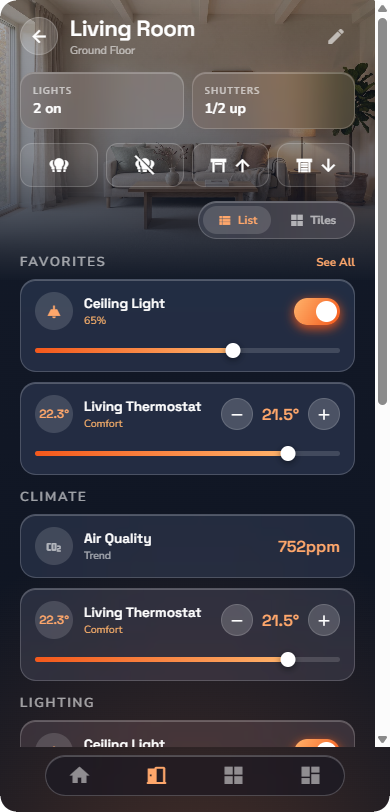
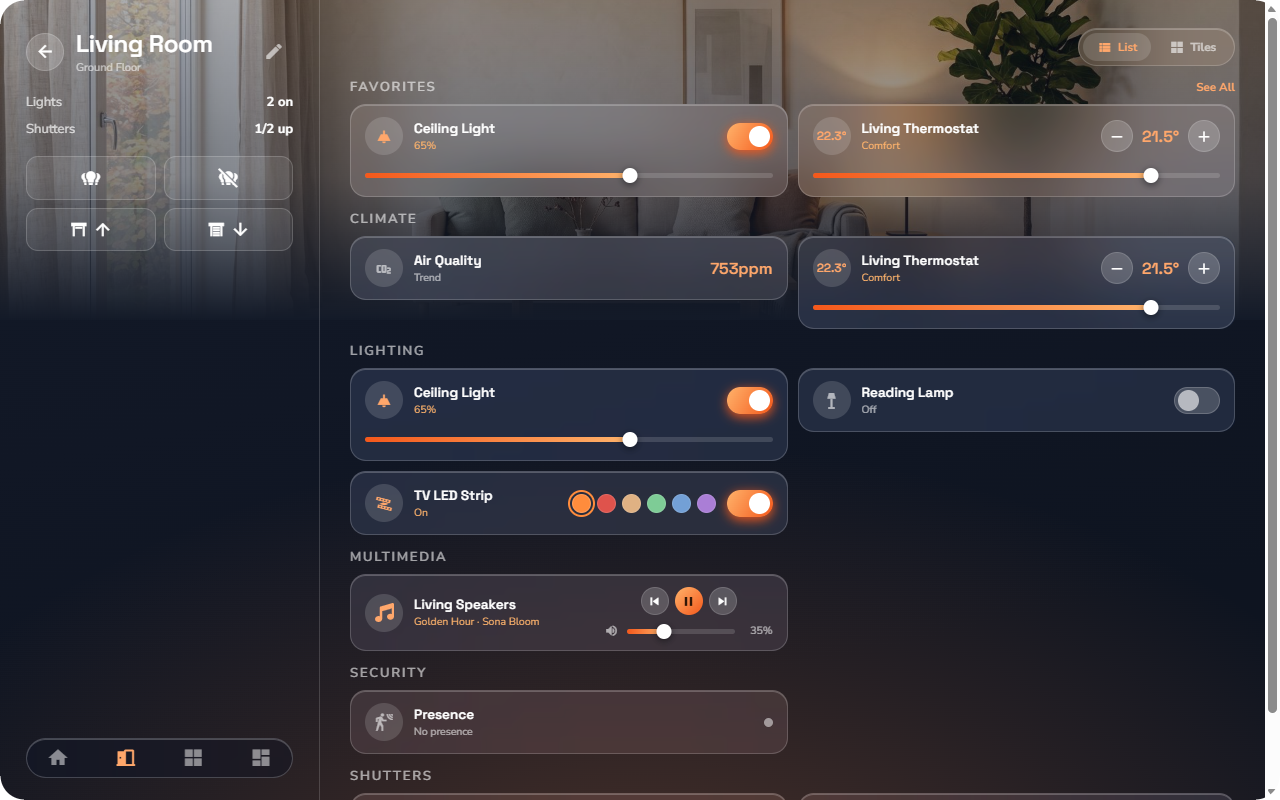
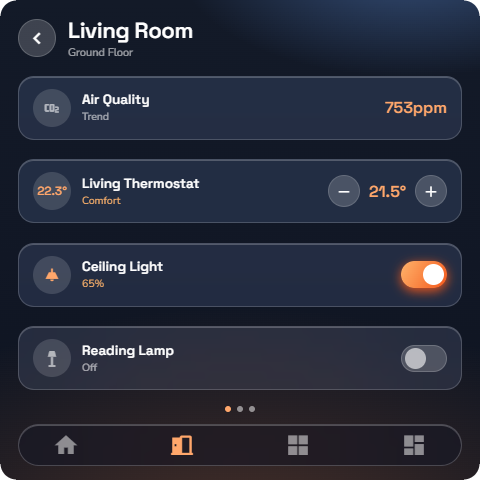
A room page shows, from top to bottom:
- The room's photo banner (when a photo is set) and name.
- A live summary — lights on, shutters, temperature and setpoint.
- The room's global commands — all on, all off, shutters up / down — when the administrator enabled them for this room (see “Global Commands”).
- The room's devices, grouped by category, as rows or tiles (List / Tiles toggle).
- The room's favourite devices and scenes are previewed first, with see all for the rest.
The "what is on" drill-down
Wherever the app shows a count — "Lights · 3 on" on the home, a rooms rail, or a room page, or the Active now cards — tapping it opens the list behind the number.
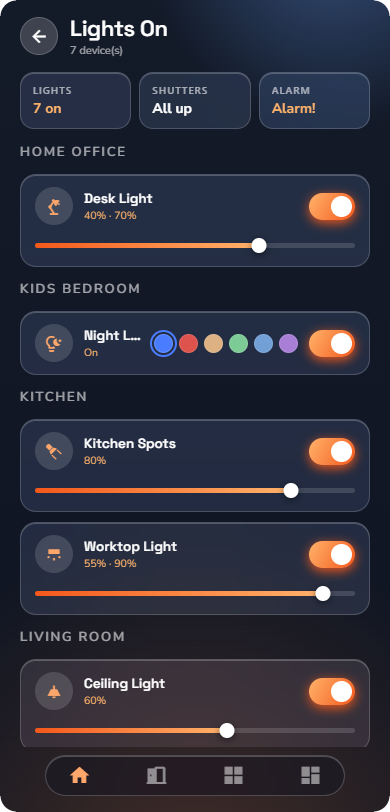
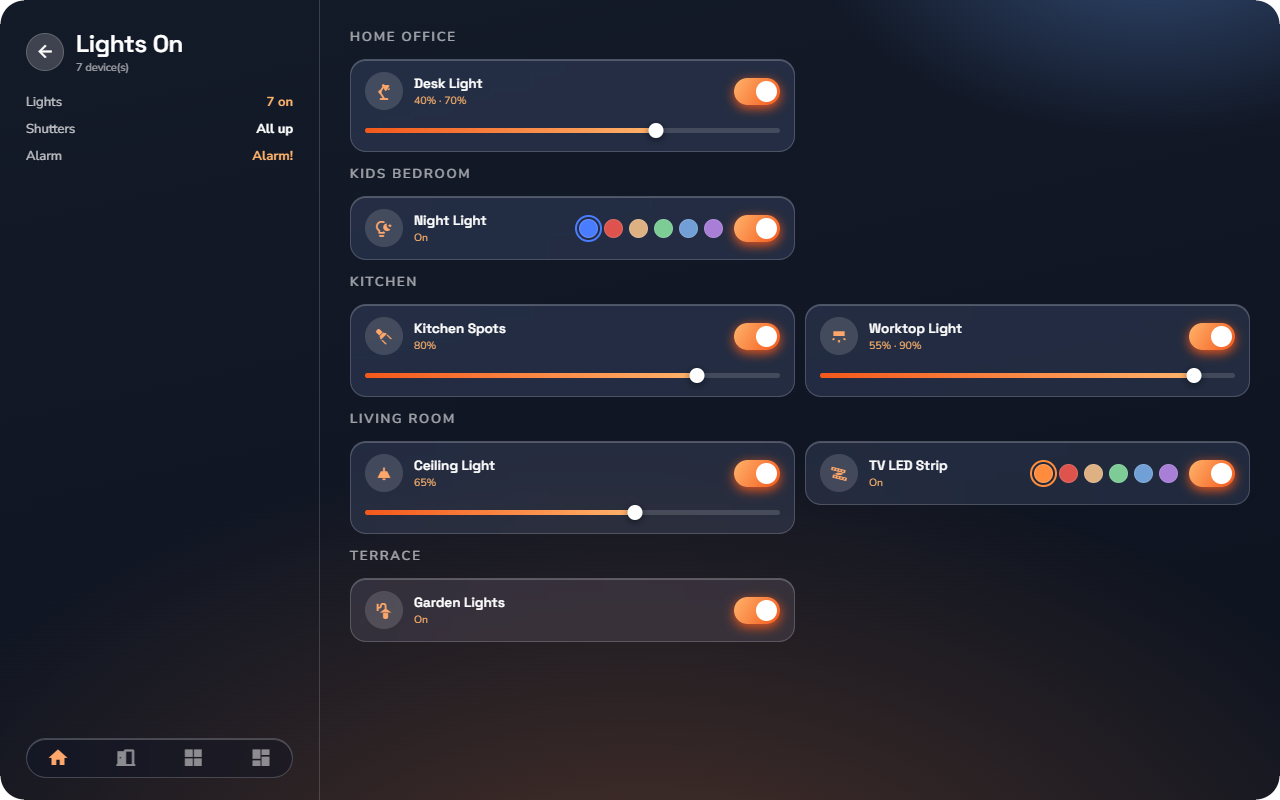
- Devices are grouped by the room they are in.
- Every row is a live control: switch a light off right from the list.
- The list is a snapshot of the moment you opened it — a device you switch off shows "off" but stays on screen until you open the list again, so nothing disappears under your finger.
Categories
Categories are the second way to slice the house: instead of "everything in the kitchen", you get "all the lighting", "all the shutters", "all the heating". The pages work exactly like the room pages — same toggles, same gestures — so there is nothing new to learn.
Which categories exist is decided by your administrator. A typical installation starts with Lighting, Shutters, Heating, Sockets, Scenes, Energy and Security, but they can be renamed, removed or extended (see “Building Structure & Categories”).
Rooms and categories — the same grammar
| Rooms | Categories | |
|---|---|---|
| Grouped by | Floor (collapsible sections) | — (one flat list) |
| Filter | Floor filter chips | None — a category spans the whole house |
| Device page grouped by | Category | Room |
| List / Tiles toggle | Yes | Yes |
| Long-press to pin | Yes | Yes |
| Global commands | Per room, if enabled | Per category, if enabled |
The all-categories page
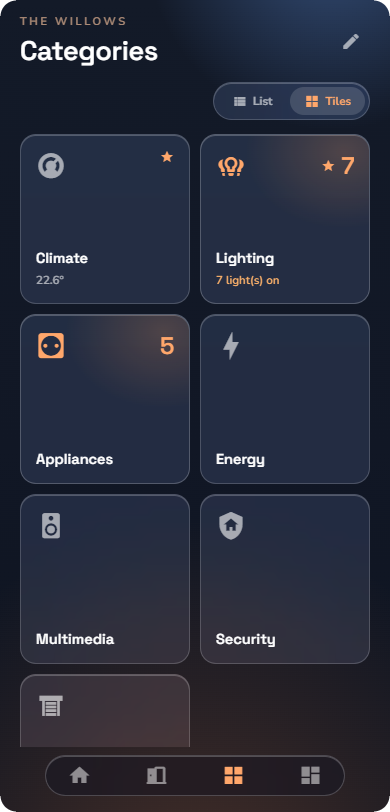
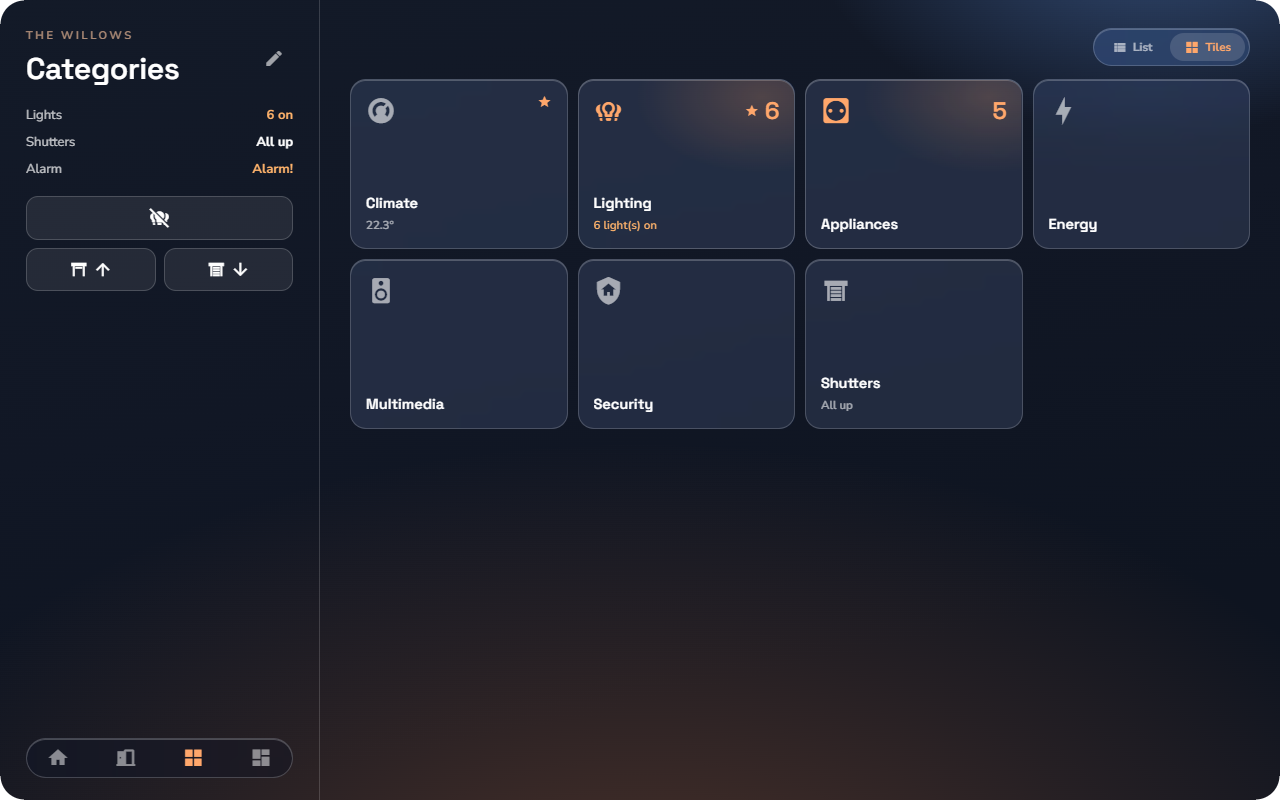
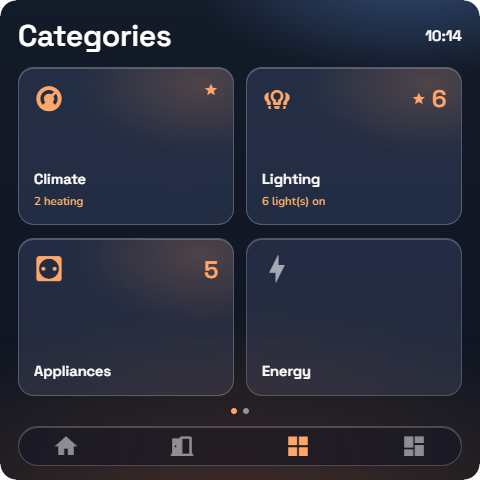
- List or tiles — the List / Tiles toggle at the top; also in Settings → Page style (see “App Settings & Personalization”).
- Order — your favourite categories come first, then the rest alphabetically (see “App Settings & Personalization”).
- Live status — each category shows its own counts (how many lights on, shutters closed, …).
- Long-press a category to pin or unpin it as a favourite.
A category's page
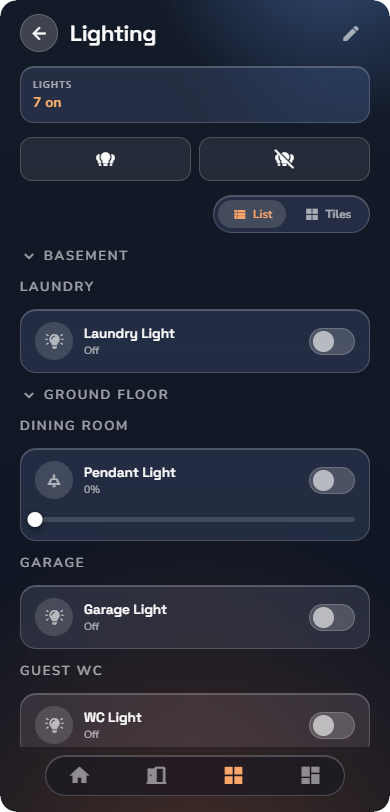
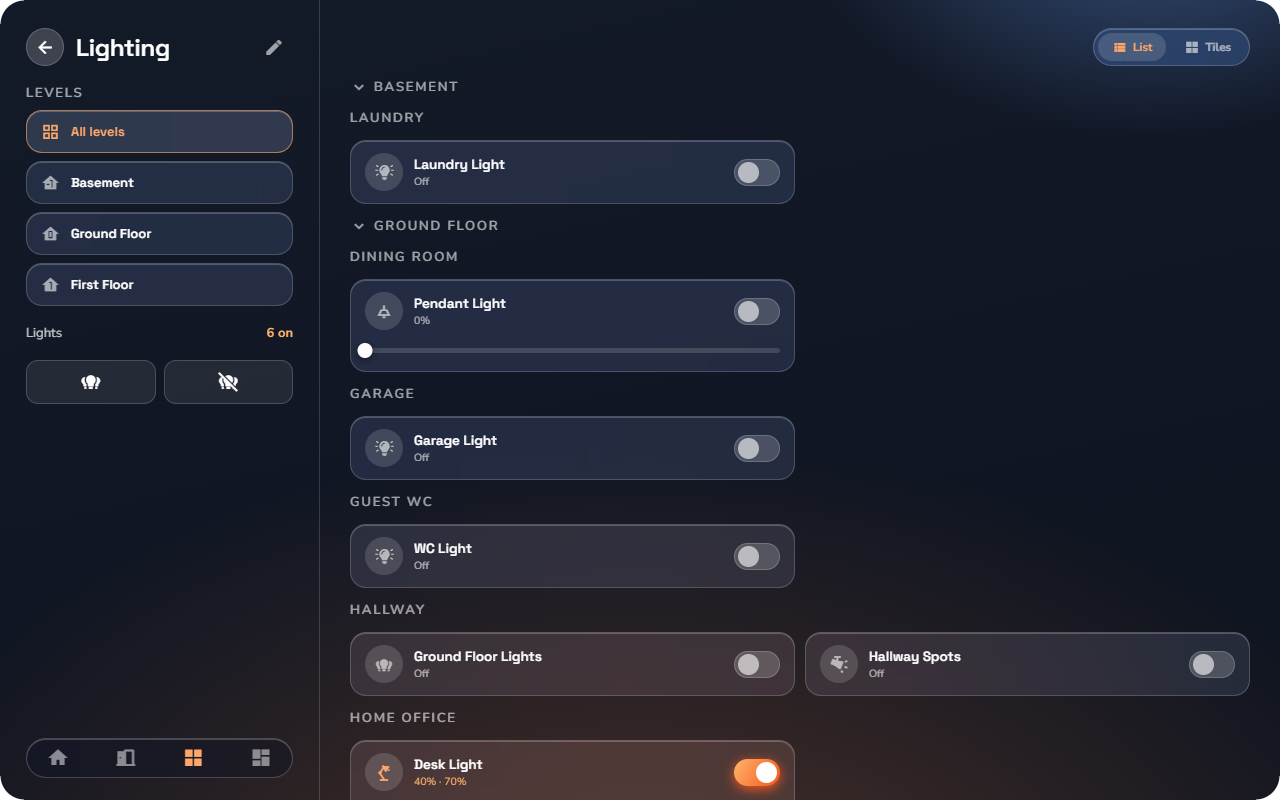
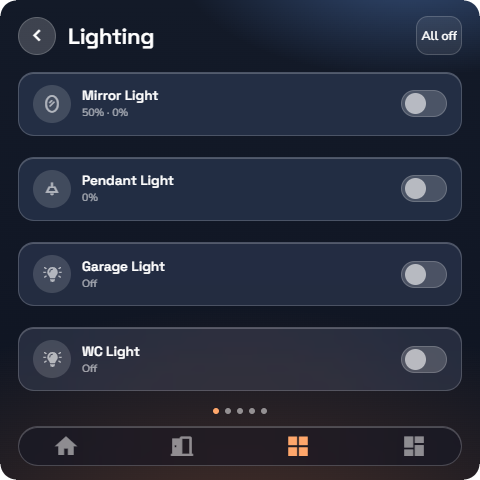
A category page shows, from top to bottom:
- The category's name and live summary.
- The category's global commands — all on, all off, shutters up / down — when the administrator enabled them for this category (see “Global Commands”).
- The category's devices, grouped by room, as rows or tiles (List / Tiles toggle).
Tapping a lights count here opens the same "what is on" drill-down as everywhere else.
💡 Tip: Categories shine for sweeping actions — "shutters down" on the Shutters category page reaches every shutter in the house in one tap, wherever it is.