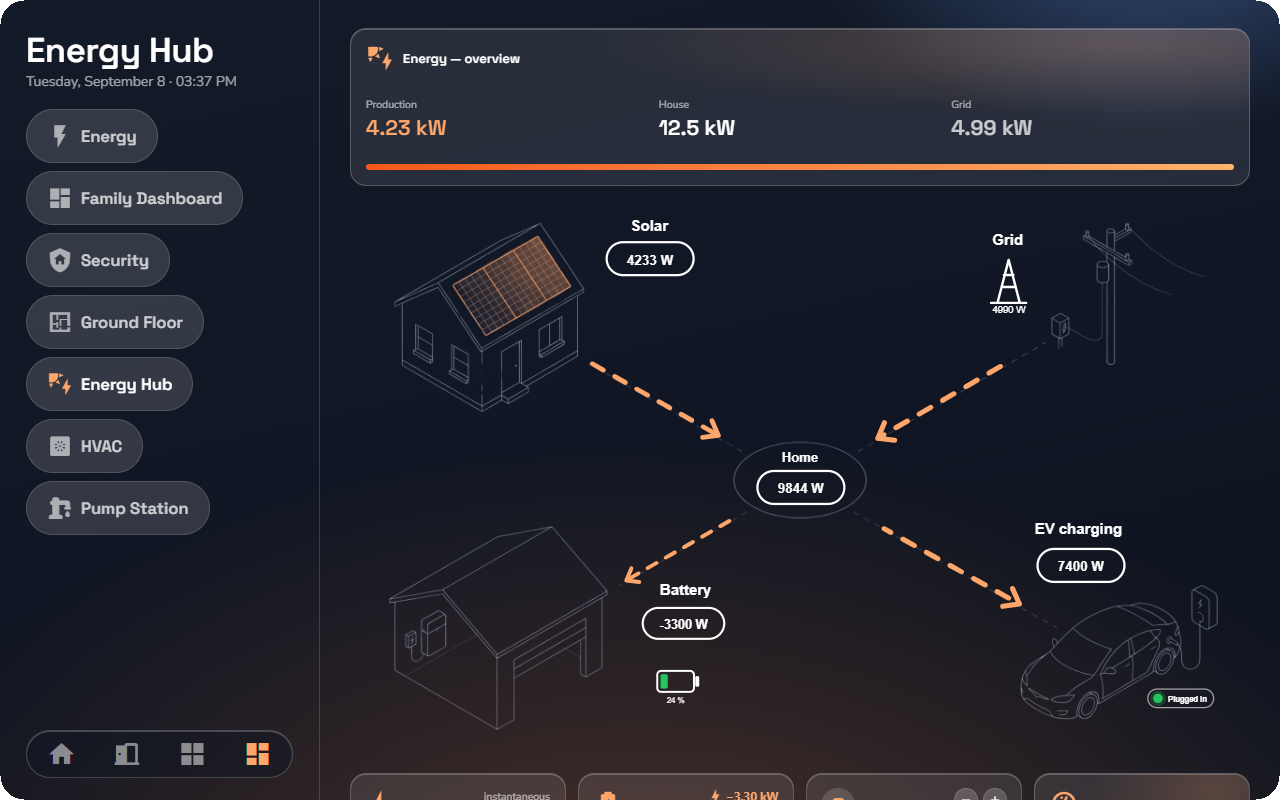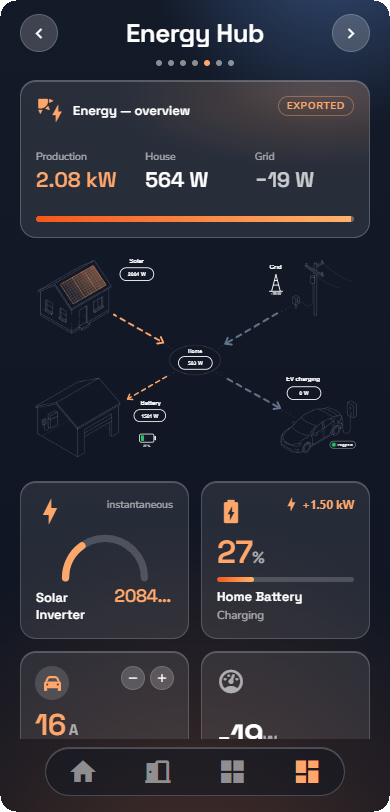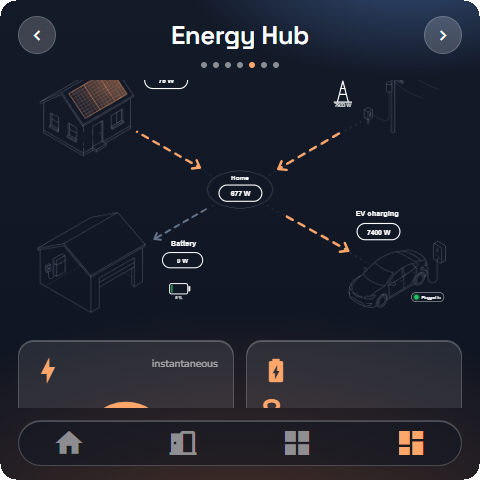
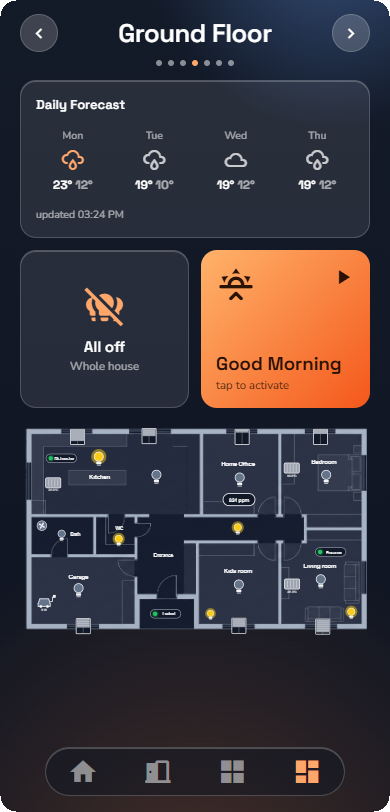
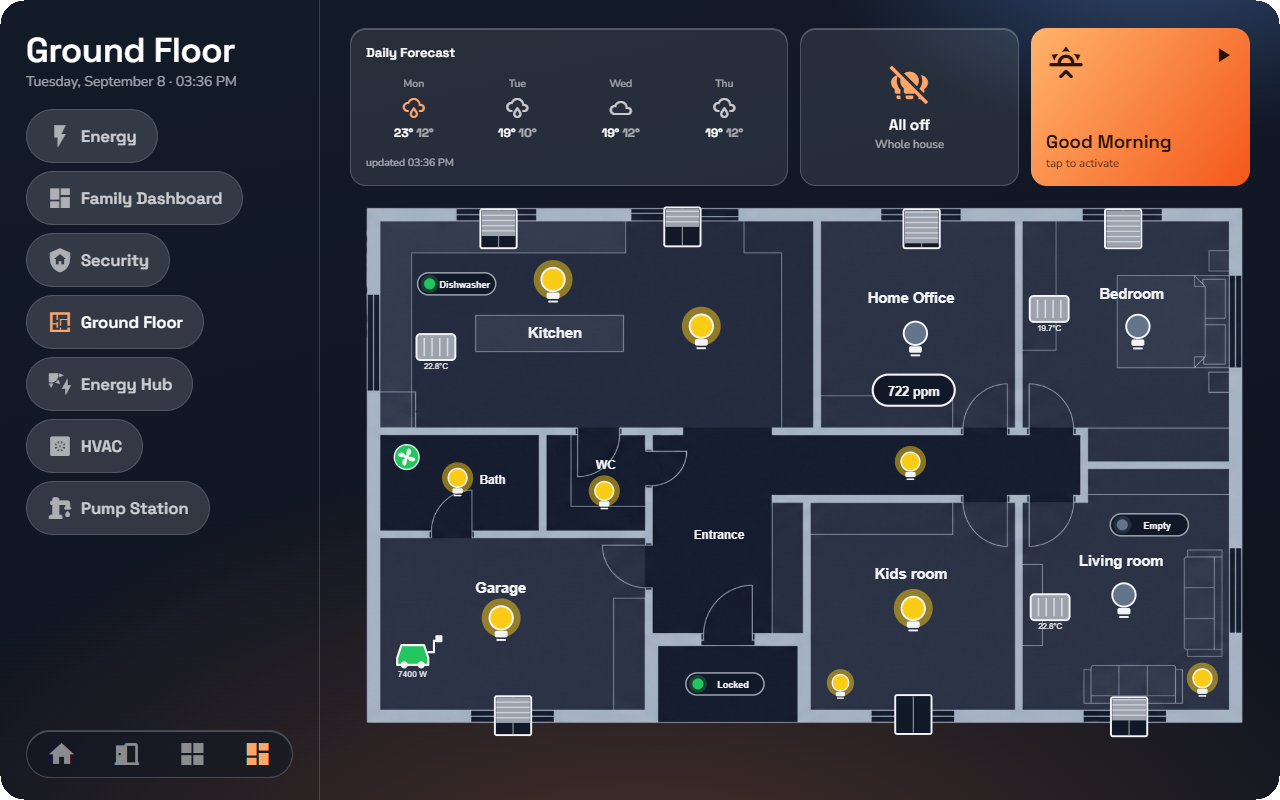
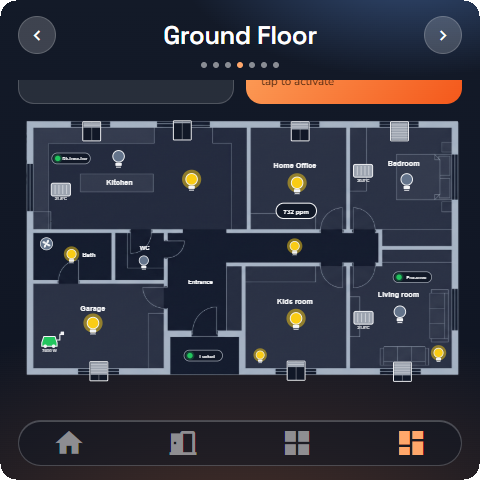
A graphic is a live drawing the installer prepares in the admin panel (see “Graphics — Live Drawings for Views”): a picture of your home with the lights and shutters on it, a heating diagram with pumps and temperatures, an energy flow with the solar, battery and car, a security plan with every door contact. On a view it behaves like any other card, with two differences: its figures and colours follow the installation in real time, and its symbols can be tapped.
Placing a graphic
- Open the view editor (see “Custom Views”) and tap Add to the view.
- Choose Graphic and pick one of the graphics the installer published. The card takes the graphic's own name; if the installer renames it, the card follows.
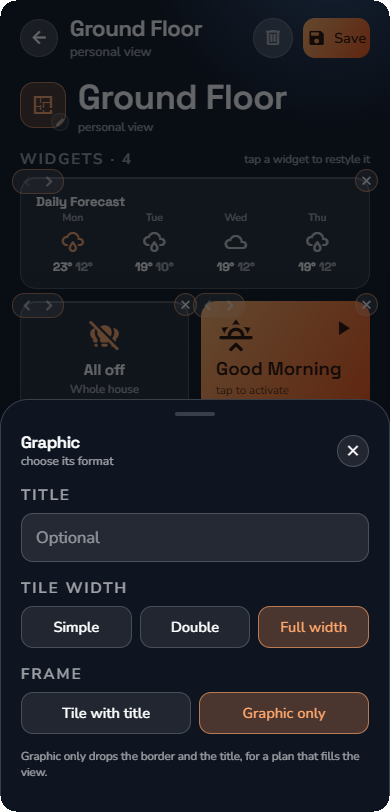
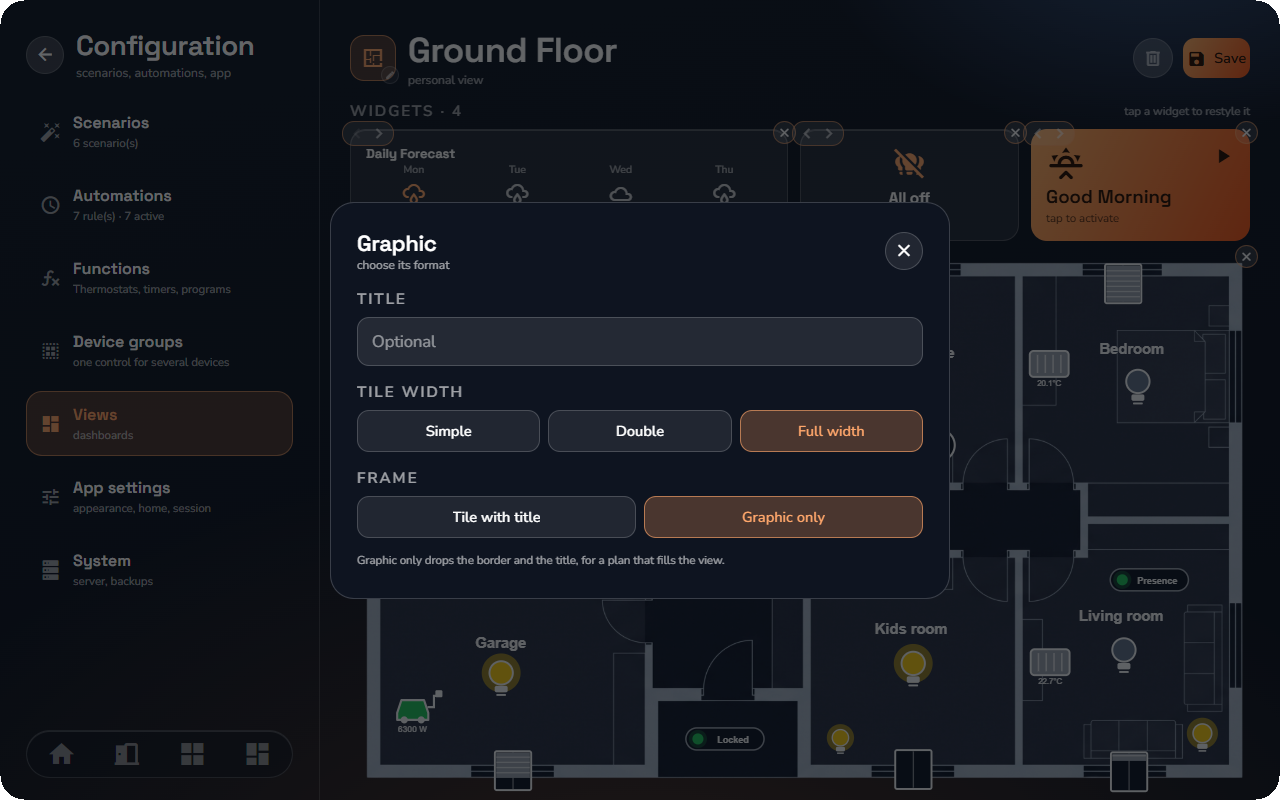
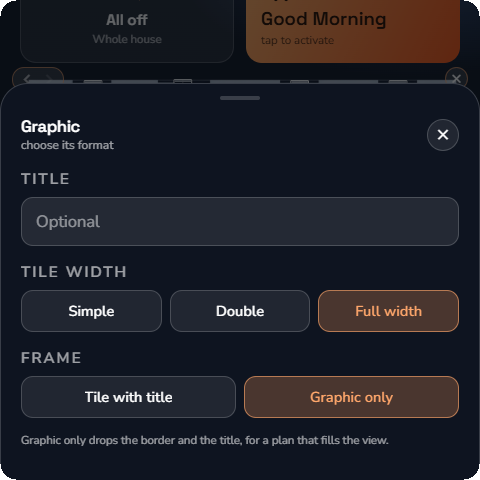
- Tap the card to open its options:
| Option | Choices | Effect |
|---|---|---|
| Title | free text | Replaces the graphic's name on the card |
| Tile width | Simple, Double, Full width | The card keeps the drawing's proportions, so a wider card is also a taller one |
| Frame | Tile with title, Graphic only | Graphic only drops the border and the title, for a drawing that fills the view |
Finally, tap Save.
⚠️ Warning: A saved graphic on a view is a live control. Whoever opens the view and has access to the devices operates them from the drawing — a tap on a lamp switches the real light, with no confirmation unless the installer asked for one. Think about who can open the view before you place a graphic on it.
💡 Tip: A picture of your home looks best at Full width with the frame set to Graphic only; a small logo or a gauge-like drawing sits well as a Simple tile beside your other cards.
Reading a graphic
Everything the installer bound moves on its own: a lamp lights up when the light is on, a shutter's cover follows its position, a value pill shows the reading with its unit, a pump spins while it runs, a flow arrow runs faster with more power and turns around when the power changes direction, a status dot turns red when a door opens. There is nothing to refresh.
If the app loses the server, the graphic shows Reconnecting… until the connection is back.
Tapping a graphic
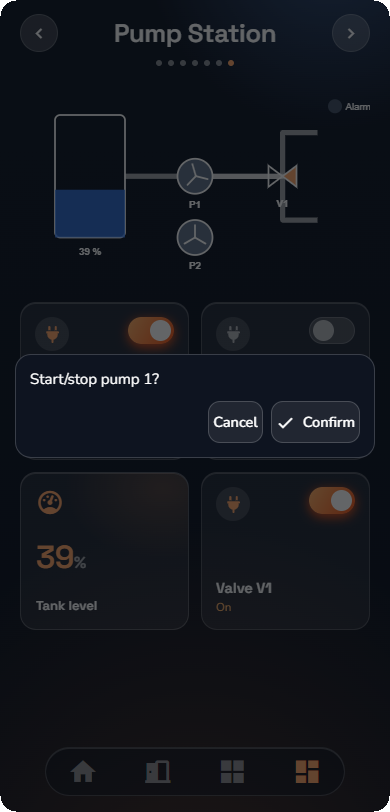
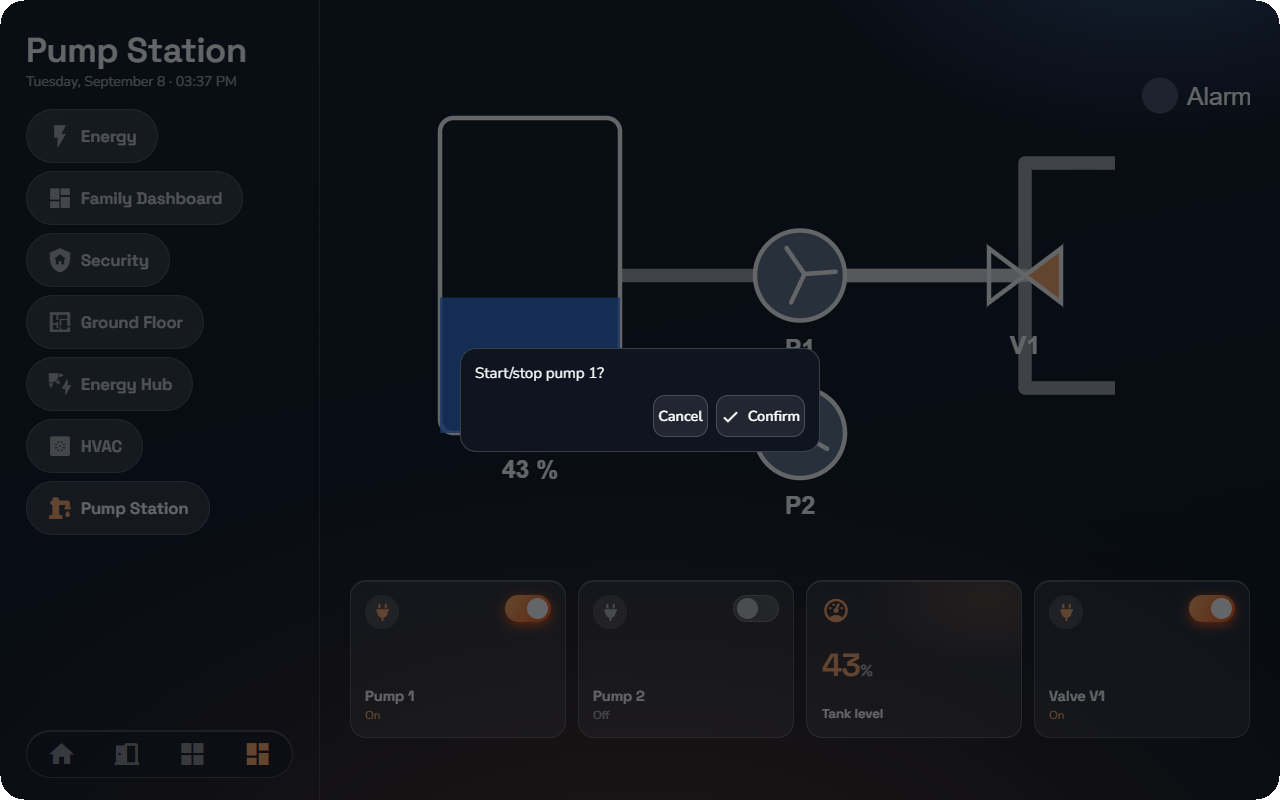
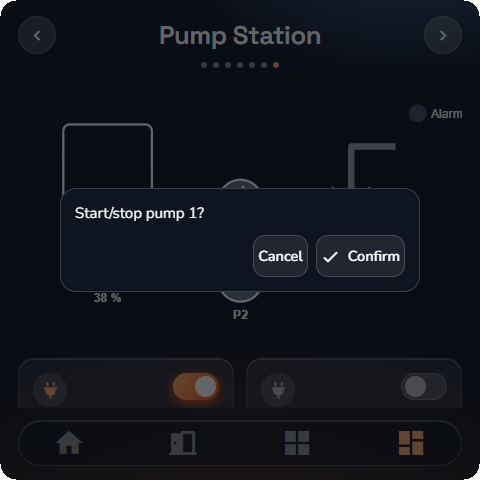
The installer decides what each symbol does when tapped, double-tapped or long-pressed. Typical actions: toggle the light, open the device's room or its detail page, run a scenario, switch every light of a room off, jump to another view, a room or a category. A picture of your home can also carry invisible areas: tap a room on the drawing and its page opens. When the installer has asked for a confirmation, a dialog shows the question first; tap Confirm to run it or Cancel to leave things as they are.
📘 Note: You only see and control what your account may access. A symbol bound to a device outside your rooms or categories stays a plain drawing: it shows no value and reacts to no tap.