
Before you can control anything, the app must connect to your HyperVisu server and you must sign in with your personal account.
What you need: the server's IP address (at home) or its serial number, and the username and password your administrator created for you.
The Connect screen
The Connect screen appears the first time you open the app, and again whenever you disconnect from a server.
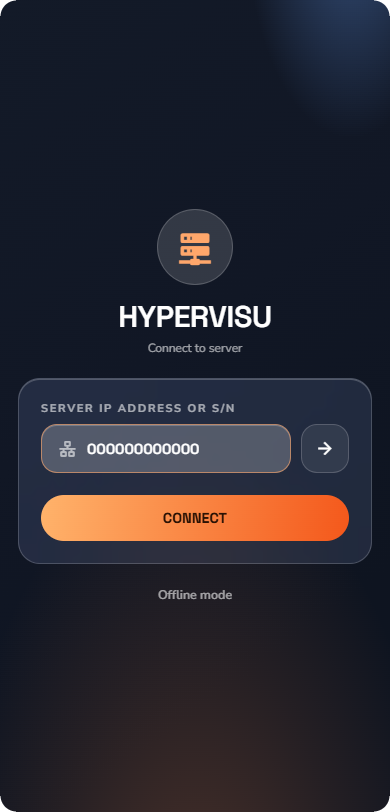
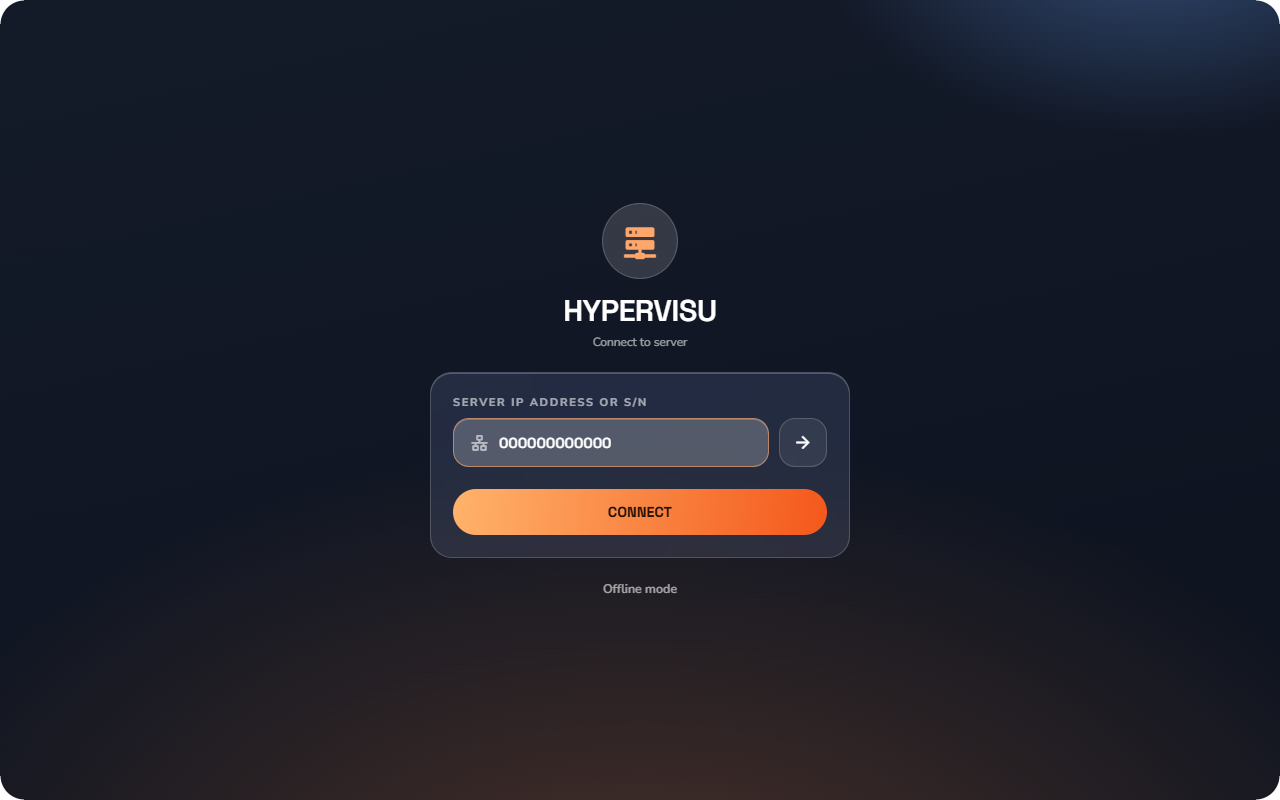
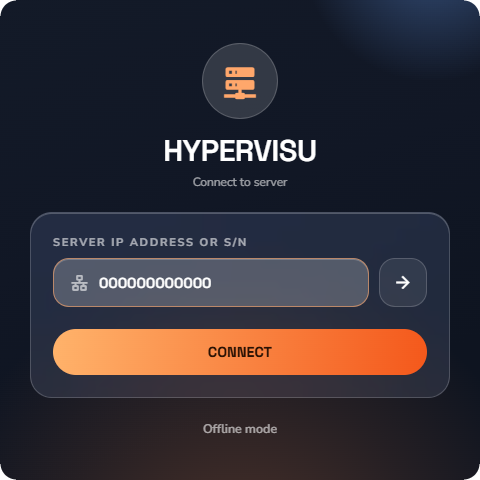
- Tap the Server IP address or S/N field.
- Enter your server's IP address (for example
192.168.1.42) or its serial number. - Tap CONNECT (or the arrow button next to the field).
The app resolves the best route by itself:
- If the address you typed matches your server's cloud address, the app connects through the Elausys Cloud Service (works from anywhere).
- Otherwise it connects locally over your home network.
- If the first attempt fails (for example you typed the local IP but you are away from home), the app automatically falls back to the cloud route before giving up.
📘 Note: The app remembers the last server you used. On the next launch it reconnects automatically and pre-fills the address field if it needs your help.
💡 Tip: Offline mode opens the app with demo data and no server. Use it to explore the app before your system is set up. Nothing you do in demo mode reaches a real installation.
Signing in
After a successful connection, the Sign in to HyperVisu screen opens.
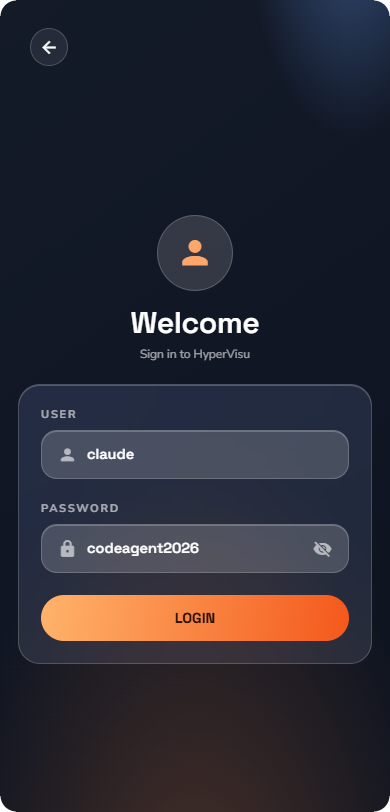
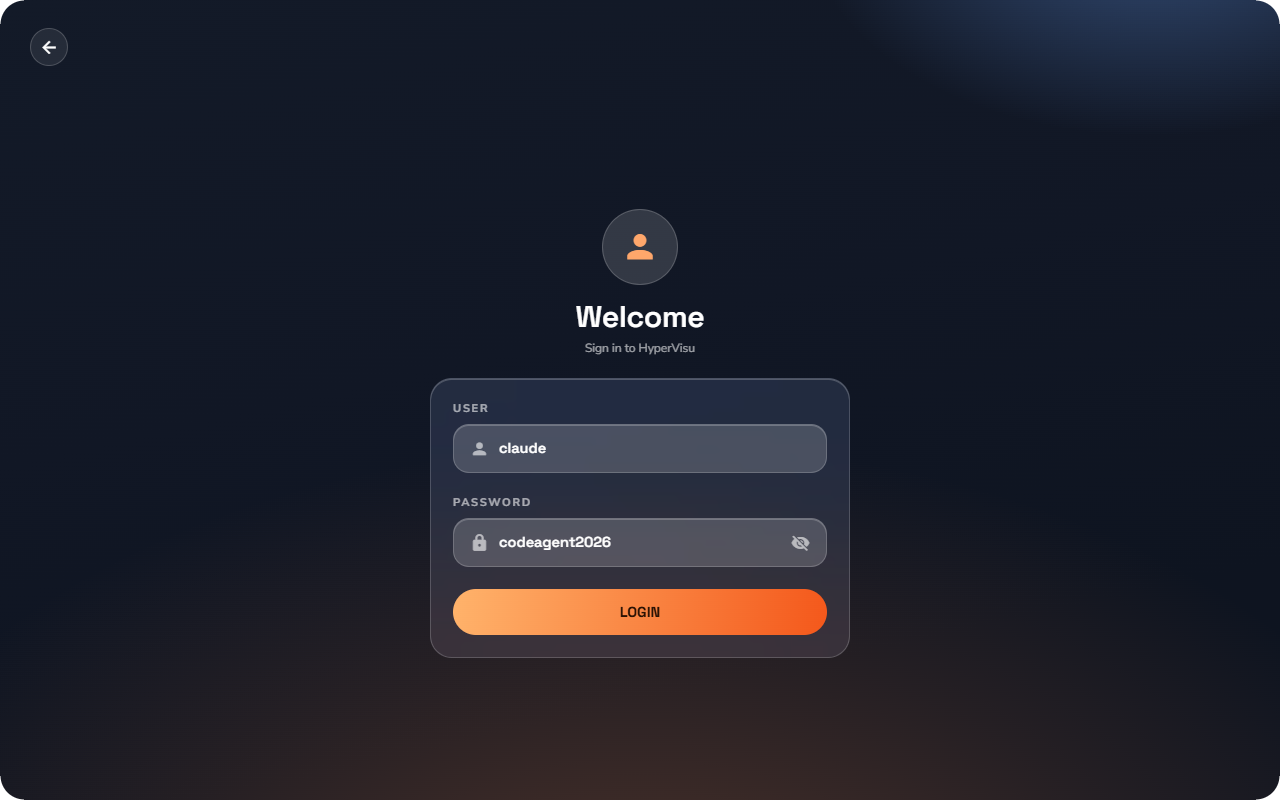
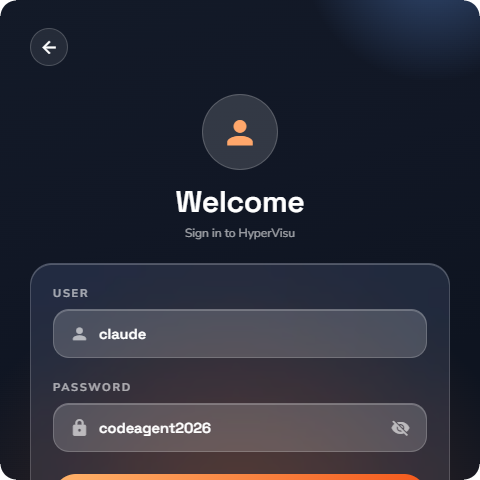
- Enter your User name and Password.
- Tap the eye icon if you want to check what you typed.
- Tap LOGIN.
The app then loads your installation: rooms, categories, devices, scenarios, automations and the current state of every device. When loading finishes, the home screen opens.
- The app stores your credentials and signs you in automatically on the next launch.
- The back arrow in the top-left corner cancels the sign-in and returns you to the Connect screen.
Log out vs Disconnect
Both actions live in Settings → Session (see “App Settings & Personalization”):
| Action | What it does |
|---|---|
| Logout | Signs you out but stays connected to the server. Use it on a shared device so another family member can sign in. |
| Disconnect | Leaves the server completely and clears the server's data from the app. Use it to switch to a different HyperVisu server. |
To switch servers: tap Disconnect, then enter the other server's address on the Connect screen.
When the app or server is outdated
The server declares a minimum app version. If your app is older, a notice appears on the home screen: "A newer version of the application is required. Please update your app from the app store!" Update the app, then reopen it. You can check the exact versions on the System page (see “App Settings & Personalization”).