Administrators can rename rooms, categories and devices — and change their icons — right from the app, without opening the admin panel. Handy when you notice "Lamp 3" should be "Reading lamp" while sitting on the sofa.
What you need: an account with access level 5. Other accounts never see the edit controls.
Edit mode
- Open a Rooms, Categories, room or category page.
- Tap the pencil in the page header. The page enters edit mode and shows the hint: "Edit mode — tap an item to change its name or icon."
- Tap any room, category or device. A dialog opens with its name and an icon picker.
- Change what you need and save.
- Tap the pencil again to leave edit mode.
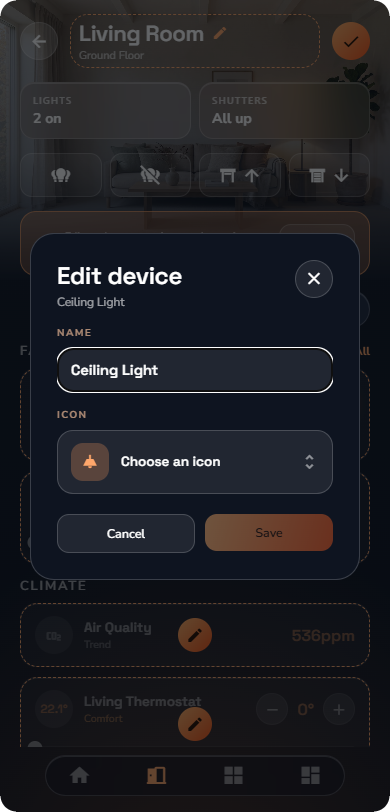
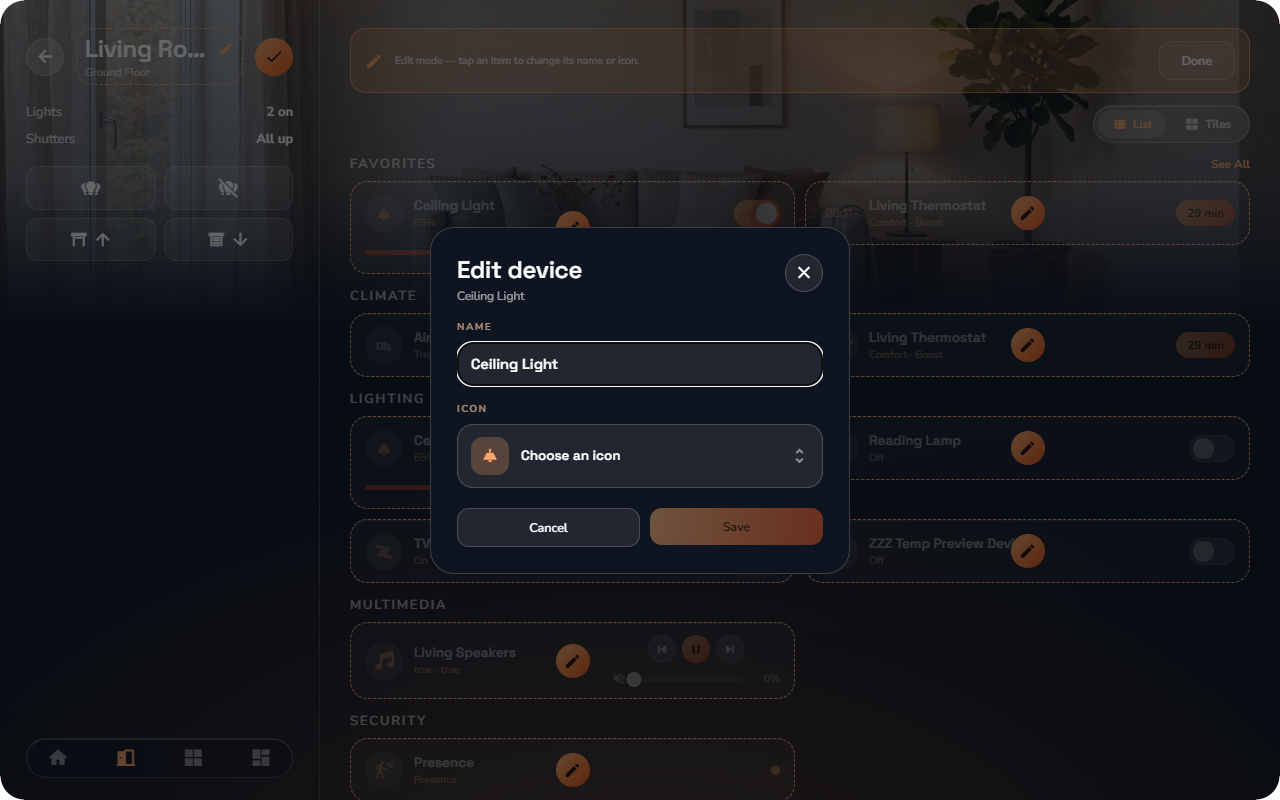
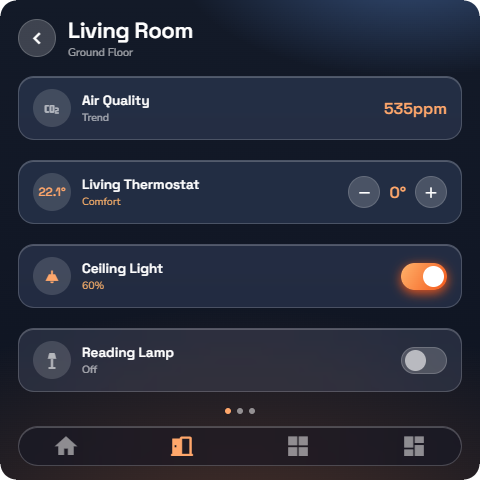
While edit mode is on, tapping means "edit" — devices do not switch. This is exactly why it is a mode: the cards are live controls, and long-press is already the pin gesture, so editing needs the taps to itself. Leave the mode and everything behaves normally again.
📘 Note: On a shared tablet, edit mode closes by itself if a non-administrator signs in — a page never quietly keeps accepting edits after the admin has left.
Changes are live everywhere
A rename lands immediately on every connected phone, tablet and wall panel, and in the admin panel — no refresh needed. Edits made in the admin panel appear in the app the same way.
What you can edit, and what stays in the admin panel
| From the app (edit mode) | Admin panel only |
|---|---|
| Room name and icon | Creating or deleting rooms, floors, room photos |
| Category name and icon | Creating or deleting categories, global command flags |
| Device name and icon | Device type, protocol bindings, communication objects |
| — | Access levels and per-user restrictions |
| — | Which room or category a device belongs to |
The split is deliberate: names and icons are cosmetic and safe to fix from the sofa; everything in the right column defines what the installation is, and is not something to change by accident from a tablet on a wall — see Part IV.
💡 Tip: For heavier reorganizing, Settings → Open Administration opens the admin panel for your server in a new browser tab (see “App Settings & Personalization”) — sign in there with your admin account.