
Global commands act on many devices at once: switch every light off, send every shutter up. They appear as icon buttons — the object plus the action, in the same style everywhere.
House commands vs room/category commands
| Scope | Where | Commands |
|---|---|---|
| The whole house | Home screen quick actions, the Rooms and Categories pages | All lights off · shutters up · shutters down |
| One room or category | The room's or category's own page | All lights on · all lights off · shutters up · shutters down |
There is deliberately no "all lights on" for the whole building — switching on every light in the house is never what anyone means. Turning everything on only exists where the subject is a single room or category.
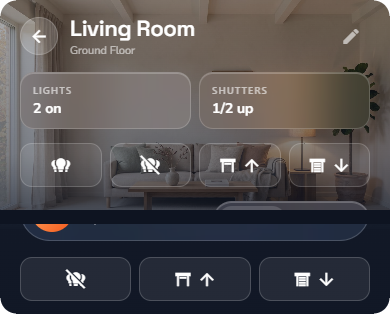
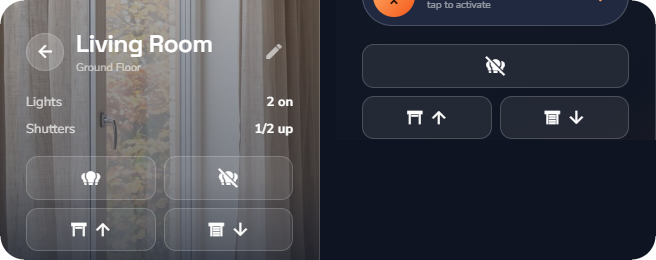
The buttons also adapt to the moment: a light command that cannot change anything is not drawn — "all off" needs at least one light on, "all on" needs one off. So the row you see reflects what is actually possible right now.
Where they appear
- Home screen — the quick actions row (house scope). Which families appear — lights, shutters, or both — is chosen in the home editor (see “App Settings & Personalization”).
- Rooms and Categories pages — house-scope buttons in the page header (phone) or the rail (tablet).
- A room or category page — that place's own buttons, including "all on".
- Views — a view can carry global command buttons as items (see “Custom Views”).
The shutter Stop button
After you send shutters up or down, the two direction buttons are replaced by a single Stop button while the shutters travel. Tap it to halt them mid-way. After a few minutes — or once you leave the page — the direction buttons return.
Who sees global commands
Global command buttons only appear when both of these are true:
- The administrator enabled the light and/or shutter commands for that room or category (see “Building Structure & Categories”).
- For the home screen only: the Quick actions switches in the home editor are on (see “App Settings & Personalization”).
A button that is missing is therefore not a fault — it was simply not enabled for that place.
Devices that do not react
The administrator can exclude individual devices from global commands (see “Alarm PIN & Global-Command Exclusions”). An excluded device ignores "all off" and the shutter sweeps but stays fully controllable on its own. If one lamp survives every "all off", this is usually why — ask your administrator before suspecting a fault.
📘 Note: Global commands go through the same live pipeline as every other action, so the affected widgets update in the app as the devices respond.