
The home screen is your landing page: a glance tells you what the house is doing, and one tap reaches the things you use most.
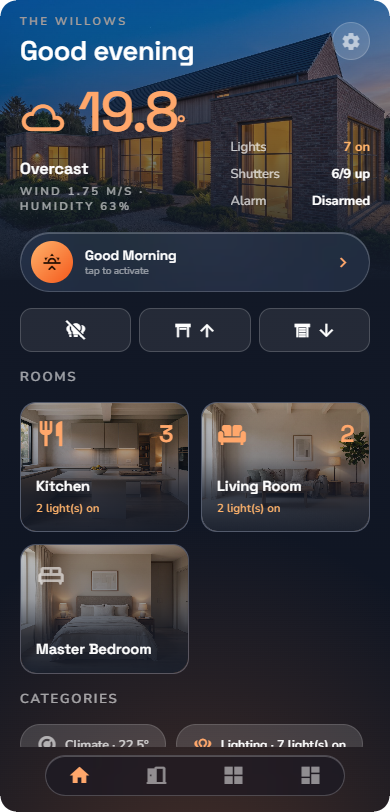
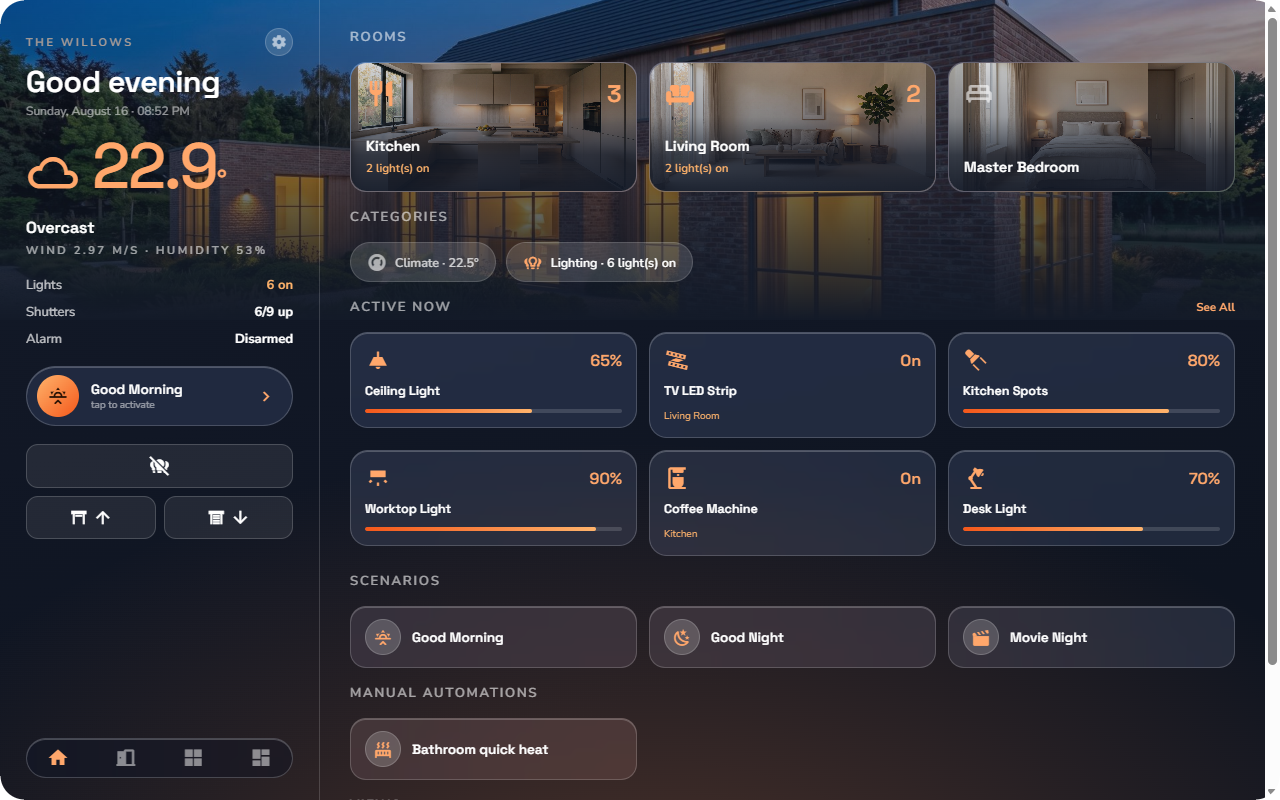
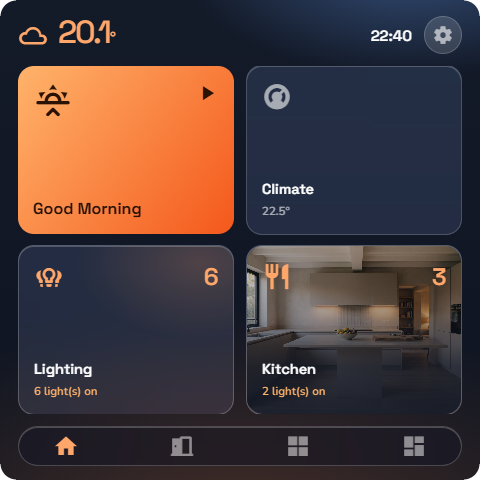
What you see, from top to bottom
- Greeting — good morning / afternoon / evening, with your name.
- Headline — the big reading at the top. By default it shows the weather; the home editor can switch it to a room's temperature, the lights-on count, or the live energy figure (see “App Settings & Personalization”).
- Summary strip — live counters for lights, shutters and the alarm. Tapping the lights counter opens the "what is on" list (see “Rooms & Categories”).
- Scene of the moment — one suggested scenario as a pill; tap to activate it.
- Quick actions — icon buttons for all lights off and shutters up / down for the whole house (see “Global Commands”).
- Rooms — a grid of up to 6 rooms with their live status. See all opens the Rooms page.
- Active now — cards for everything currently running; tap a card to open the list behind the count.
- Scenarios — shortcuts to your favourite scenes.
- Manual automations — rules with a manual trigger, ready to run with a tap.
- Categories — up to 6 category chips.
- Views — up to 3 of your dashboards (see “Custom Views”).
- Pinned widgets — the individual devices you pinned to the home.
Every section is optional — the home editor decides which sections appear and in which order (see “App Settings & Personalization”).
Getting around the app
The app has four main destinations, always one tap away in the navigation bar:
| Destination | What it holds |
|---|---|
| Home | The overview described above. |
| Rooms | Every room, grouped by floor (see “Rooms & Categories”). |
| Categories | Every category — Lighting, Shutters, Heating… (see “Rooms & Categories”). |
| Views | Built-in and personal dashboards (see “Custom Views”). |
The Configuration menu
Tap the gear icon on the home screen to open the Configuration menu:
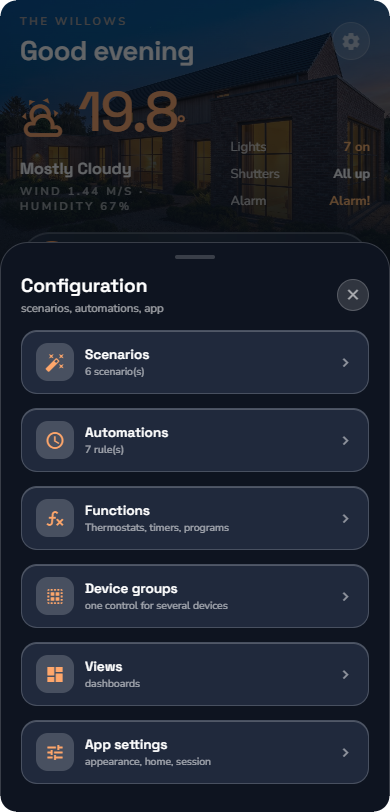
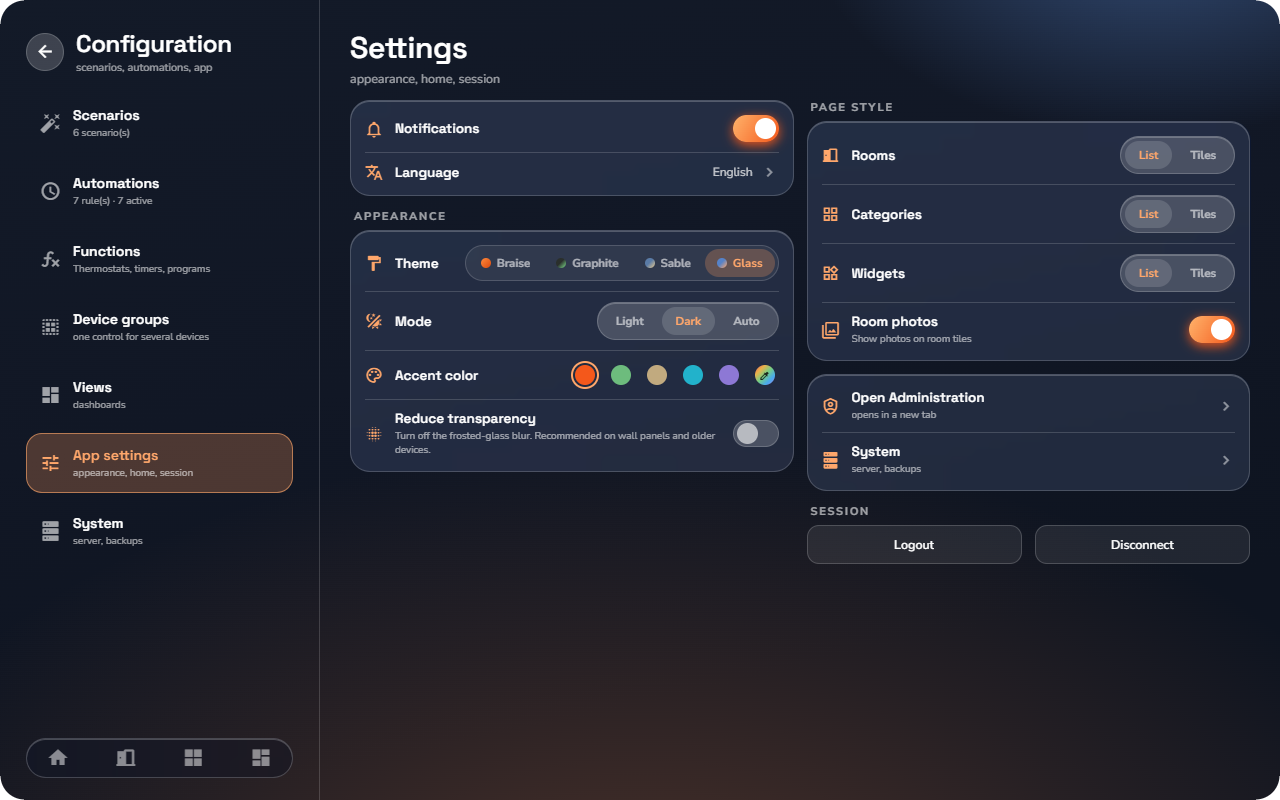
- Scenarios — create and run scenes (see “Scenarios”).
- Automations — your WHEN / IF / THEN rules (see “Automations”).
- Functions — the Logic engine's functions in plain words (see “Functions in the App”).
- Device groups — one widget that drives many (administrators only, see “Device Groups”).
- Views — the views manager (see “Custom Views”).
- App settings — appearance, language, session (see “App Settings & Personalization”). The System page is reached from there (see “App Settings & Personalization”).
📘 Note: On a tablet the same entries appear in the Configuration rail on the left, which also lists System directly (see “Tablet & Wall Panel”).