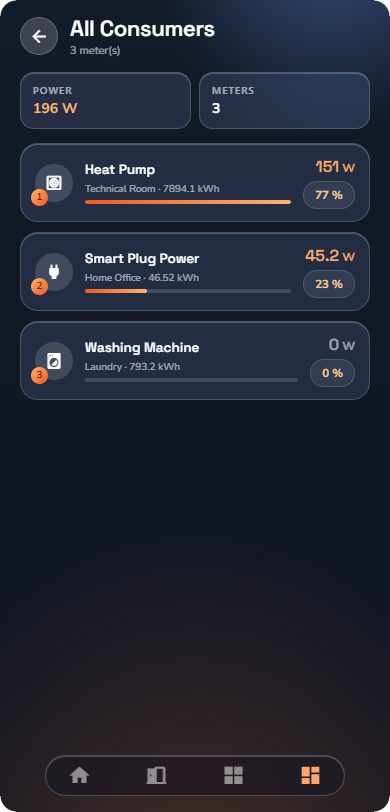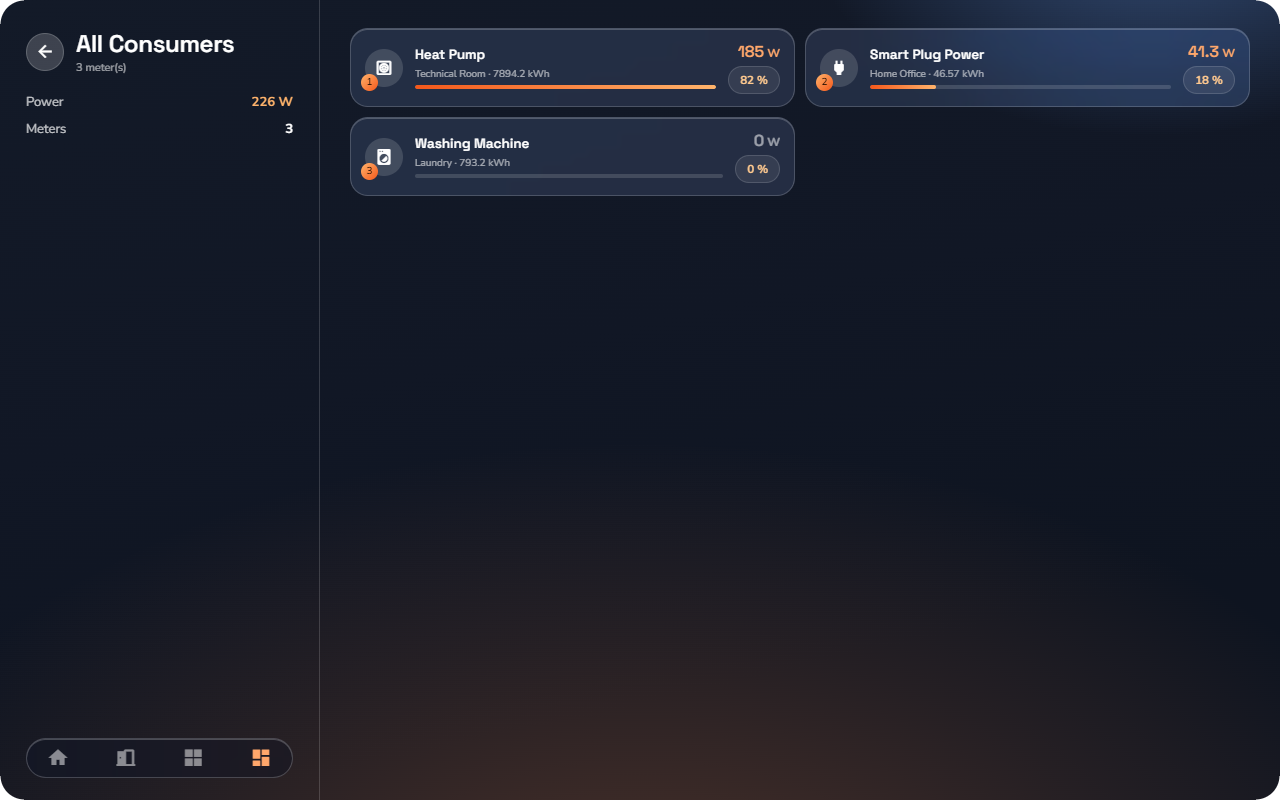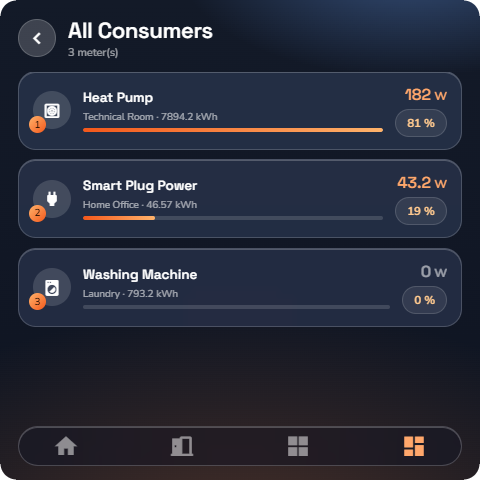
The Energy section is your live picture of the house's energy: what comes from the grid, what the solar installation produces, what charges the car and the battery, what each consumer draws — plus electricity prices. Open it from the home screen's energy reading, or from the Views tab, where Energy is a built-in view.
The Overview page
The Overview / Prices switch at the top selects the page.
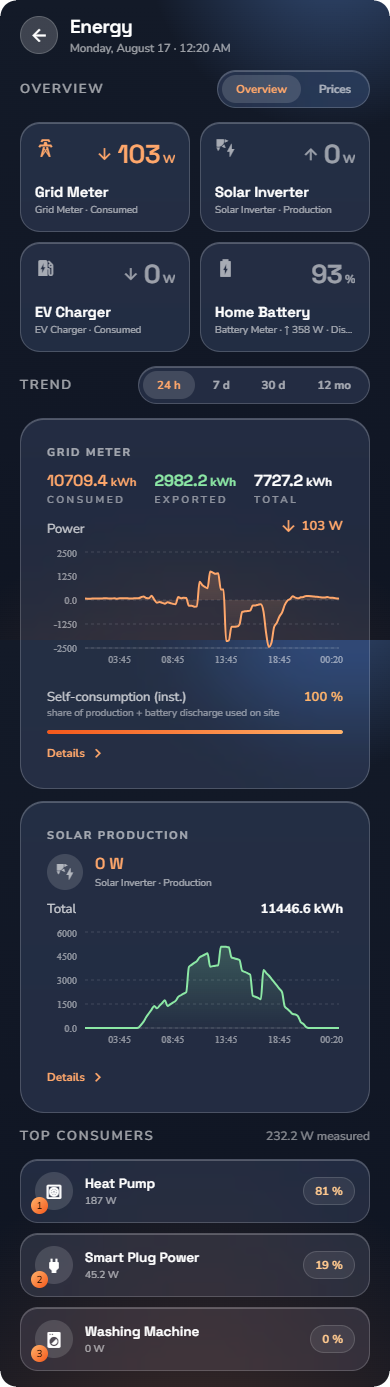
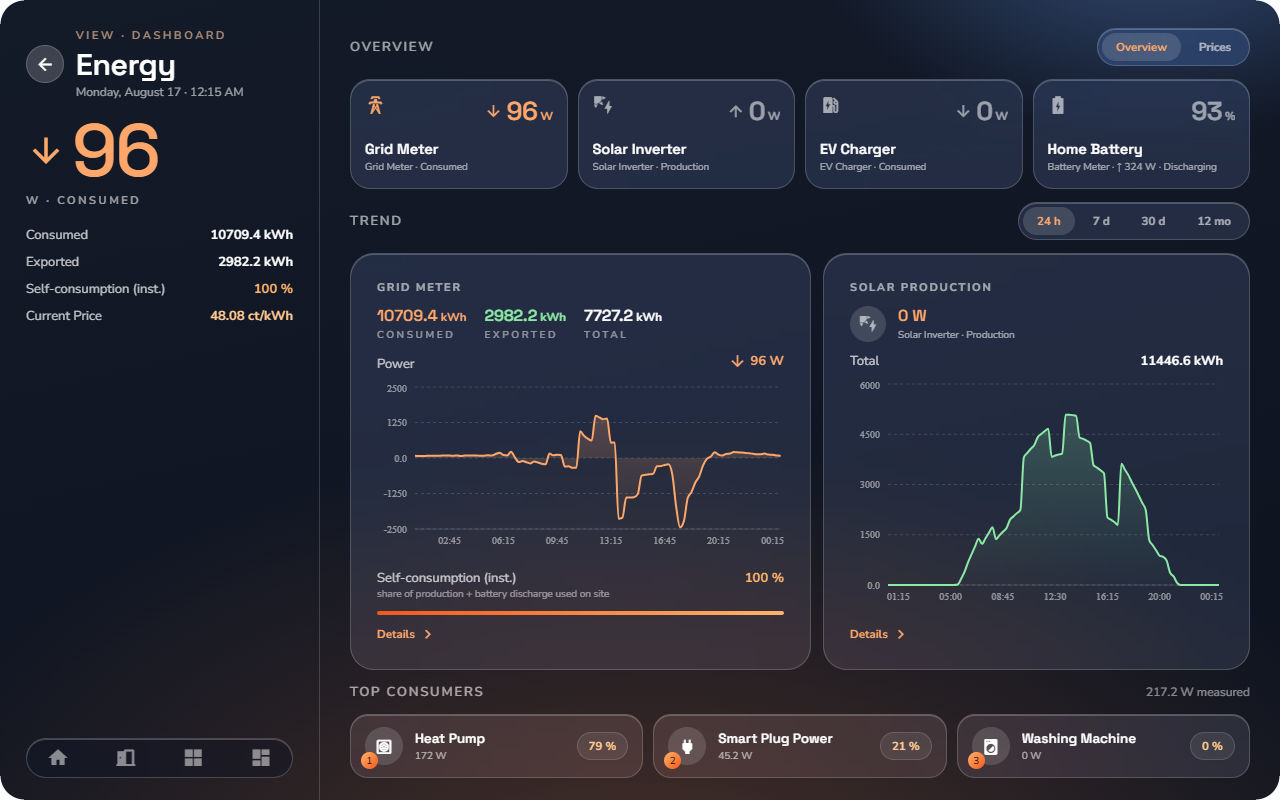
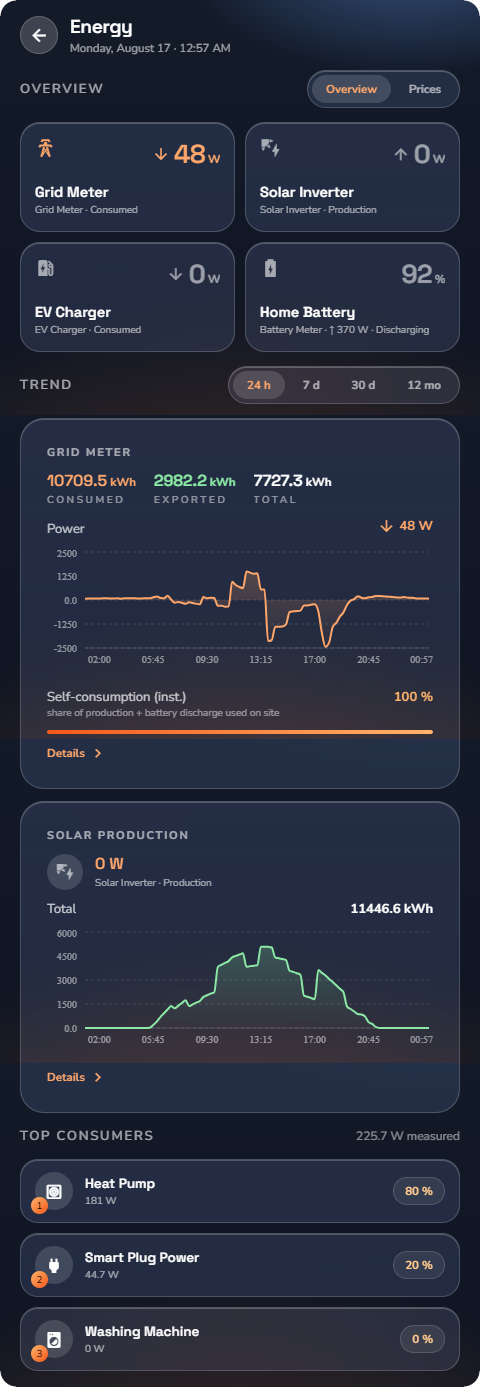
The Overview shows:
- Four role tiles — Grid Meter, Solar Inverter, EV Charger and Battery Meter — each with its live figure. Tiles appear for the roles your installation has.
- Grid and solar curves — consumed and exported energy, solar production, and the self-consumption share ("share of production used on site").
- Top consumers — the consumers ranked by what they draw right now. Tap through to see all of them.
The Prices page
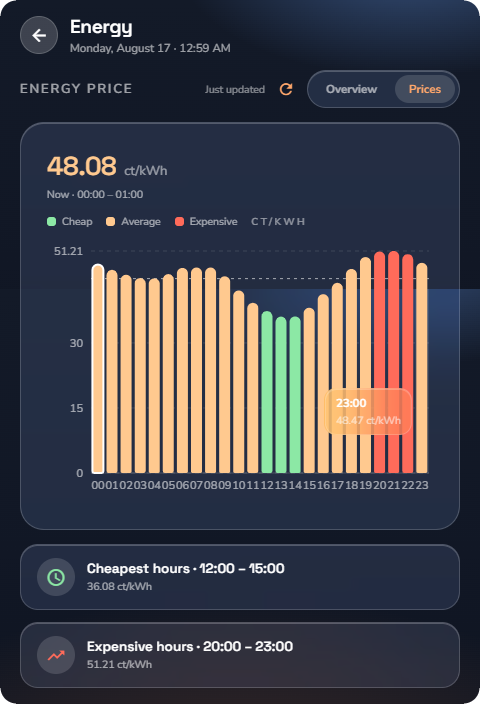
Switch to Prices. This page requires the energy price service (see “Energy Price Service”); it shows:
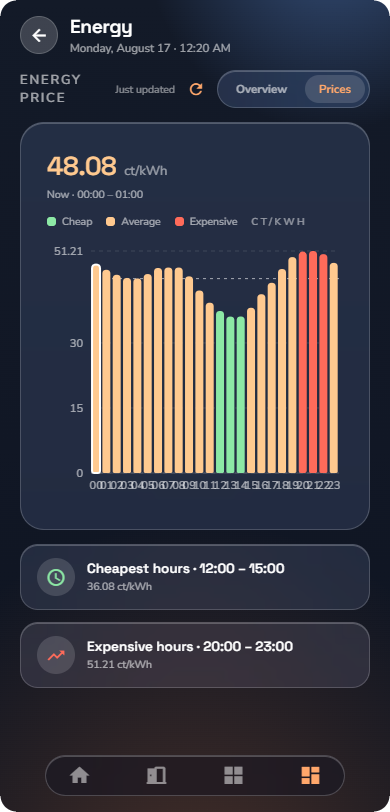
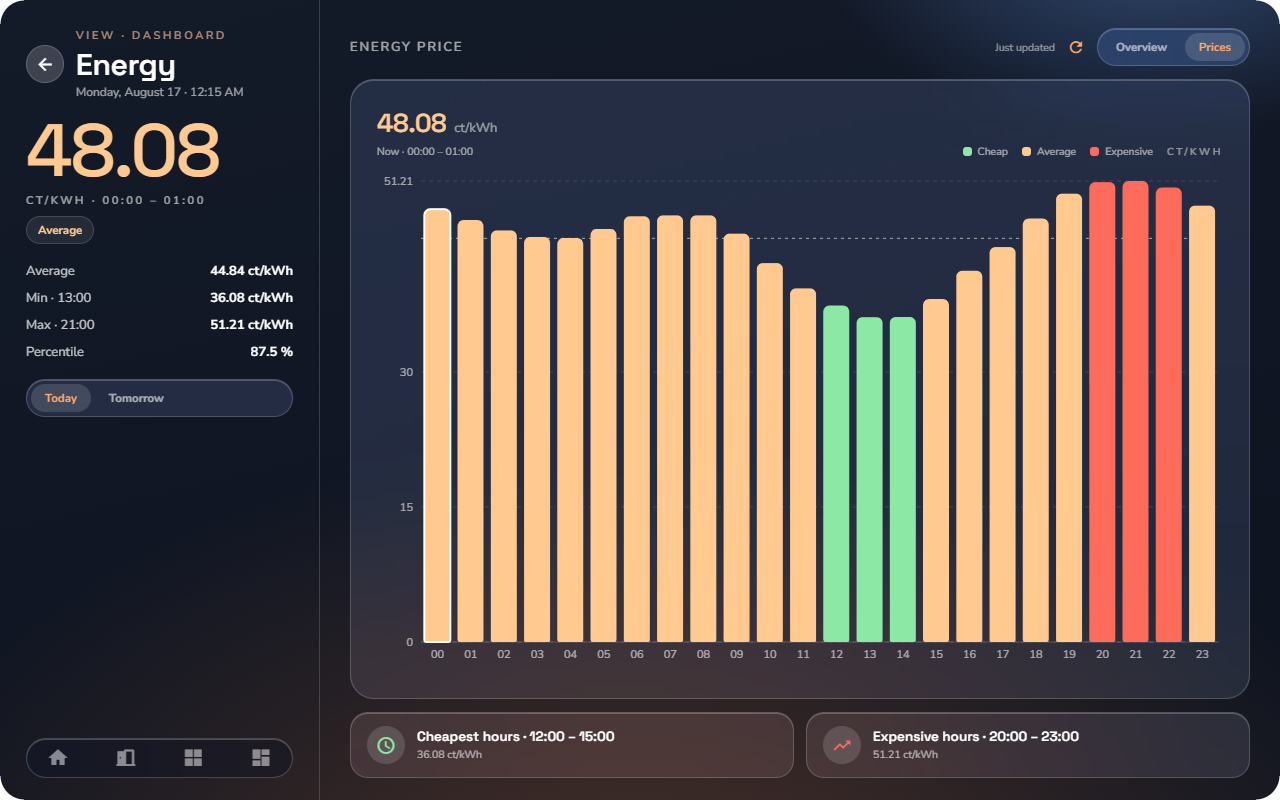
- The Current Price with its tier: Cheap, Average or Expensive. The same tier colors appear wherever prices are shown in the app, so green always means cheap.
- Today's statistics: Min, Max, Average.
- Today / Tomorrow tabs over the 24-hour tariff bars. The current hour is highlighted (Now) and the daily average is drawn as a line. Tomorrow's prices appear during the afternoon ("Prices typically available after 13:00 CET").
- The Cheapest hours and Expensive hours windows as time ranges — the best and worst moments to run heavy loads.
- The Price Breakdown: base price, transmission and distribution fees, supplier margin and VAT, down to the net price you actually pay.
Meters drill-down
Tap a role tile, or the "see all" next to Top consumers, to open the Meters page:
- All Consumers — every consumer sub-meter, ranked by live power, highest first.
- Or one role's meters (grid, solar, battery, charger) when you arrived from a tile.
Each row is live; tap one to open that meter's detail page (readings, period tabs and charts — see “Energy Meters & EV Charger”).
📘 Note: Water and gas meters, where installed, appear as meters with their own detail pages showing consumption in their own units.